How to upgrade OS X Mountain Lion to Mavericks

This video will show you how to upgrade OS X Mountain Lion to Mavericks using a USB Drive.

NOTE: You will need to create a OS X Mavericks USB drive and if you want to know how to do this you can see the video here. Before going ahead make sure you backup your data just in case anything goes wrong. You can find a video on how to do this here.

Step 1 After creating the OS X Mavericks USB drive, open up the USB drive and click on the Install OS X Mavericks installer.

Step 2 Press continue on the OS X Mavericks install screen. Click Agree and Agree again.

Step 3 Select your Hard Disk that you want to upgrade to OS X Mavericks. This should be your Main Hard Drive. Then click Install and add your password if it prompts you.
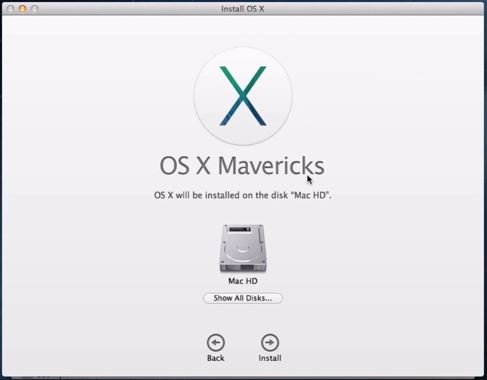
Upgrade OS X Mountain Lion to Mavericks

Step 4 Once you add in your password you will start the upgrade process. The computer will reboot when it finishes installing. This process can take 30 to 40 mins depending on the speed of your computer.

Step 5 Because this is an upgrade not a clean install of OS X Mavericks all your settings and files should be the same as you left it.

Step 6 You will be prompted for you Apple ID at the log in page. You can choose to sign in or skip this page.
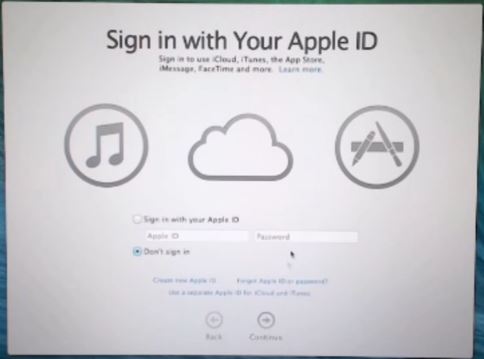
Apple ID Sign In

And once you have logged in you should now see your OS X upgrade from Mountain Lion.

If you want some more information you can find it on the Apple Upgrade page here.

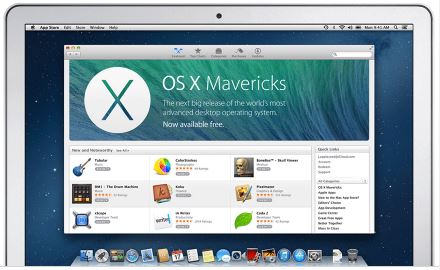
If you want to download the upgrade of OS X Mavericks you can find it in the App store here. Just remember that you will need to be running and old version of OS X to that has App Store in the Taskbar.

Good luck and feel free to ask any questions.
Cheers
Matt
How to create a bootable Windows 7 8 USB on a Mac

This video will show you how to create a bootable Windows 7 8 USB on a Mac.
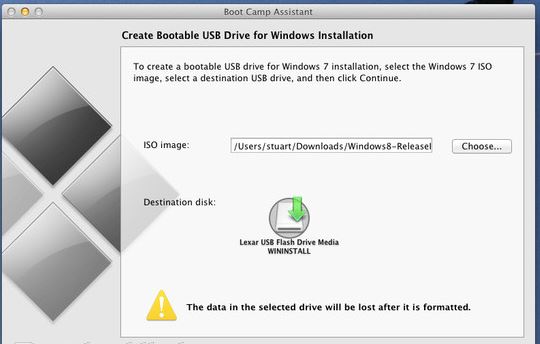
You can use the bootcamp assistant to create a bootable Windows 7 8 USB on a Mac. However the option may not be highlighted in your bootcamp assistant.
To make the option appear you can try the following steps.

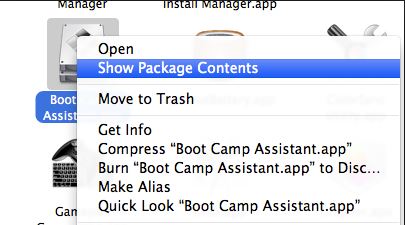
Step 1. Click on Go then Utilities. Find the Bootcamp assistant, right click on it and go to Show package contents and then go into the contents folder.

Bootcamp Assistant Show Package Contents

Step 2.Copy the info.plist file to the desktop and make a backup copy of it and open it.

Step 3. Find the line which says PreUSBbootsupportmodels and remove the Pre from the line. Try running the bootcamp assistant again and this time you should have the Create a Windows 7 or later install disc option.

Step 4 Copy the info.plist back to the contents directory. And start the bootcamp assistant again and see if the Create Bootable USB Drive for Windows installation comes up. If not try this next step.

Bootcamp assistant create bootable usb drive

Step 5 Change the USBbootsupportedmodels in the info.plist file.
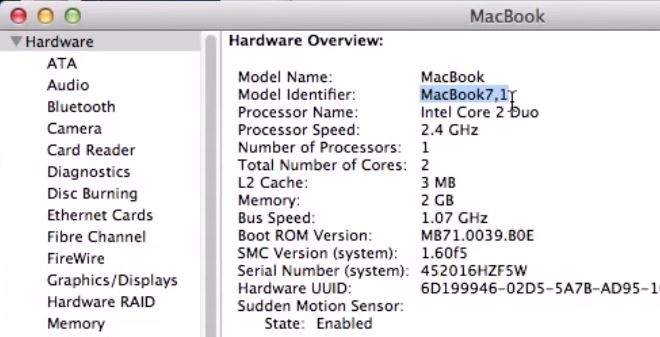
You can find the model on the Mac that you are using by going into the Apple menu then click on About This Mac and then click on More info. Next click on System report and under Hardware Overview look up Model Identifier.
In the example in the video my MacBook model was MacBook7,1.
In the info.plist file I had to change the USB supported models to my MacBook model so that I could create a Windows USB on a Mac.

Hardware Overview Mac

Hope this works guys. Feel free to leave some feedback.

Cheers
Matt

For more into you can check out Apples discussions page here.

How to upgrade Android 4.4 KitKat on Samsung Galaxy S

This video will show you how to upgrade Android 4.4 KitKat on a Samsung Galaxy S GT-I9000.

NOTE: This upgrade is for the Samsung Galaxy S GT-I9000 only. Trying this on other model may brick them. You will need to have a rooted you phone first. If you want to know how to do this you can watch the tutorial here.

Step 1. After you have rooted your phone. Go into applications and tap the CWM ClockWorkMod app to install it.

Step 2. You will need to download two files. The first one is the KitKat rom file “cm-10.2.0-galaxysmtd.zip“and the second is Google Apps “gapps-jb-20130813-signed.zip“. Both can be found on the 123 my IT downloads page here.

You can choose which versions you like from the links below. The process for installing them are the same.
For the latest build click here.
Google Apps page click here.

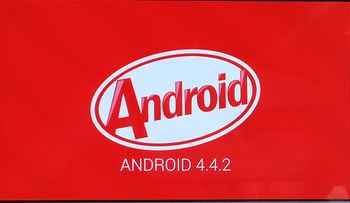
KitKat 4.4.2

Step 3. Transfer the two files you just downloaded to your phone Backup all your data, contacts, messages and SD card data.

Step 4. Power off your phone and wait until it vibrates. Once the phone is turned off, press and hold the Home, Volume up and Power buttons. The phone will then boot into recovery mode.

Step 5. Once in recovery mode, go down to the menu Wipe data / Factory Reset. Press the Power button and this step will take some time. Next Wipe cashe partition and after that go into Advanced and click wipe delvik cache.

Step 6. Time to flash the rom firmware. Go to the option install zip from SD card. Now scroll down to where you placed the two files above, cm-10.2.0-galaxysmtd.zip and gapps-kk-20140105-signed.zip.

Step 7. After KitKat installs, you will get a blue colour recovery. Then navigate to the location where you have placed the gapps-kk-20140105-signed.zip file and install it. Once its installed go back to the main menu and reboot the phone.

Step 8. The phone will now reboot. It should take around 5 to 10 mins as this is the first time Kitkat has booted so it need to setup everything.

Good luck ๐Ÿ™‚

For more info see xda-developers here.
For the latest build click here.
Google Apps page click here.

How to Resolve iOS update and restore errors in iTunes

This article and video is a step by step guide on How to Resolve iOS update and restore errors in iTunes.
So I recorded this video to try and go over all the errors that can come up in iTunes.

Some of the Symptoms you might have when restoring your iPhone, iPad, or iPod touch via iTunes are in the form of error codes and alert messages. Most of the time these errors are caused by older versions of software or problems with connectivity, connecting to the Apple servers.

To resolve these problems you can try the following.
Step 1. Update your iTunes to the latest version or even try uninstalling iTunes if your using a PC do a restart and download, reinstall iTunes. To update iTunes on a Mac go into Apple icon and click updates.
iTunes Updates

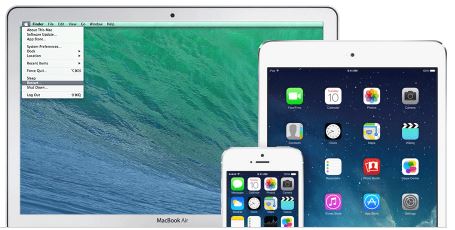
Step 2. Make sure you OS is up to date. If you are using Windows go into Control Panel and click on Windows Updates. If you are on a Mac click on Apple and then Updates.

OS Updates

Step 3.Check the Anti Virus and security software on your computer. It could be blocking the connection to the Apple servers. In Windows you can generally right click and disable software until you do a restart. And you can turn off the Windows firewall in Control Panel. On a Mac you can System preferences and security and privacy. 123myIT also has a video guide which shows you how to edit your host file on your computer.

The 3194 error video for Windows here.
The 3194 error video for a Mac can be found here.
Windows iREB video here.

This is really important if you are having issues connecting to the following Apple servers.

* Ports: 80 and 443
* Apple servers:
phobos.apple.com
deimos3.apple.com
albert.apple.com
gs.apple.com
itunes.apple.com
ax.itunes.apple.com

* Verisign servers:
evintl-ocsp.verisign.com
evsecure-ocsp.verisign.com

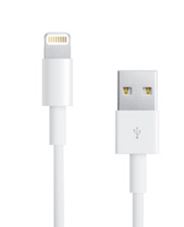
Step 4. Unplug any extra devices that don’t need to be connected to your computer. Only have your Mouse, Keyboard and iOS device connected. Try a different USB port on your computer and try a different cable and if that doesn’t work try a different computer altogether.

USB Cables

Step 5. After updating or installing software its a good idea to restart your computer. When your computer is restarting take the opportunity to restart your iOS device.

Restart Devices

Step 6. By now hopefully you know how to resolve iOS update and restore errors in iTunes. Time to try the restore again and see if you get the same error.

For more information see this Apple article here.

I hope it helps and Good luck!

How to Boot into Safe Mode on Windows 8 & 8.1

This video will show you how to Boot into Safe Mode on Windows 8 & 8.1.
If you are having problems with your PC like you have a virus and you need to clean it or your PC is crashing and you need to do some troubleshooting. You might be asked to put the PC into safe mode.

The whole idea of Safe Mode is to start your PC with only the processes that are absolutely necessary for Windows to be start. When you start Windows 8 or 8.1 in Safe Mode you will then be able to see which driver or service might be causing a problem with your PC.

So how you Boot into Safe Mode on Windows 8 or 8.1 I hear you ask?
In older versions of Windows pressing F8 when the PC was starting up would put you into Safe Mode. However in Windows 8 this has now changed. Safe Mode has been replaced by automatic recovery mode and you will need to hold down shift + F8.
If that doesn’t work for you can do the following.

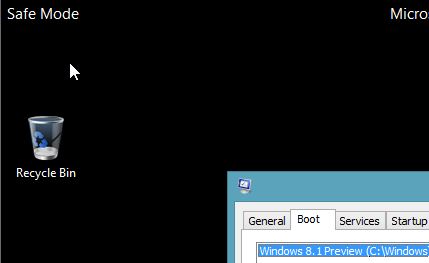
Step 1. Press your Windows key and type MSCONFIG press enter.
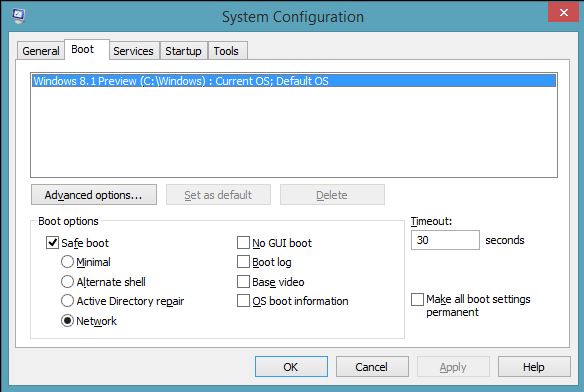
The you should see the Msconfig window pop up.

Msconfig Safe Mode

Step 2. Click on the Boot Tab across the top and then under Boot Options tick Safe Mode and choose minimal or network if you need to log onto to the internet or network. Click ok and do a restart.

Safe Mode

To turn off Safe Mode just repeat the steps and take the tick out of Safe Boot.
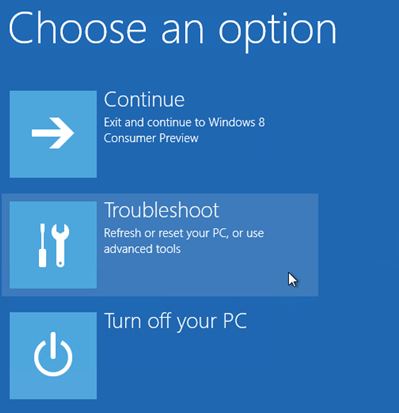
Step 3. In Windows hold down the Shift Key and press the Restart button whilst keeping the Shift key held down.

Choose an Option

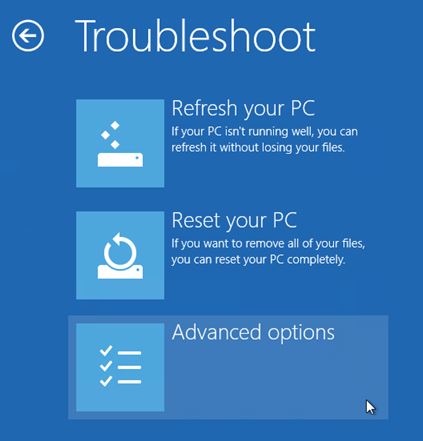
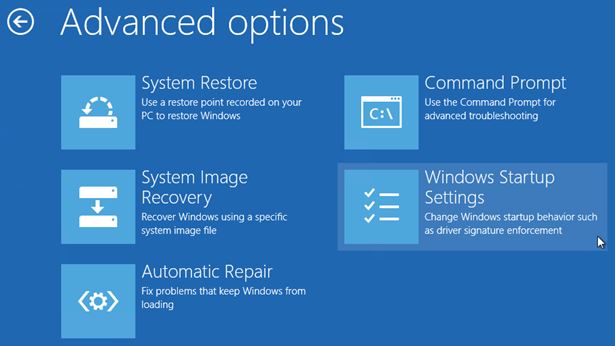
Step 4. Click troubleshoot and go into Advanced Options and then Start Up settings.

Troubleshoot Advance Options

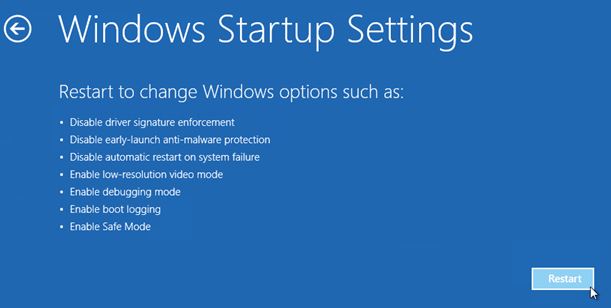
Step 5. Click on Windows Startup Settings.

Windows Startup Settings

Step 6. Click Restart.

Windows Startup Settings Restart

After restart you will have the Safe Mode options available.

For more info on how to Boot into Safe Mode on Windows 8 & 8.1 you can check out the Microsoft website here.

How to create a bootable Windows 8.1 USB

Microsoft has released Windows 8 and 8.1 in digital and physical formats. You can install the new Windows operating system by either downloading the ISO file or by a DVD. But what can you do if none of these options are suitable for your situation? You can create a bootable Windows 8.1 USB drive.

The main benefits to using a bootable Windows 8.1 USB drive is that its compatible with every device that runs Windows. You don’t need to have a DVD drive on your hardware to install it, just a USB port. Its easier to store and carry and installs times are much faster than a DVD.

So what do you need to set up the USB?

You will need the following to create a Windows 8.1 USB drive:
* A 4GB USB drive or larger;
* Windows 8.1 ISO file or DVD, you can download an ISO file from the downloads section of 123myIT website here.
* Any device that can run Windows.
* Windows product key. You can find it on the 123myIT Downloads page here.

I already have a Windows 8 Product Key, can I update it?
The answer is yes. If you own Windows 8 or Windows 8.1, you can download and install Windows by using your product key. Click here.

How do I create the Windows 8.1 USB drive from a DVD or ISO file?
After downloading the Windows 8.1 ISO follow the steps below.
1. Insert your 4GB USB drive.
2. Open the Command Prompt by pressing Windows Key + R and type “cmd” of go to Start Run and type “cmd”.
3. In the black command windows type “diskpart” and this will open the partitioning software, so that you can start to format the USB drive.
4. Run the following commands.
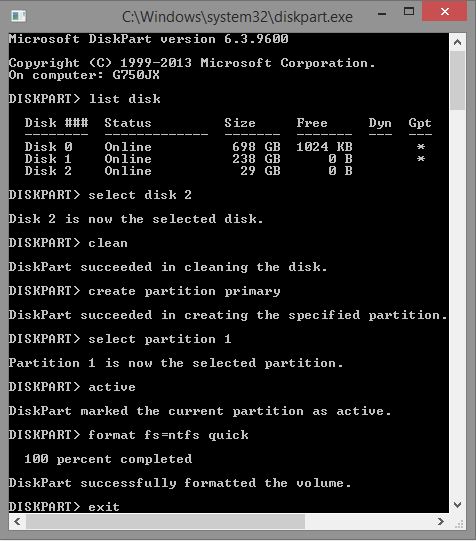
* DISKPART> list disk
“list disk shows all of the active disks on your computer”
* DISKPART> select disk #
“# represents the number for your USB flash drive”
* DISKPART> clean
“deletes any existing partitions on the USB flash drive”
* DISKPART> create partition primary
“creates a primary partition on the USB flash drive”
* DISKPART> select partition 1
“selects the partition you just created”
DISKPART> active
“makes the partition active”
DISKPART> format FS=NTFS quick
“This command will format the USB with the NTFS file system”
* DISKPART> assign
“assign a volume and drive letter to the USB drive”
DISKPART> exit
“exit Disk Partition”

Once complete your CMD or command window should look something like this.

Diskpart Commands

Copying the Windows 8.1 files from the ISO file or DVD drive to your Windows 8.1 USB drive.

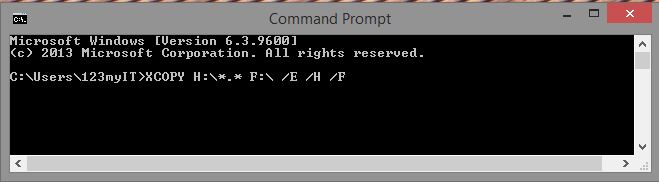
The next step is to use XCOPY to copy all the files on your ISO file or DVD to the Windows 8.1 USB drive. Use the command below to get started. Change the “H and F” drive to suit the letters of your ISO file or DVD drive and USB drive. For more info watch the video above.

XCOPY H:\*.* F:\ /E /H /F

Once you finished typing the command it should look like the screen shot below.

Xcopy Commands

And the hard part is now done. Simply plug in your bootable Windows 8.1 USB drive into any Windows PC and you will be able to boot and install Windows 8.1.

Good Luck.

How to open an ePub file in Windows

First of all you might be asking, what is an ePub file?
Well an ePub file extension is an Open Publication Structure eBook file, which is a popular eBook standard. And as eBooks are becoming more popular I thought I would share with you how you can open ePub files in Windows as there is no support built into Windows to open these files.

So If a friend send you an ePub file you may not have an application on your PC to view or edit ePubs files.

To test if you have a application to open an ePub file you can try downloading and opening the ePub file below.

Beowulf ePub

Beowulf by J. Lesslie Hall click here to download.

Ok so you have downloaded the Beowulf eBook above and you were unable to open it the next step is to find a application that will help you open the ePub files.
Below is a list of programs that will help you open an ePub file.
Adobe Digital Editions
Calibre
Stanza Desktop
Mobipocket Reader Desktop
Okular

Converting ePub files:
There are a number of ways to convert an ePub file.
* You can open the ePub file in its default program, in this case Adobe Digital Editions and save the file as another format.
* Download Calibre it is one the free applications mentioned above that allows you to convert ePub files to and from eBook formats. This is really helpful if you want to convert files to be compatible with the an Amazon Kindle.
* You can use an online file conversion service.

You will find that most PCs don’t have a “default” program to open or convert ePub files. The application Calibre motioned above is a great solution for opening and converting.

TIP: ePub files are structured exactly the same as Zip files, so if you change the .epub extension to .zip then you will be able to open the file as if it was a zip file.

How to Fix iTunes Errors 1600 1601 1602 1603 1604 & 1015

This video will show you how to Fix iTunes Errors 1600 1601 1602 1603 1604 & 1015 using a program by ih8sn0w called iREB.