
How to upgrade the firmware 2.3.6 on a Samsung Galaxy S.

This video will show you how to upgrade the firmware 2.3.6 on a Samsung Galaxy S.

WARNING: Make sure you back up your Phone before proceeding!!!!
All the data on your phone will be deleted when you do this upgrade so please make sure you take the time to backup your data.
* Backup any photos and images that you have on the phone.
* Backup your contacts list, SMS and emails.
* Backup your music and video.
* Backup your APPS and phone settings
* Backup your bookmarks and stored pages.
* Backup all your data on your SD card.

Prepare your PC and Phone for the upgrade.
* Plug your Samsung phone into your Pc and make sure that the phone drivers install correctly. You should be able to browse to the phone in explorer.
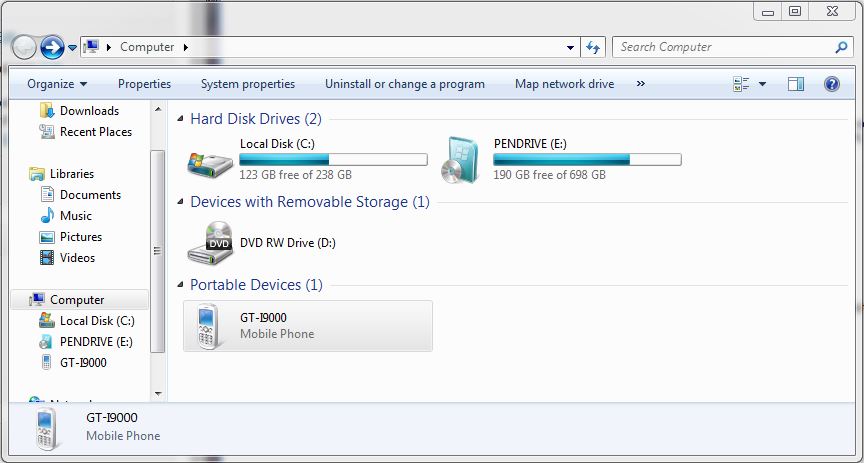
Samsung Galaxy S in Windows Explorer

Step 1. Download the firmware and pit file from our download site here.
The firmware filename is sam_GTI9000_firmware.zip
Its quite a large file the size is 225.9 MB, so be prepared to take some time to download.
The file password is: 123myit.com

Step 2. Extract the downloaded sam_GTI9000_firmware.zip.
You should extract the following files.
* CODE_I9000XXJVU_CL851880_REV03_user_low_ship.tar.md5
* GT-I9000-CSC-MULTI-OXAJVU.tar.md5
* MODEM_I9000XXJVU_REV_00_CL1059471.tar.md5
* s1_odin_20100512.pit

Step 3. Download and extract the Odin3 v1.7.exe file from our downloads section here.

Step 4. Put your phone into “Download Mode” by holding down the Volume down button + the Home button + the Power button.

Step 5. Start the Odin3 v1.7.exe and connect your phone to the PC. The Odin application should say the message “Added!” If it doesn’t say added then you will have an issue with the drivers and your should reboot your PC with the phone still plugged in and repeat this step.

Step 6.Once Odin has started and you have your phone Added. Select the files that you extracted in step 2.
They should all be loaded in the following order.
* Select the “PDA Tab”, and select “CODE_I9000XXJVU_CL851880_REV03_user_low_ship.tar.md5”
* Select the “Phone Tab”, and select “MODEM_I9000XXJVU_REV_00_CL1092175.tar.md5”
* Select the “CSC Tab”, and select “GT-I9000-CSC-MULTI-OXAJVU.tar.md5”
* Select the “PIT Tab”, and select “s1_odin_20100512.pit”

Step 7.Make sure that you select the Re-Partition, Auto Reboot and F.Reset Time checkbox within Odin.
Step 8.Click the start button to kick off the flashing process.The phone will reboot when it finishes and Odin should give a green PASS message.
When the phone restarts you should be running the new Android, v2.3.6 XXJVU firmware.
How to fix Restore Failure could not restore Invalid Argument.

This video will show you how to fix Restore Failure could not restore Invalid Argument.

How to fix Restore Failure – Could not restore – Resource busy error.

This video will show you how to fix Restore Failure – could not restore error message when trying to format a USB drive in OS X disc utility.

Direct Apple Firmware Downloads.

If at any stage you have problems with jailbreak or the tutorials on the 123 my IT website you can use the original firmware’s from Apple to restore your iPhone, iPad or iPod back to factory settings.

NOTE: If you have an unlocked iPhone 3G, you should not try to restore the firmware on your iPhone as you might risk changing your baseband.
How do I restore my firmware to factory settings?

All you need to do to restore your firmware is open iTunes on your device and click on Restore while holding ALT in the “MacOS” or SHIFT in “Windows” and at the same time go in a select the firmware that you want to restore to your iOS device.

NOTE: If your browser changes the .ipsw file into a .zip file then simply rename it back to a .ipsw file and iTunes will accept it.

DIRECT APPLE FIRMWARE DOWNLOADS
iPhone 4
iPhone 4 iOS 4.2.1 (8C148)
iPhone 3GS
iPhone 3GS iOS 4.2.1 (8C148)
iPhone 3G
iPhone 3G iOS 4.2.1 (8C148)
iPhone 3G iOS 4.1 (8B117)
iPhone 3G iOS 3.1.3 (7E18)
iPhone 2G
iPhone 2G iOS 3.1.3 (7E18)
iPhone 2G iOS 3.1.2 (7D11)
iPad
iPad iOS 4.2.1 (8C148)
iPod touch 2G
iPod touch 2G iOS 4.2.1 (8C148)
iPod touch 3G
iPod touch 3G iOS 4.2.1 (8C148)
iPod touch 4G
iPod touch 4G iOS 4.2.1 (8C148)

See all of our downloads on our downloads page here.

Top 10 Free Apps for Android phone 2013

Hi All, So this is the first post about Android on my website. Currently I am only running a very old Samsung Galaxy S.
This is a short video on the top 10 free Android apps are for the Samsung Galaxy S. Would suit someone who is looking to have a bit of fun with their phone but doesn’t know where to start.
The Apps can all be downloaded for free from the Google play store on your phone.
The apps featured are:

Facebook: The app of the ever popular Facebook one of the largest social networking sites.
Candy Crush Saga: A games simular to Bejewelled where by candy drops from the top of the screen and you have to match them up in 3 way fashion to get to the next level. There is 100 levels so you will need to be very skilled to make your way through.
Skype: A voice chat program which allows you to make voice and video calls.
Snapchat: Apparently this app is the fastest way to share a moment with your friends. You can send pictures to all your friends and control how long they can view them for.
eBay: A classifieds app that allows you to buy and sell on eBay. Good point about this one is you wont have to miss bidding on an item if you not in front of the PC, as long at you have a phone and this app you should be sorted!
Viber: This app allows you to chat, send photos and videos messages no matter where in the world you are. As long as you have 3G or wifi access and the other person as Viber.
Facebook Messenger: Allows you to use the Facebook chat without all the other features.
Instagram: 100 million users cant be wrong! Facebook recently brought this app which allows you to make and share beautiful photos.
Gumtree: Gumtree is a free local classifieds website which allows people to buy and sell pretty much everything 🙂 simular to eBay.
Hardest game ever 2: Hardest game ever 2 is a game where you need to react to a series of buttons on your phone which when pressed in the right order with speed will allow you to go to the next level.

How can I tell what version of Windows I am running, 32bit or 64-bit?

When installing Windows on your PC, you can install it as a 32-bit operating system or a 64-bit operating system. For most people it doesn’t make a difference which version you are using, however if you add a new piece of hardware or decide to upgrade an existing driver you will be asked which version of Windows you are running. For example a 64-bit driver wont install on a 32-bit operating system. Read on and I will explain how determine which operating system of Windows you are using.

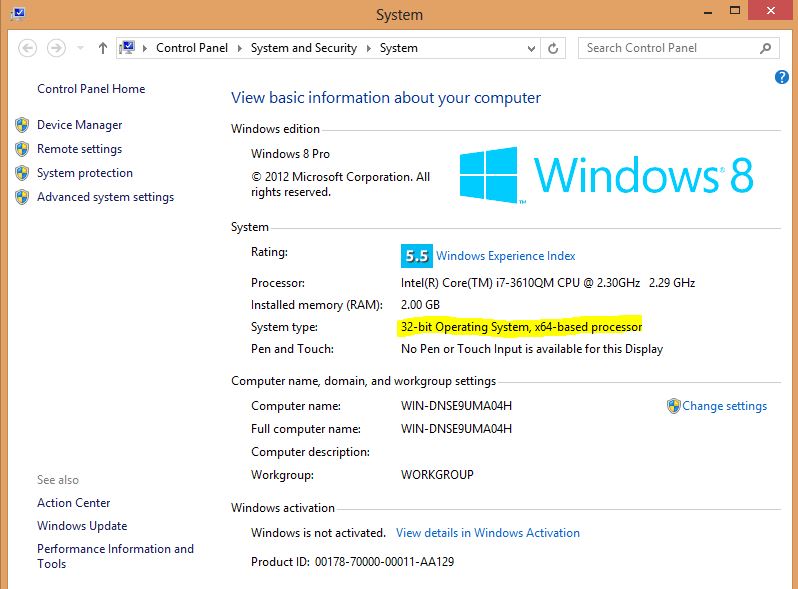
No matter what OS you are using Windows XP, Vista, 7 or 8 if you want to check what version you are using you can simply go to Start button, Right click on Computer than properties. Windows 8 is a little bit different, you will need to go into your charms menu and type Computer in the search field and right click on Computer when the search finds computer. Click on properties.

You should now see the System Control Panel. This screen will show you information about your PC and Windows OS. If you have a look under System Type you will see information regarding whether or not you are using a 32-bit or 64-bit version of Windows. In Windows XP it won’t show up at all, instead it will only show 64-bit.

Windows 8 System Control Panel

In the screen shot above you can see the System Type is a 32-bit operating system, however its running on a 64-bit CPU.

How To Jailbreak your iPhone 4S running 6.1 Firmware with Windows 7 and evasi0n.

A step by step guide on how to jailbreak your iPhone 4S with Windows 7 and evasi0n. If you are looking for the apps that I used in this guide you can download from the downloads section here.

Whats the difference between Jailbreak and Unlocking an iPhone?

People always talk about jalibreaking and unlocking, but what does it actually do? Isn’t it the same thing ? While they might be related in that they give you more control over your iPhone, iPod or iPad they are in fact not the same.

So just what is jailbreaking and unlocking ? And what’s the difference between them?
The basic differences between jailbreak and unlock is, jailbreak allows you to control what software you install on your iPhone or iOS device and unlocking allows you to change the carrier that the device works with.

You see Apple likes to control what software can be install on your iOS device. Only Apple approved apps can be installed from the Apple Apps Store. But there is loads of other apps available through other stores than Apple’s App Store. These apps aren’t available through Apple’s App Store because Apple rejects them as they violate Apples terms of service or they compete with Apple’s own apps or they are just really poorly coded apps that don’t work as they should.

Jailbreak is not just an Awesome ACDC song, you can jailbreak your iPhone using various tools. There is a whole tutorial on how to jailbreak your iPhone with Redsn0w here. If you want to jailbreak your iPhone 4 you can use an app called evasi0n,you can download the apps under the downloads section of this website here. If you want to see our guide on how to jailbreak and iPhone 4 click here.

Redsnow allows you to remove Apple’s restrictions on your iOS device which allows you not only to access the Apple’s Apps Store, but also allows you to access all the other available apps. Most of these can be accessed or purchased through Cydia which is the leading alternate apps store.

A locked iPhone means that you will only get service on that carrier that your sim card is with. If you try to put in a different sim card from a different carrier into your iPhone you won’t get any service. Unlocked iPhones don’t get all the features that a locked iPhone will get.

So that’s all there is pretty simple 🙂