Delete Gmail contacts from Android

This video will show you how to Delete Gmail contacts from Android phone.

Hi All,
Recently I was able to get my hands on Samsung’s latest model of Galaxy phone the Samsung Galaxy S6 Edge and after wanting to take some pictures with it to post up on 123myIT Instagram I went to the Google Play store to download the Instagram App. Sounds pretty straight forward right ?
Well some where along the line I entered the 123myIT Google play login details and Gmail decided that I also needed that Gmail account setup on my phone. Maybe I clicked accept to something I shouldn’t have? However I found this very intrusive because not only did it install an unwanted Gmail account, it also installed also installed all my 123myIT Gmail contacts into my phone contacts. Very Annoying, because I have over 80 contacts who, I don’t need to contact via my mobile phone.
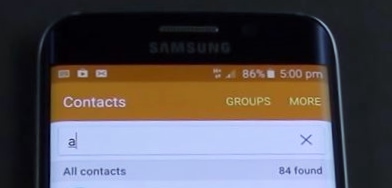
84 Gmail Contacts

The big question is, how do I delete Gmail contacts from Android? Well the easy option is to go into Settings > Accounts section on the phone and delete the Gmail account. This will remove both the Gmail email and contacts from your phone. But what if you want to keep the Gmail account but not be burdened with all the Gmail contacts?

Well you can turn off the contacts Sync, by going into the Settings > Accounts go into the Google account tap on your Google account and you will have the follow toggle switches below.
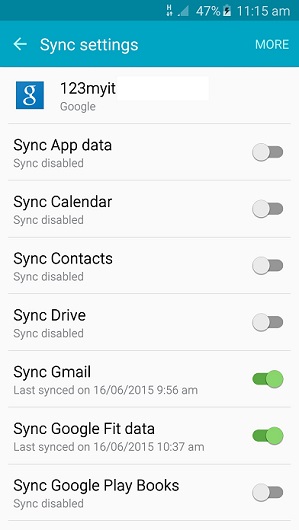
Gmail Settings Android
Once you turn off the contacts sync, you can then go back into your contact and delete the contacts one by one.

If you have 1000 contacts, then this is usually not an option for you. If this is the case you will need to remove the Gmail account altogether and start from the beginning. In the video above I will show you how to add the Gmail account without Syncing the Gmail contacts by making use of the fight mode setting.

I hope this delete Gmail contacts guide was helpful for some. I found this quite frustrating as I am sure there are others out there with the same issue.

Thanks for watching
Cheers
Matt
Microsoft Surface Pro 3 Unboxing & Firstlook

This video will show you the Microsoft Surface Pro 3 Unboxing & Firstlook.

Hi All,
I am pretty excited to bring you this unboxing of the Microsoft Surface Pro 3 tablet / laptop replacement. I have been a fan of this model since Microsoft release the first Surface Pro, but never actually had the chance to own one. I do allot of the 123myIT website work on a bigger Asus G750JS-TS71, however I hope to feature the Microsoft Surface Pro 3 in upcoming 123myIT videos.

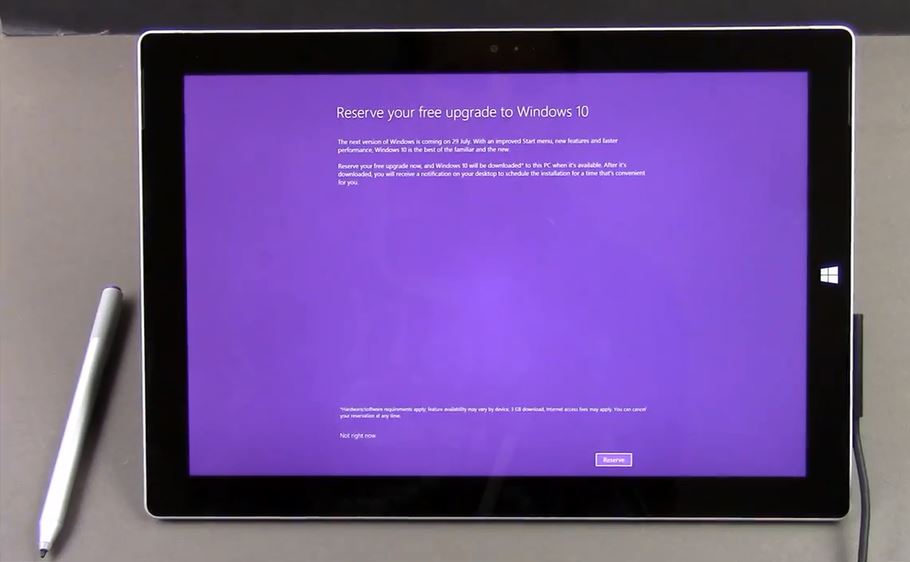
One of the first things you will notice in the video is right out of the box I am prompted to upgrade my Windows 8.1 pro version to Windows 10, or at least reserve my copy of Windows 10. And with one tap of the screen this is done. So I was really impressed with this service. If I didn’t want to reserve a copy then I could have just press the skip button.

Surface Pro 3 - Windows 10 Uprade

Below is the following specs for the Surface Pro 3 models, the model used in the video above Was the base model 64GB model starting a RRP of $799.
Specs:
CPU: Intel Core i3 @ 1.5Ghz 64bit
Intel Core i5 @ 1.9Ghz 64bit CPU Max 2.9GHz (w/ turbo)
Intel Core i7 @ 1.7Ghz 64bit CPU Max 3.3GHz (w/ turbo)
RAM: 4GB or 8GB
Storage: 64GB or 128GB storage with 4GB RAM
256GB or 512GB storage with 8GB RAM
Display: Screen: 12” ClearType Full HD Plus
Resolution: 2160 x 1440
Aspect Ratio: 3:2
Touch: Multi-touch
Battery Life: Up to 9 hours of web browsing
Cameras, Video and Audio: 5.0 megapixel rear-facing camera
5.0 megapixel front-facing camera, Stereo microphones, Stereo speakers with Dolby® sound

Want to buy a Surface Pro 3? Click the banner below.
Microsoft Store

You also do get a pen that works with the Surface Pro 3, but you don’t get the Surface Pro Type Cover. This keyboard / cover is an option extra and current RRP is $129.99. So not cheap the total cost is $928.99. And this is only for the base model. However having said that if you are on a budget you can always opt for the Surface Pro 2, $899 or Surface 3 $499, Surface 2, $499.

Is it worth it?
When people ask me to which laptop should they buy I always ask them how are they going to use it what are they going to use it for? The Surface Pro 3 would be great for anyone looking for a tablet or laptop, that is very portable. Throw in the extra function of a pen and keyboard and it would be a great laptop replacement. The Surface Pro 3 might play some games, however if you are looking for a laptop to play games on your might get better bang for your buck elsewhere.
One of the other benefits is that you get a full version of Windows, not a cut down version of operating system. This means that the software running on your Surface Pro 3, is exactly the same as the software running on your Desktop computer.

One of the other benefits is that you get a full version of Windows, not a cut down version of operating system. This means that the software running on your surface Pro 3, is exactly the same as the software running on your Desktop computer.

Cheers
Matt

Microsoft Surface Book
icon

Apple iPad Air 2 Unboxing & Review

This video will show you the Apple iPad Air 2 Unboxing & Review.

Hi All,
I recently got Apple’s latest iPad Air 2 and thought I would do and unboxing and review to show those of you who are thinking about buying one what to expect when you do go through with the purchase.
Overall I was pretty impressed with this version its very light and thin as you can imagine. 6.1mm thin to be exact and weighing 0.96 pound.

The iPad Air 2 comes in three different colours Silver, Gold and Space Grey. With Storage sizes of 16GB, 64GB and 128GB respectively and you have a choice of WIFI or WIFI + Cellular.

iPad Air 2

At the time of writing this article prices start at $499 for the 16GB Wifi model and go all the way up to $829 for the top of the range 128GB cellular model.
The iPad Air 2 comes standard with the latest Retina display, which is a 9.7-inch (diagonal) LED-backlit widescreen Multi-Touch display with IPS technology at 2048-by-1536-pixel resolution at 264 ppi.
The display has a Fingerprint-resistant oleophobic and Antireflective coating which is fully laminated. The screen doesn’t fracture the images as much as previous models giving the user a much improved viewing experience.

All iPad Air 2’s have the A8X CPU with 64-bit architecture and a M8 motion coprocessor. The iPad Air 2, comes with 8MP iSight camera, some features are Burst mode, Tap Focus, Timer mode and Photo geotagging. The iSight camera allows HD video recording at 1080p (30 fps) and Slo-mo at (120 fps). and also features Time-lapse video, Video image stabilization, Improved face detection and 3x video zoom.

Lastly one of the other big upgrades is Touch ID which allows you to log into the iPad with the need for a passcode.
Over all pretty impress look and feel to Apples latest iPad, while I wouldn’t rush out and buy one myself. If you are in the market for a new tablet you would have to at least take a look at it.

Cheers
Matt

Samsung Galaxy S6 Edge vs S5 Unboxing & Comparison

This video will show you the Samsung Galaxy S6 Edge vs S5 Unboxing & Comparison.

Hi All,
A new video up on Samsung’s latest gadget the Samsung Galaxy S6 Edge. While apart from the unboxing video I have not had much play time with the Edge as it takes a smaller Nano sim card which I have to get from my
Australian service provider “IINET” before I can switch over to the new phone. Once this is done I will put up another video about the software tweaks that the Edge has. So stay tuned.

When talking about the camera on the Samsung Galaxy S6 Edge vs the S5, the S6 lens is faster allowing better low light photos then the S5. I got out and about to take some photos with both phones for compassion.

The photos below are straight from the device they have not been edited in any way.
S6 Edge photos
The photo below was taken in shade.
S6 Edge Shade Photo

The photo’s below were taken in full sun.
S5 Bright Photo
S6 Edge Bright Photo 2

S5 photos
The photo below was taken in shade.
S5 Shade Photo

The photo’s below were taken in full sun.
S5 Bright Photo
S5 Bright Photo 2

The picture below is an example only For the full picture click on the links mentioned above.

Galaxy s6 edge Small Example only

Once the sim card has been activated on the new Samsung Galaxy s6 Edge, I will be able to do a video on how to move all your data across from Samsung to Samsung device as well as a few videos on likes and dislikes between the two models of phone. Right off the bat things I like about the Edge would be that it looks cool and the camera is better. However some features I really liked about the old Samsung would be that its waterproof you can change the batter it has an extra storage slot.

The pros and cons. 🙂
Cheers
Matt

Burn ISO files to DVD Windows Bootable

This video will show you how to Burn ISO files to DVD and make Windows Bootable DVDs.

Hi All
This is the second video of its type. I put a video the first video up to help people creating and burning ISO files on a Windows PC. However the programs that I was recommending to 123myIT readers recently had some malware installed in it.
So this is a follow up video to show 123myIT users how to Burn ISO files in Windows without having to install the IMG Burn program and get stuck with the malware.

I have to say I think its a real shame that the programmers owners of IMG Burn have decided to go down this path because the program was an excellent easy to use tool that allows you to burn and create ISO files with ease.

Anyway to burn an ISO file you don’t need any extra software, this can be done directly with Windows software.
Simply download your ISO file. You can get the preview versions of Windows from the 123myIT.com webite under Downloads here.

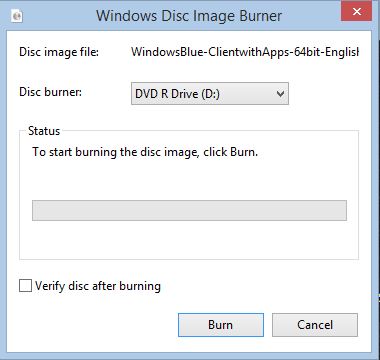
Once you have downloaded your ISO file, copy it to your Desktop or navigate to the location where you saved the ISO file. Simply right click the ISO file and click on Burn disk image. You should then get the following Window.

Burn iso files

Once you see this Windows select Your Disc burner that you want to burn the DVD with. Put a tick in Verify disk after burning and you should be good to go.
Depending on the side of the file and the speed of your hardware it should take around 5 to 10 mins to burn a full sized DVD.

If you are looking for more information on the steps above or you for other resources you can check out the official Microsoft web page for burning ISO files to DVD here.

Free AntiVirus for Windows

This video will show you how to install a Free AntiVirus for Windows.

Hi All
I have been asked a few times about virus scanners. The best time to install a virus scanner is right after you do a fresh install of Windows. The first virus scanner I will recommend is a free antivirus for windows and one that I have been using for years now. Just bare in mind that sometimes these antiviruses can have a mind of their own.
A friend of mine brought a new Dell laptop and installed an antivirus that was recommended by Choice magazine.
Its a website that tests a product and then recommends the best one. I believe the antivirus he installed was Avira. Anyway to cut a long story short the antivirus he installed remove some of the file that Windows 8.1 uses and stopped his laptop from booting. Now wether this was an issue with the Dell laptop or the antivirus software who is to know. However its worth point out that you may run some type of risk by installing the antivirus. So always back up your data.

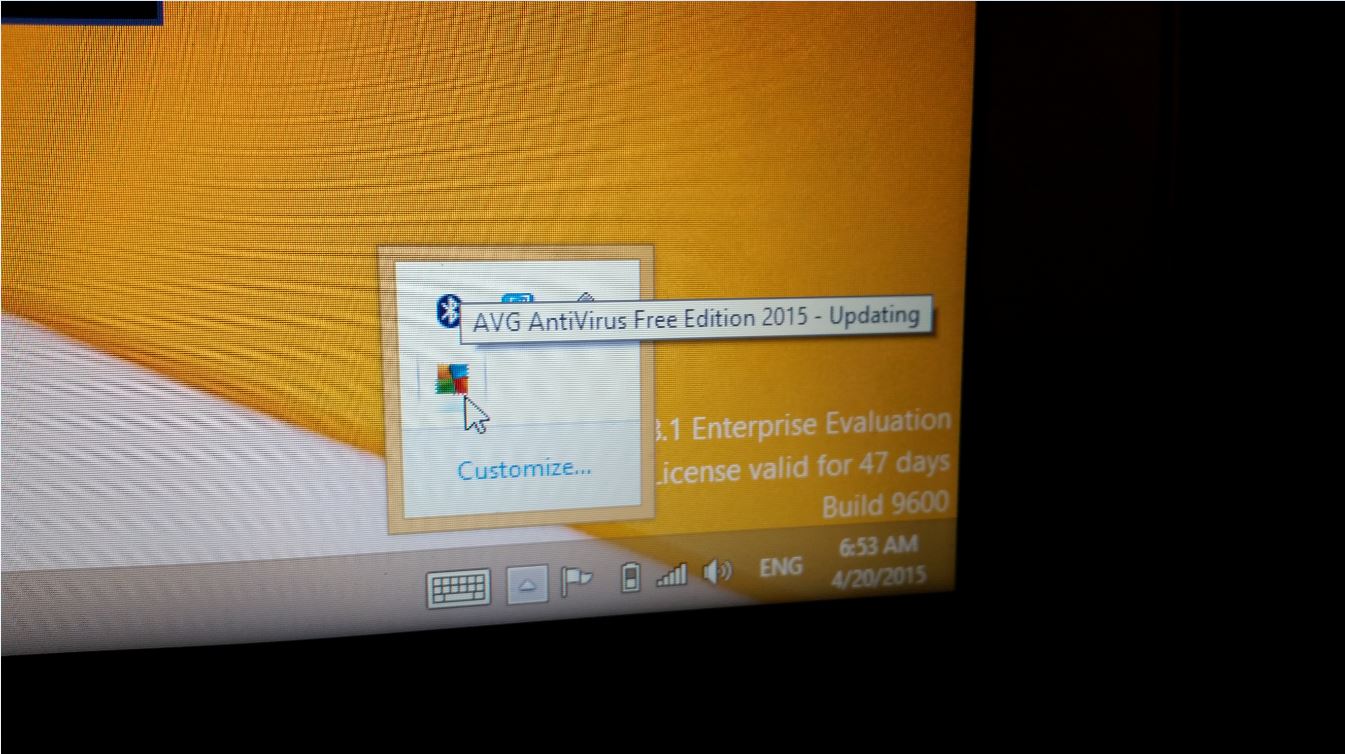
AVG Free AntiVirus for Windows

So AVG is the free antivirus for Windows that I will be recommending. I never actually use to use an antivirus until a few years back my laptop and files were compromised. After then I decided it was not wise to at least run some type of protection even though the Windows defender and Windows updates and Windows firewall offers some really good protection right off the bat.

In the video above I show you how to download and install AVG Free. You can find the link under the Downloads button at the top of the page and under the sub heading called Free Antivirus.

Good luck
Matt

iPhone DFU Mode – iPhone is disabled

This video will show you how to put an iOS device into DFU Mode & fix the error iPhone is disabled.

Hi All,
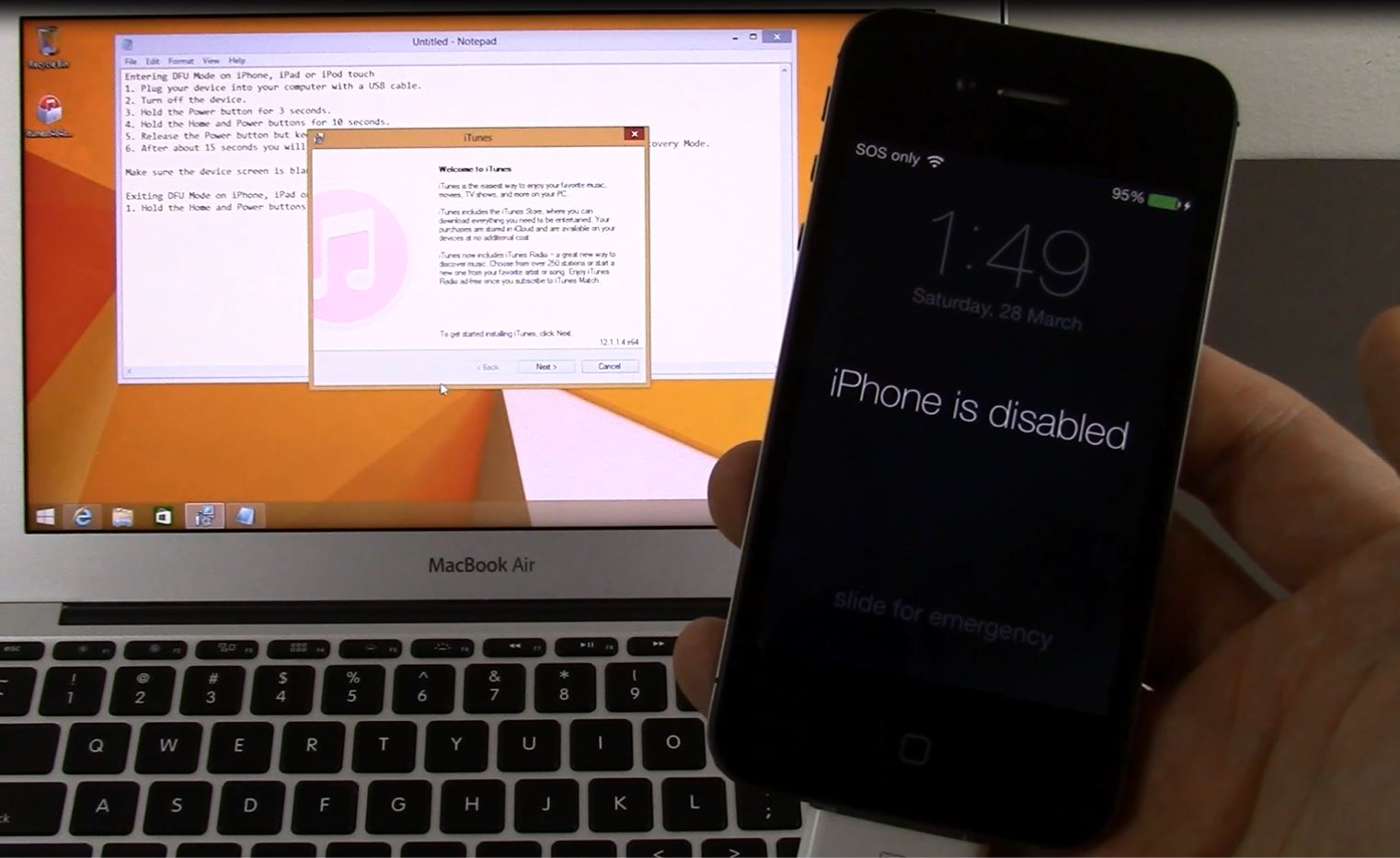
I always get allot of questions on what to do if an iDevice Apple iPhone, iPad or iPod has been locked and the device gives and error the “iPhone is disabled“. Basically, you cannot remember the password and get access to the device.
This happened to me recently, when I switched from an Apple iPhone 4S to the new Samsung Galaxy S5. Because I had not used my old iPhone in a long time. I could not remember what passcode I had set on the device.

iPhone is disabled

The Official Apple process suggests an Erase and restore method. This erases all data on the idevice, so be aware that you will lose contacts, pictures and any other personal data on the device. Apple say that once you erase the device you can restore the data from iCloud, if you were lucky enough to have an iCloud account or if you have made an iTunes back up then you can do an iTunes restore of the data.

For me I figured if I didn’t need to access any of the data on the phone for such a long time, Then I probably wouldn’t need it after all. So in the video above I just do a clean install of iOS.

iPhone DFU Mode – which stands for Device Firmware Upgrade, allows the device to be flashed with a new version of iOS. Just bare in mind that Apple only allows you to upgrade your iOS version. You cannot go sideways or down in versions, as a general rule.
In the video example above, I had to use iPhone DFU Mode to upgrade the device from iOS 7 to iOS 8. Once I do this upgrade it is very hard if not impossible to roll back this change.

A complete list on the iPhone DFU Mode firmware can be found on the following 123myIT.com pages below.
iPhone
iPod
iPad

Good luck
Matt

Unboxing & First Look at the HP ProBook 430 G2 Laptop

This video will show you an Unboxing & First Look at the HP ProBook 430 G2 Laptop.

Hi All
I had a chance recently to Unbox the HP ProBook 430 G2 model and I must say it has a very nice sleek design, however not much has changed over the HP ProBook 430 G1 model. If you are looking for a Windows based laptop that you would use for web browsing word processing and a bit of YouTube play back then this laptop might be for you. If you are into gaming then I would suggest you probably look else where.
While this laptop can run games its more designed for corporate use.
If you did want to play games on the laptop then you would be advised to upgrade the memory in the laptop so that you have a second working memory module. Once this is done the memory will work in duel-channel mode and you will get more performance out of the GPU.
One change from the G1 model is the removal of the separate headphone and mic jack and this has been replaced with an all in one combined mic and headphones port.
The display is probably the least exciting part of the G2 while the laptop is designed for indoor use the screen just isn’t as bright as other laptops in its class.
Battery life is pretty good with this model and power consumption when the device is idle is low.

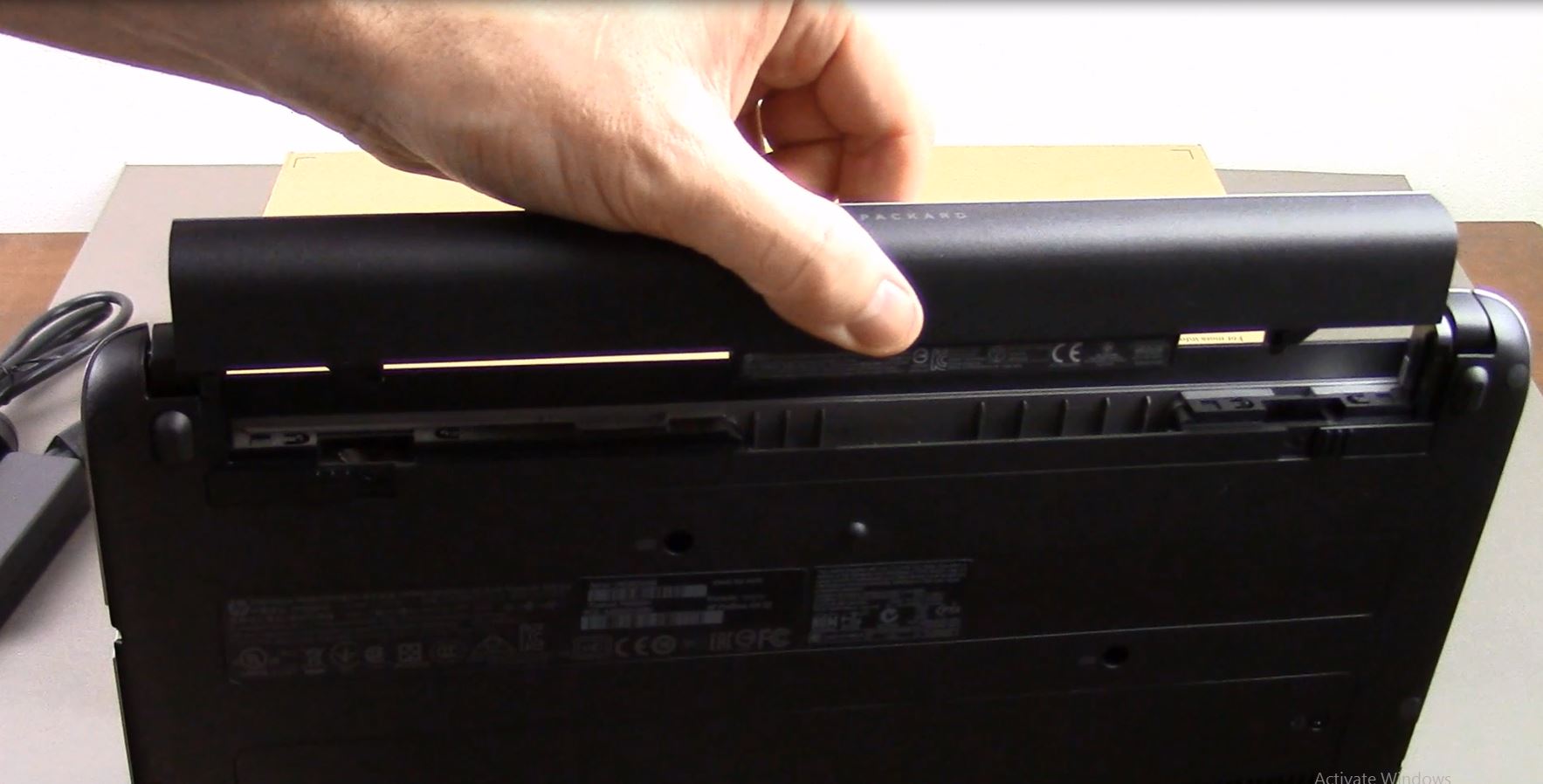
HP ProBook 430 G2 Battery

This is really good because it mean if you step away form the laptop you can expect the battery to last even if you are not using the laptop.
You can expect the battery life to last around 4.5 to 5.5 hours depending on use, so that actually not to bad.

For a more in deapth write up you can check out a great review on the HP ProBook 430 G2 at the NotebookCheck website here.
Want to buy this model? click here.

Cheers
Matt