
How to create a bootable OS X Mavericks usb drive

This guide will show you how to create a USB installer of Apples OS X 10.9 Mavericks.

Have you ever wanted to do a clean install of OS X from but your new MacBook Air doesn’t come with a DVD drive?
Well this guide will step you through how to create a bootable OS X Mavericks 10.9 USB drive.

To complete the process you will need the following items:
* 8GB USB drive or SD Card
* OS X Mavericks.app (this can be downloaded from the App Store)
* An Apple computer with the Mac App Store
* A user account with administrator rights
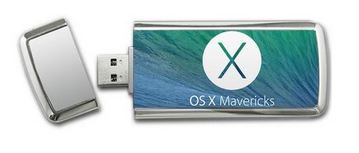
OS X Mavericks USB drive

Step 1. Download Mavericks from the App store.
Apple direct link here.
Step 2. Insert your USB into the Mac and run the Disk Utility.
Step 3. Select the USB drive that appears in the left-hand menu and select the Partition tab across the top.
Step 4. Select the drop down menu and click on 1 partition.
Step 5. In the format type menu make sure you have Mac OS Extended (Journaled) selected.
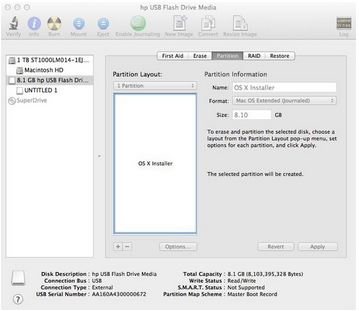
Disc Utility

Step 6. Select the Options button and make sure the GUID Partition Table radio button is selected.
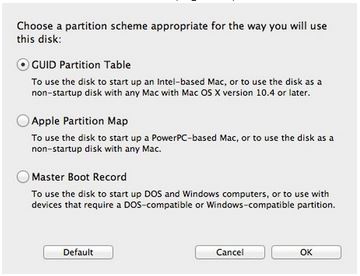
Disc Utility - GUID Partition Table

Step 7. Open up the Terminal.app you can find it under the Applications Utilities folder or search for it in Finder.
In the terminal window type the following command.

defaults write com.apple.Finder AppleShowAllFiles TRUE;\killall Finder;\say Files Revealed
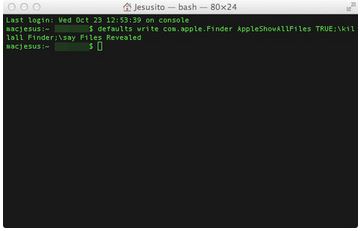
Terminal Window

Step 8. When the USB completes the formatting, go into the Launchpad and copy the Install Mac OS X Mavericks.app to your desktop then Right-click and click on Show Package Contents.
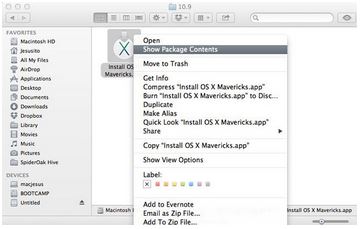
Mavericks App
Step 9. Go into the Contents > Shared Support folder and double click the InstallESD.dmg file.
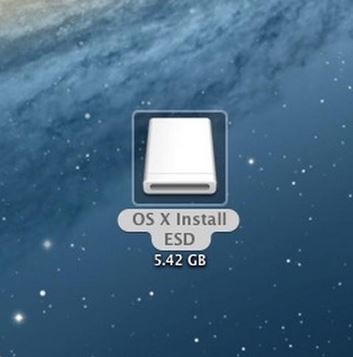
Install ESD

Step 10. Click on the mounted.dmg file and find the hidden BaseSystem.dmg file.
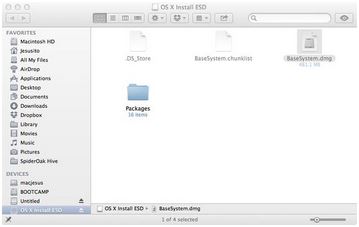
null

Step 11. Go into Disk Utility and open the newly formatted USB and click on the Restore tab.
Step 12.Drag and drop the BaseSystem.dmg into the Source field. And drag and drop the partition that you recently created on the USB drive, into the Destination field.
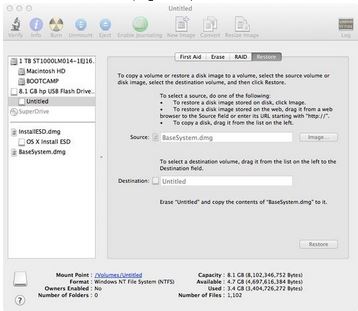
OS X Restore

Step 13. Click the restore button and click Erase. You might get prompted for the Administrator password.
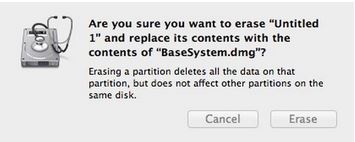
Untitled Message

Step 14. It may take some time to copy all the data to the USB drive.
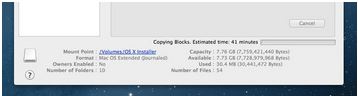
Copy Time OS X Mavericks

Step 15. When the files have finished copying, the USB drive should mount automatically. Go into the System > Installation folder and delete the Packages directory.
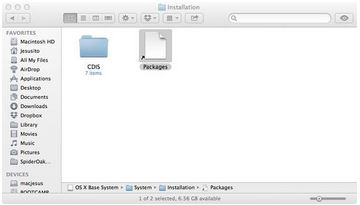
OS X Packages Directory

Step 16. Go back into the mounted Install ESD.dmg file and find the directory called Packages. Copy this to the Installation folder.
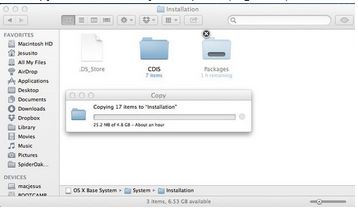
Installation Folder

And now you are done. You have just created a bootable copy of OS X Mavericks on a USB drive.

Good Luck.
How to Install Yahoo Messenger on an iPhone 3G

This video will show you how to Install Yahoo Messenger on an iPhone 3G.

Jailbreak iOS 7 with Evasi0n on a Mac Untethered

This video will show you how to Jailbreak iOS 7 with Evasi0n on a Mac.

Jailbreak iOS 7 with Evasi0n on a Windows PC

This video will show you how to Jailbreak iOS 7 with Evasi0n on a Windows PC.

Hi All
The Evasi0n iOS 7 jailbreak software has been released and you can watch the guide on the video above.
If you fast forward to 8:35 on the video you will see a bug where the icons have changed around and something has clearly gone wrong. A restore was the only way around this. Once I restore the device I was able to repeat the Jailbreak process again for a successful Jailbreak.
So I can confirm it does work fine.
Good luck.

How to Fix iTunes Error 3194 on a Mac – This device isn’t eligible for the requested build

This video will show you how to Fix iTunes Error 3194 on a Mac – This device isn’t eligible for the requested build.

Hi All
Earlier I created a video on how to Fix iTunes Error 3194 while using Windows. This video will show you how to fix the same error on a Mac.
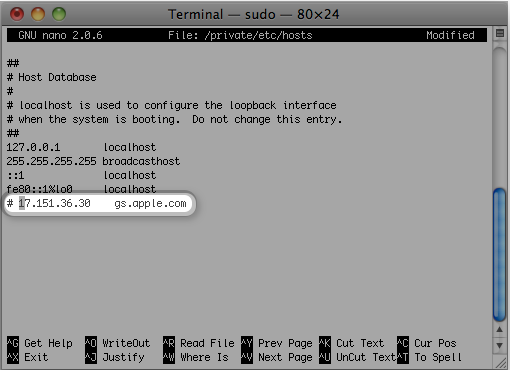
You will need to open up Terminal in Finder and type the following command.
sudo nano /private/etc/hosts

Press Return and Enter your password.
Once you have typed your admin password you will see all the entry’s in the hosts file.

Mac Terminal Hosts file

Now Apple says, look for an entry containing “gs.apple.com”.
The next step I delete any entry back to the local file which essentially sets the hosts file back to defaults.
However Apple says, Add the # symbol and a space (“# “) to the beginning of the gs.apple.com entry.

You can save the file by pressing Control-O. Hit Enter when prompted for the filename and Control-X which will allow you to exit the editor.
Restart your Mac and you should be good to go.

Good luck guys.

How to Fix iTunes Error 3194 in Windows

This video will show you how to Fix iTunes Error 3194 in Windows.

Hi All
I found this iTunes error 3194 increasingly frustrating. I was about to start trying to do a Ragebreak Jailbreak on my iPhone 4 and this iTunes Error 3194 kept on coming up over and over again.

The error is caused by routing issues from having incorrect information in the local hosts file on your Windows PC.

You can find the hosts file in the following locations.

Microsoft Windows
NT, 2000, XP, 2003, Vista, 2008, 7, 2012 and 8 %SystemRoot%\system32\drivers\etc\hosts
Windows Mobile, Windows Phone Registry key under HKEY_LOCAL_MACHINE\Comm\Tcpip\Hosts
Apple Macintosh 9 and earlier Preferences or System folder
Mac OS X 10.0 – 10.1.5 (Added through NetInfo or niload)
Mac OS X 10.2 and newer /etc/hosts (a symbolic link to /private/etc/hosts)

Jawbone UP 24 Unboxing Firstlook & App Setup

This video will show you the Jawbone UP 24 Unboxing Firstlook & App Setup.

Hi All
I was able to get my hands on the new Jawbone UP 24 wrist band. This version syncs to iOS devices via Bluetooth. The previous version would have to be plugged into the iOS devices directly.
The Features of the Jawbone UP 24 are:
* Sleep and nap Tracking
* 24/7 activity tracking
* Food & drink tracking
* Mood tracking
* Insight engine
* Idle alert
* Smart alarm
* 10-day battery
* Water resistant design
* Day and night form factor
* Power nap
* Simple sync

Enjoy the video. 🙂

Samsung Chromebook Unboxing Review Series 3 303C12-A01

This video will show you the Samsung Chromebook Unboxing Review Series 3.

I had the pleasure of doing an unboxing and first look at this Samsung Chromebook. This is the 3rd series of Chromebook laptops by Samsung and it runs a small amount of Linux which runs the Google Chrome browser. So it boots really fast mainly because it doesn’t really have much to load. Its very basic. Not a bad cheap option if you are a heavy Google user, the laptop retails for around $249.
You need an internet connection to use this laptop and you also need a Google account. So when you sign in the laptop logs you into all your Google apps like Gmail, Calendar, Drive and YouTube.
While the Chromebook might be a great low spec low budget laptop to get you online easily. However if you use your laptop for anything that is not in a web browser than this laptop is not for you.