Fix GPT Error: Windows cannot be installed to this disk

This video & article will show you how to Fix Error: Windows cannot be installed to this disk. The selected disk is of the GPT partition style.

The old GPT partition style error! Must be close to the most frustrating and annoying errors I have encountered in my time working with Mac.
In this video on how to Fix GPT Error: Windows cannot be installed to this disk error message, I explain a few different ways to try and fix this error. However lets talk about the possible root cause of the error.

Most people myself included get this error when trying to install Windows on a Mac and seems to be caused by the hard drive not being configured for UEFI mode. If your Mac or PC is UEFI-based then to install Windows your hard drive must be set up as UEFI mode or legacy BIOS-compatibility mode.
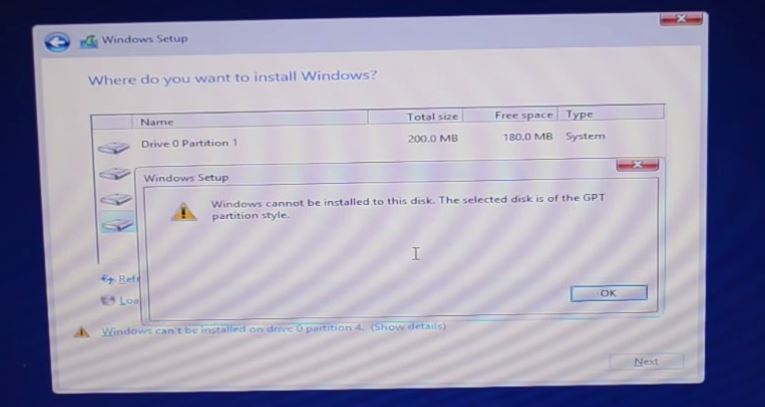
GPT Error Message

If you want to know more information on this issue then you can the Microsoft reference on this link.
Windows Setup: Installing using the MBR or GPT partition style

For example, if you receive the error message: “Windows cannot be installed to this disk. The selected disk is not of the GPT partition style”, it’s because your PC is booted in UEFI mode, but your hard drive is not configured for UEFI mode. You’ve got a few options:

1. Reboot the PC in legacy BIOS-compatibility mode. This option lets you keep the existing partition style. For more info, see Boot to UEFI Mode or Legacy BIOS mode.

2. Reformat the drive for UEFI by using the GPT partition style. This option lets you use the PC’s UEFI firmware features.

You can do this yourself by reformatting the drive using the instructions below, or if you need to preserve the data, use a third-party utility to convert the drive to GPT format.

Ok so how do you fix it? Well you can try the options mentioned in the video, however I have found the best way to fix the issue was to backup my data in OS X.

Then do a Clean install of OS X.

And then try the boot camp process again from scratch. This process should sort out your hard drive partition type and resolve the issues with Windows not installing correctly on the disk.
How to download OS X Yosemite 10.10 Beta

This video will show you how to download OS X Yosemite 10.10 Beta.

Apple has released the latest version of OS X to the general public in the beta form and the full version should be released in Americas fall. You will need an iTunes account to download the software. And the link for the download is below.
https://appleseed.apple.com/sp/betaprogram/

How to Jailbreak iOS 7.1.2 & 7.1.1 on a Mac Untethered

This video will show you how to Jailbreak iOS 7.1.2 & 7.1.1 on a Mac Untethered.

Hi Guys
So here it is the long awaited iOS 7 Jailbreak video which supports the iOS 7.1.2 and 7.1.1 Apple firmware versions on all devices that run iOS 7.
That list includes 5S,5C,5,4S,4, iPad Air,4,3,2,Mini & iPod Touch 5.

Tips you should do a backup and restore of your iOS device before following this video.
You can find the restore video below.
How to restore iOS 7 with iTunes
And back up video here.
How to backup your iPhone, iPad or iPod using iTunes

How to restore iOS 7 with iTunes

This video will show you how to restore iOS 7 with iTunes.

Hi All
I have uploaded this video to show you how to restore iOS 7 with iTunes, this will help with future videos which will show you how to Jailbreak iOS 7.1.1 and 7.1.2. Once these videos are complete I will link them below.
How to Jailbreak iOS 7.1.2 & 7.1.1 on a Mac Untethered
Good luck 🙂
Matt

Install Windows 8.1 on a Macbook Air no DVD drive

This video will show you how to Install Windows 8.1 on a MacBook Air without a DVD drive.

Hi All,
In this article you will find the steps, on how to install Windows 8.1 on a MacBook Air and any Mac without DVD drive.
This process was done on MacBook Air 2013 model and we will also use an ISO file or DVD image rather then a an actual DVD.

If you are looking for the video How to install Windows 8.1 on a Mac running OS X Mavericks you can find it here.
This video will show you how to install Windows 8.1 with a DVD.

What will you need to make this happen?
1. MacBook
2. 8GB USB stick or higher
3. Windows 8.1 ISO file, you can find a copy on the 123myIT download page here
Or you buy a full version of Windows 8.1 recommended under the 123myIT.com Store.

4. Once you have done the above, the next step is to run the Boot Camp Assistant. You can do this by going into finder and the type boot camp, or click the Desktop then click on Go, and then select utilities Boot Camp Assistant.
Boot Camp Assistant

5. Once you have this started up simply follow the video above and pretty soon you will have Windows 8.1 up and running on your MacBook Air.

6. If you are having problems during setup where you can move your mouse or type anything on the keyboard, you can try plugging in a USB keyboard and mouse for the initial setup, and then after Windows is installed go to the Boot Camp Drivers page here and download the correct drivers for your model of Mac which should solve this problem.

NOTE: Key points to remember, if your Mac doesn’t boot into the Windows installer screen then you can find the boot menu by restarting the Mac and holding down the ALT or option key.
For more information you can check out the Official Apple Boot Camp page here.