How to install WhatsApp Messenger on a PC

Hi All,
I have a friend who told me about “WhatsApp” Messenger and how she was using it when she was over seas. So I thought I would take a look at it and see what the ever popular App is all about.
Its a messenger App like the rest but it replaces phone SMS by using the phone’s 3G/EDGE or PC’s internet connection to send chat messages. This allows you not to pay for SMS in your phone carriers bill.
And you have a free Wifi, then essentially you can chat completely free. WhatsApp is currently the No. 1 paid social networking app on the iTunes App Store and currently number 13 on Google’s Play free App store. Whatsapp currently has over 200 Million monthly active users and is a cross platform app which is also available on Blackberry and Windows phones.

Features Include
* MULTIMEDIA: Send Video, Images and Voice notes to your friends and contacts.
* GROUP CHAT: Group conversations which supports up to 30 people!!!
* NO INTERNATIONAL CHARGES: No charges with international email and messages as long as your friends have the app installed you can avoid SMS costs.
* SAY NO TO USERNAMES AND PASSWORDS: Whatsapp uses the contacts already in your phone.
* OFFLINE MESSAGES: Messages sent while a contact is offline still goes through when they come back online.
They do have fine print which also states “When roaming, additional carrier data charges may apply, contact your carrier for more info. 🙂 sneaky
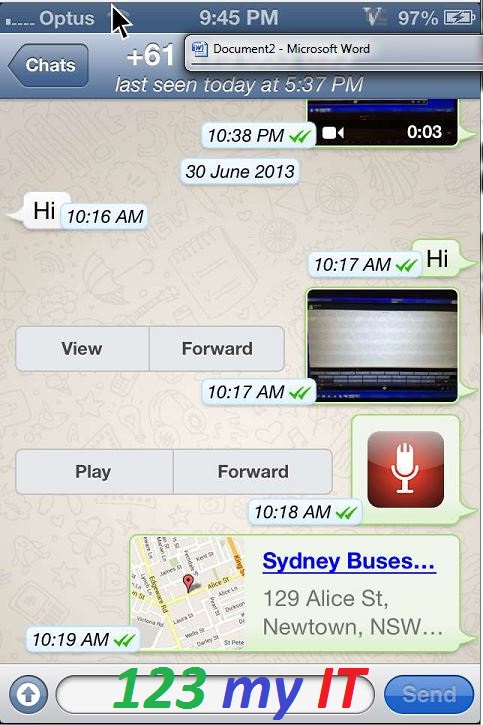
Whatsapp Messenger Chat

In the video above to install Whatsapp on a PC, you need to run BlueStacks software. The direct links can be found under the downloads section on this page click here.

Good luck and have fun with it 🙂
Matt

How to get a Samsung Galaxy S phone out of black screen of death.

NOTE: If you have bricked the following models you can find the article on how to fix them here.
Samsung Galaxy Nexus, GT-I9250, GT-I9100G, GT-I9300 and S3 GT-I9300

This video will show you how to get a Samsung Galaxy S phone out of black screen of death. The black screen of death can display in two forms. One a as a black screen with a little mobile phone ! and computer on it and the other as just a black screen with no light or anything on it.

Samsung black screen of death

At any rate the way to tell if you phone is totally broken is to first of all make sure you have enough battery.
To do this remove the back cover of your phone and reseat the battery so that you are sure the phone is getting power and that the battery has not just gone flat for because the contacts are not touching correctly. Then charge your phone and leaving it charging for a few hours.

If that doesn’t work, the next step is to try removing the sim card and storage cards remove the battery and leave them out for about 5 seconds. Replace only the battery and charge it again. If you still have no luck here but you are sure the battery is charging there is a way to test that its still alive.

If you are using Windows, Go to the start menu and right click Computer and open Device Manager, and plug your phone out of the USB port and plug it back in. If the device manager makes a noise or moves as if its installing a driver the chances are the device is still working.
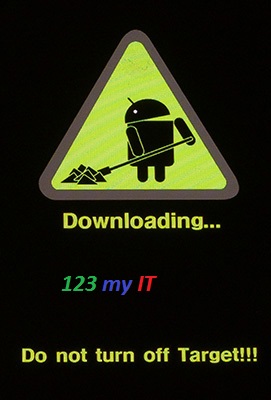
Try putting your phone into Download mode by holding down Power, Home and the Volume down buttons. Hold these buttons down until you see the following screen.

Samsung S Download Mode

Once you have it in download mode there is a good change you can reload the firmware. To do this you can following my video here.
If you want to know how to root the Samsung see the video here.
How to put a Samsung Galaxy S into download mode here.

How to root a Samsung Galaxy S phone.

This video will show you how to root a Samsung Galaxy S phone.

Step 1.Download and install the XXJVU firmware, the check what type of firmware you already have on your phone go to Settings and About Phone. If you want to know how to do this you can see the 123 my IT tutorial here.

Step 2.Download the CF-Root-XX_OXA_JVU_2.3.6-v4.3-CWM3RFS.zip from our downloads section here.

Step 3.Extract the CF-Root-XX_OXA_JVU_2.3.6-v4.3-CWM3RFS.zip and you will have the CF-Root-XX_OXA_JVU_2.3.6-v4.3-CWM3RFS.tar file.

Step 4.Download and run Odin software you can download it from our download page here.

Step 5. Turn off your mobile phone and wait 5 seconds for it to vibrate to make sure it is completely off.

Step 6.Put the Galaxy S in download mode by holding down the Volume Down plus Home Plus Power buttons all at the same time.

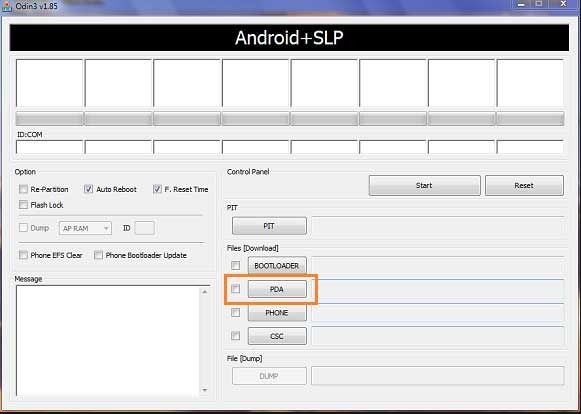
Step 7.In the Odin software select the PDA tab and then select the extracted CF-Root-XX_OXA_JVU_2.3.6-v4.3-CWM3RFS.tar file.

Odin Android Software

Step 8. Make sure you do not select the “Re-Partition” checkbox as this will brick your phone. Make sure that the “Auto Reboot” and “F. Reset Time” checkboxes are ticked.

Step 9.Click the start button in Odin to start the flash of the CF Root File.

Step 10.The phone should restart automatically when the CF Root file is installed. When Odin displays the Pass in green you can unplug the phone from the USB cable.

Step 11.Your phone should now be rooted ad you should see the CWM app and clockworkmod based recovery is installed.

Once this is done your Samsung Galaxy S should be rooted ! 🙂

Good Luck

How to upgrade the firmware 2.3.6 on a Samsung Galaxy S.

This video will show you how to upgrade the firmware 2.3.6 on a Samsung Galaxy S.

WARNING: Make sure you back up your Phone before proceeding!!!!
All the data on your phone will be deleted when you do this upgrade so please make sure you take the time to backup your data.
* Backup any photos and images that you have on the phone.
* Backup your contacts list, SMS and emails.
* Backup your music and video.
* Backup your APPS and phone settings
* Backup your bookmarks and stored pages.
* Backup all your data on your SD card.

Prepare your PC and Phone for the upgrade.
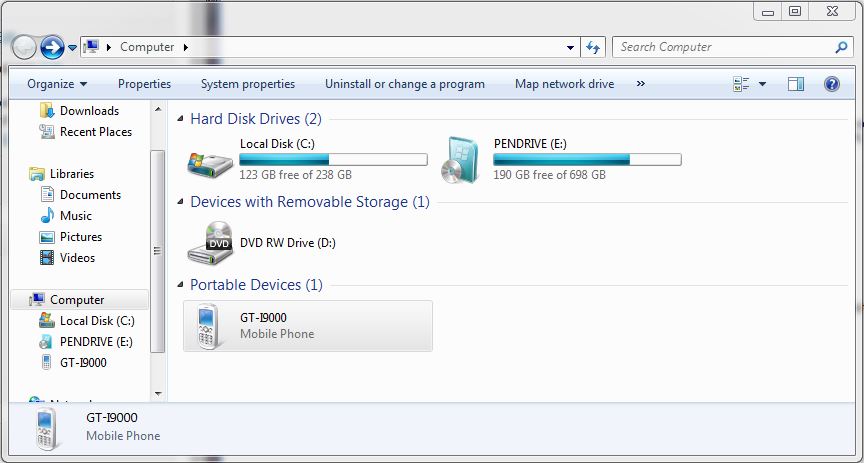
* Plug your Samsung phone into your Pc and make sure that the phone drivers install correctly. You should be able to browse to the phone in explorer.

Samsung Galaxy S in Windows Explorer

Step 1. Download the firmware and pit file from our download site here.
The firmware filename is sam_GTI9000_firmware.zip
Its quite a large file the size is 225.9 MB, so be prepared to take some time to download.
The file password is: 123myit.com

Step 2. Extract the downloaded sam_GTI9000_firmware.zip.
You should extract the following files.
* CODE_I9000XXJVU_CL851880_REV03_user_low_ship.tar.md5
* GT-I9000-CSC-MULTI-OXAJVU.tar.md5
* MODEM_I9000XXJVU_REV_00_CL1059471.tar.md5
* s1_odin_20100512.pit

Step 3. Download and extract the Odin3 v1.7.exe file from our downloads section here.

Step 4. Put your phone into “Download Mode” by holding down the Volume down button + the Home button + the Power button.

Step 5. Start the Odin3 v1.7.exe and connect your phone to the PC. The Odin application should say the message “Added!” If it doesn’t say added then you will have an issue with the drivers and your should reboot your PC with the phone still plugged in and repeat this step.

Step 6.Once Odin has started and you have your phone Added. Select the files that you extracted in step 2.
They should all be loaded in the following order.
* Select the “PDA Tab”, and select “CODE_I9000XXJVU_CL851880_REV03_user_low_ship.tar.md5”
* Select the “Phone Tab”, and select “MODEM_I9000XXJVU_REV_00_CL1092175.tar.md5”
* Select the “CSC Tab”, and select “GT-I9000-CSC-MULTI-OXAJVU.tar.md5”
* Select the “PIT Tab”, and select “s1_odin_20100512.pit”

Step 7.Make sure that you select the Re-Partition, Auto Reboot and F.Reset Time checkbox within Odin.
Step 8.Click the start button to kick off the flashing process.The phone will reboot when it finishes and Odin should give a green PASS message.
When the phone restarts you should be running the new Android, v2.3.6 XXJVU firmware.

Top 10 Free Apps for Android phone 2013

Hi All, So this is the first post about Android on my website. Currently I am only running a very old Samsung Galaxy S.
This is a short video on the top 10 free Android apps are for the Samsung Galaxy S. Would suit someone who is looking to have a bit of fun with their phone but doesn’t know where to start.
The Apps can all be downloaded for free from the Google play store on your phone.
The apps featured are:

Facebook: The app of the ever popular Facebook one of the largest social networking sites.
Candy Crush Saga: A games simular to Bejewelled where by candy drops from the top of the screen and you have to match them up in 3 way fashion to get to the next level. There is 100 levels so you will need to be very skilled to make your way through.
Skype: A voice chat program which allows you to make voice and video calls.
Snapchat: Apparently this app is the fastest way to share a moment with your friends. You can send pictures to all your friends and control how long they can view them for.
eBay: A classifieds app that allows you to buy and sell on eBay. Good point about this one is you wont have to miss bidding on an item if you not in front of the PC, as long at you have a phone and this app you should be sorted!
Viber: This app allows you to chat, send photos and videos messages no matter where in the world you are. As long as you have 3G or wifi access and the other person as Viber.
Facebook Messenger: Allows you to use the Facebook chat without all the other features.
Instagram: 100 million users cant be wrong! Facebook recently brought this app which allows you to make and share beautiful photos.
Gumtree: Gumtree is a free local classifieds website which allows people to buy and sell pretty much everything 🙂 simular to eBay.
Hardest game ever 2: Hardest game ever 2 is a game where you need to react to a series of buttons on your phone which when pressed in the right order with speed will allow you to go to the next level.