Time for a bit of fun!!!
This video will show you how to Extract Audio from Video using VLC. This is the first part to creating a Game of Thrones Ring Tone. More to come soon.
Hi All
So I thought I would post up and easy guide on how to resize a picture on a Mac.
I want to try and spread out the Tutorials evenly so I will try and do one per day on each topic.
When sending emails with images via email, most free email servers like Yahoo or Google have a limit on how many images you can send at once. Usually it’s around 10 meg in size. To get around this you can resize your image to make them smaller so that you will be able to attach more images to the email.
Making the pictures smaller will also allow you to upload and download them faster and when adding images to a website will allow them to load faster in the viewers web browser.
Resizing a picture on a Mac is quick and painless when you know how to do it and it the software is already built into your Mac OS X. So you have no reason not to be able to this yourself.
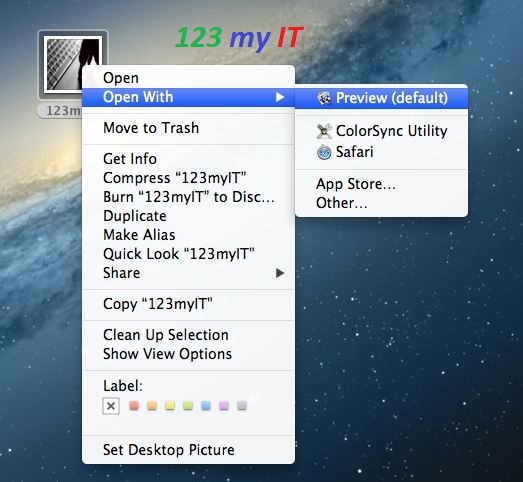
Step 1. Once you have the image you want to resize. Right click and select Open With. Then click Preview Default.
The image then should open up and you can then go to the next step.
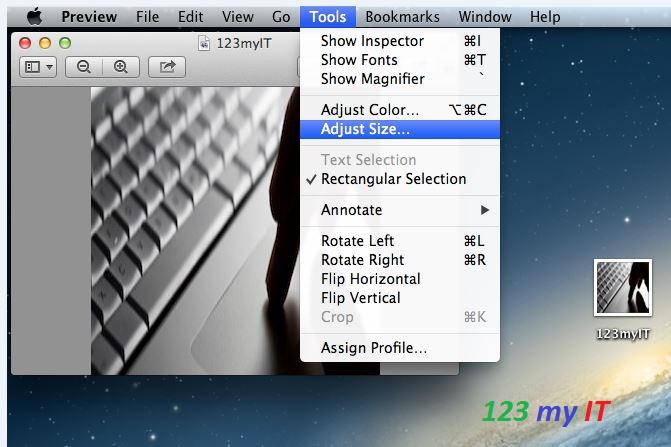
Step 2. Once you have the image previewed, the next step is to click on Tools in the Apple menu bar then click Adjust Size.
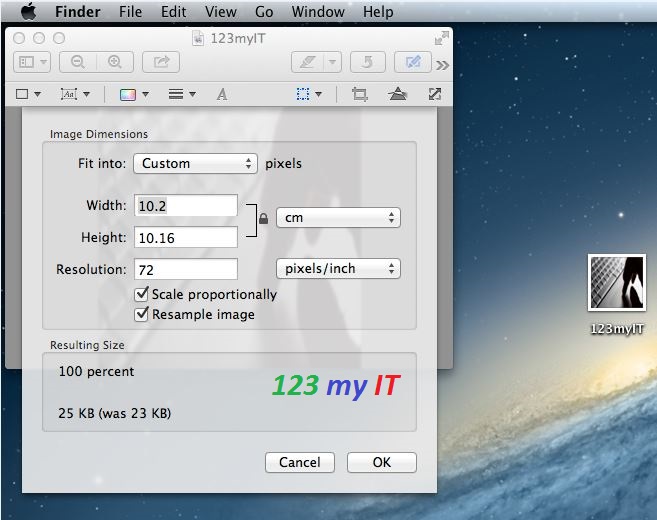
Step 3. You will then have a screen that you can change the details of the image. For example if you wanted to change the width and height of a picture your can select the number in the Width field and the results of the change you make will display below under Resulting Size.
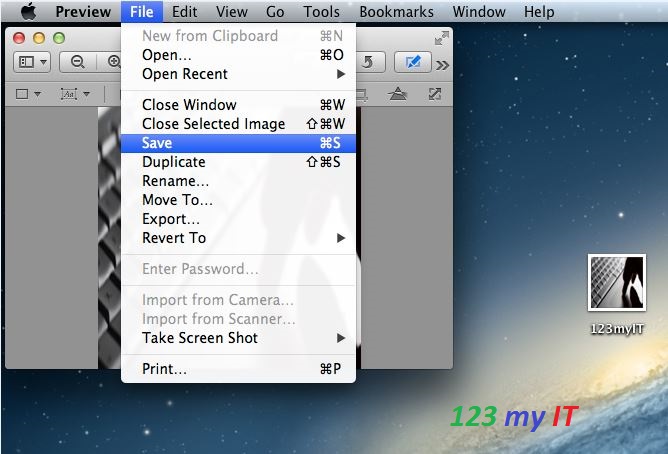
Step 4. Click ok to apply your changes to the image and then to save the changes go to File and then Save. Once you have made this change you’re done!
Step 5. Go to Preview and Quit Preview and you have now closed the Preview software.
This video will show you how to take a Screen Shot in Microsoft Windows using the Snipping Tool and Print Screen function.
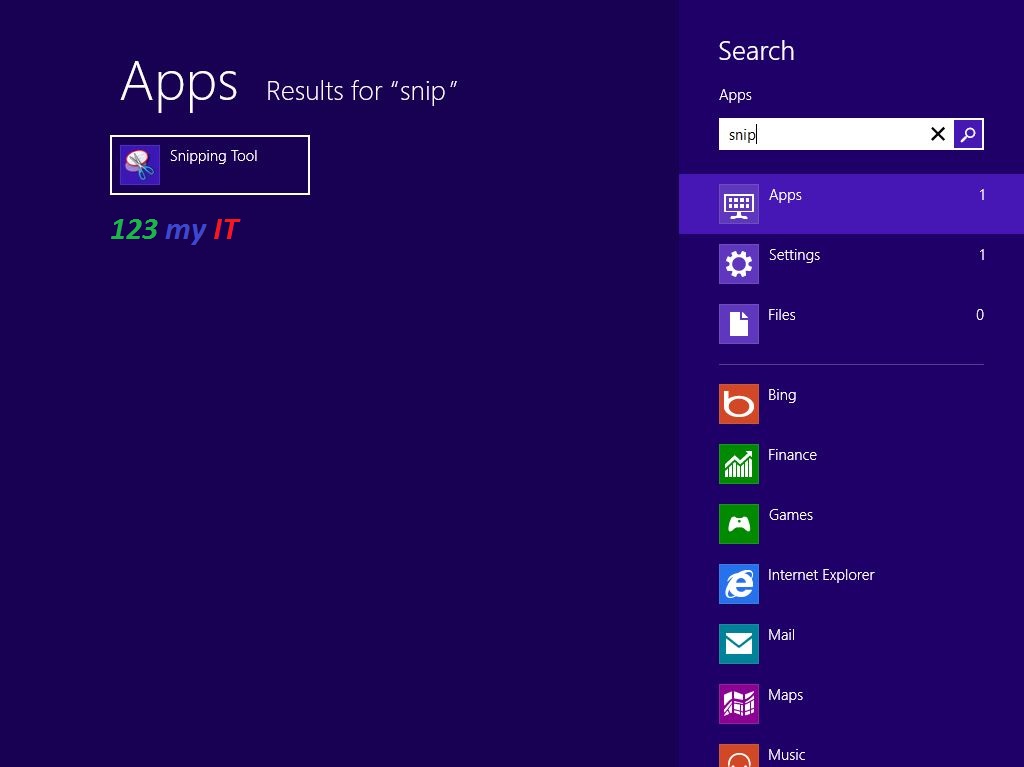
Step 1. To open the snipping tool go to Start > All Programs > Accessories or Press the Windows Key on your keyboard and then type snip.
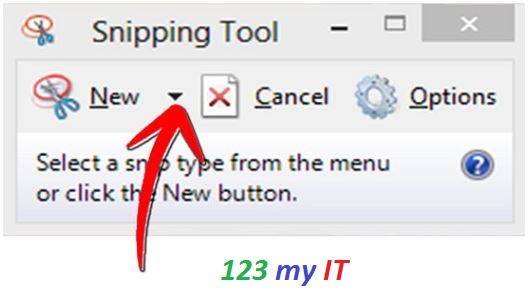
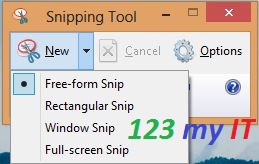
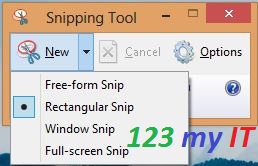
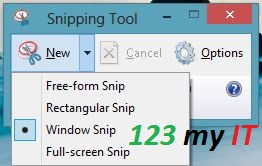
Step 2.Choose the kind of snip that you want to use. Click on the down arrow right beside the New button and you will have the following options.
* Free-form snip. This allows you to cut out any shape you wish.
* Rectangular snip. As the name suggests it snips a rectangular box anywhere on the screen.
* Window Snip. Allows you to take a screen shot of any Windows on your screen. Could be the task bar Internet Explorer screen.
* Full-screen snip. This screen shot allows you to capture everything on the screen.
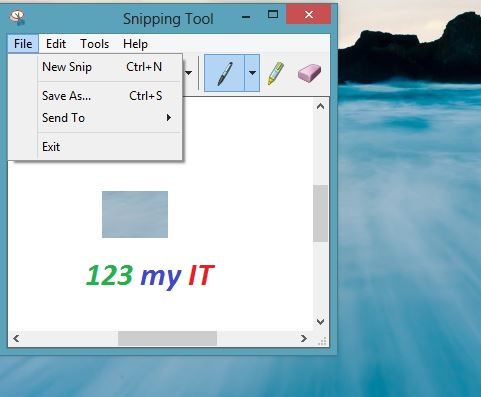
Step 3. The image you have just captured will be automatically copied into the mark-up window. From this window you can Save, create, copy, email or edit the snip.
* Annotations within the Snipping tool allow you to draw and write with a pen and you can customise the colour width and it can all be removed by an eraser.
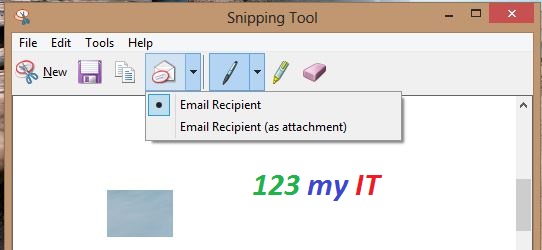
* Share and Email The snipping tool also allows you to cut a screen shot and email it directly from the tool.
In windows you can also press > CTRL > ALT > DELETE on your keyboard and it will save a Screen shot to your clip board. Simply open MS paint or MS word and go right click paste and it will paste the screen capture for you.
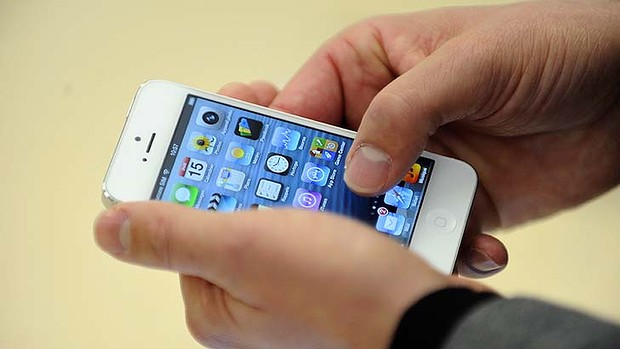
Apple’s upcoming iPhone offering is said to have a major security enhancement, utilising the latest fingerprint scanner technology.
The latest operating system, iOS7 beta 4 was released last week and there’s definitely more than a hint of the new fingerprint technology being an important feature in Apple’s upcoming iPhone 5S.
Recently Apple acquired AuthenTec which is a company that specialises in fingerprint-scanning technology. They bought the company for $A392 million last July, which started the rumors last year about the new security advancement being used in their latest smartphone offering.
To fuel speculation ever more, only a few weeks ago Apple also decided to file a patent for a fingerprint sensor embedded within the touchscreen display.
It’s likely that the new technology, embedded in the home button or inside the touch screen will allow for greater security when locking and unlocking the smartphone.
It’s not only security that could benefit from fingerprint sensoring either. There’s also the possibility that you could do different functions on your phone simply by using different fingers.
This video will show you how to find a lost iPhone iPad or iPod 2013.
Losing your iPhone can be a real pain. First of all these lovely Apple devices are not cheap to replace. Second, you run the risk of losing your data and having someone else get access to your photos, music, contacts and not to mention your iTunes account.
Don’t worry all is not lost, you can actually minimise your losses especially if you are one of those types of people that loses 5 iPhones a year. Read on an we will show you how you can find that lost iPhone.
Setup the “Find My iPhone” App
Step 1. Download “Find My iPhone” app on your iOS device and setup your iCloud account. You can get the Find My iPhone app from the iTunes store.
See the video on how to setup an iCloud accounts here.
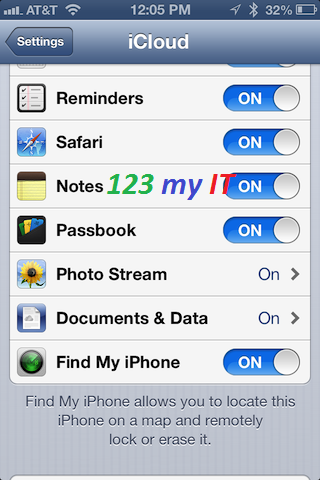
Step 2. On your iPhone turn on the Find my iPhone App within the iCloud menu. Settings, iCloud scroll to the bottom and tap the Find my iPhone button.
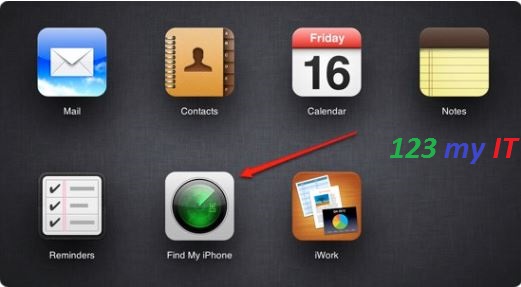
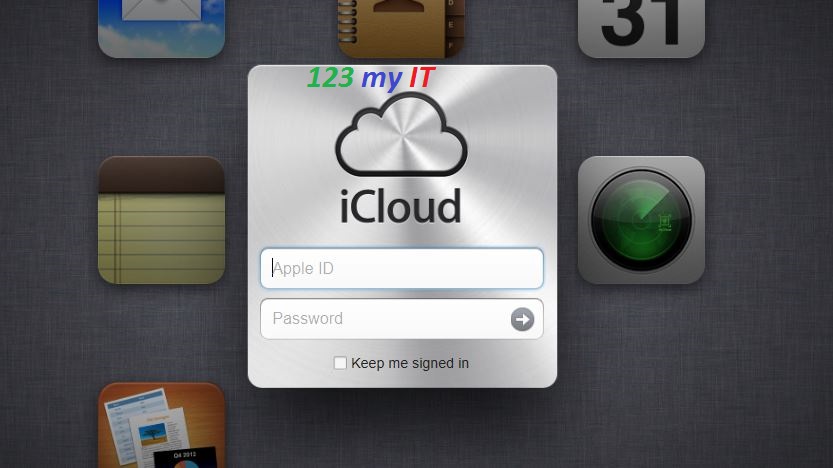
Step 3. Now you can open the app on your iPhone or on a Mac or Windows PC you can open a web browser and browse to www.icloud.com
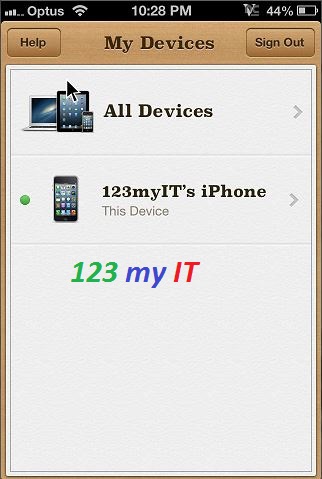
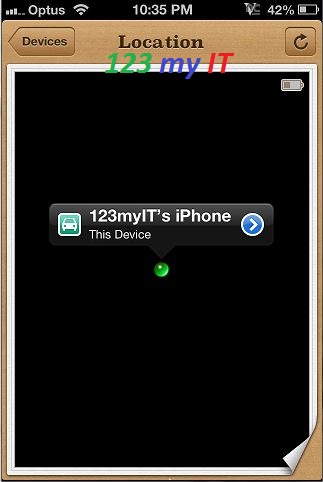
Step 4. Once logged into the App or iCloud you will be sent to the location of the iPhone. If you tap devices you will get a list of iOS devices that you have added to your iCloud account. See the screen shot below the 123myIT iPhone has been added to the device list.
Step 5. Tapping the iOS device will show you the location of the iPhone on Google maps.
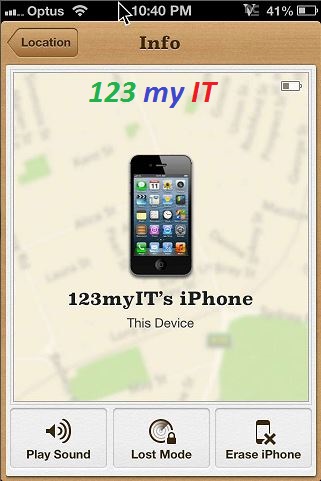
Step 6. Press the blue arrow on the iOS device and it will give you three options.
* Play Sound
* Lost Mode
* Erase iPhone
Play Sound
Now this is this important part, if you have lost your iPhone around the house or it has fallen down the back of the couch and you cant find it. Pressing the Play Sound button with make the iPhone ring so you will be able to track it quite easily. What’s the difference between doing that and ringing the iPhone I hear you ask? Good question the iPhone will actually ring even if you have it on silent and the sound turned down! neat huh ?
Lost Mode
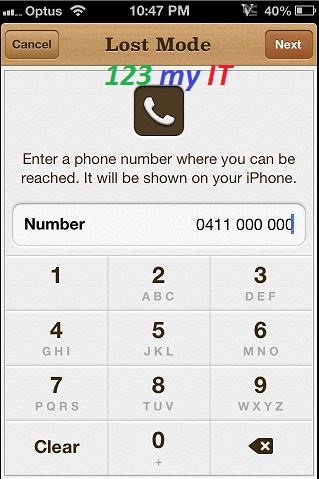
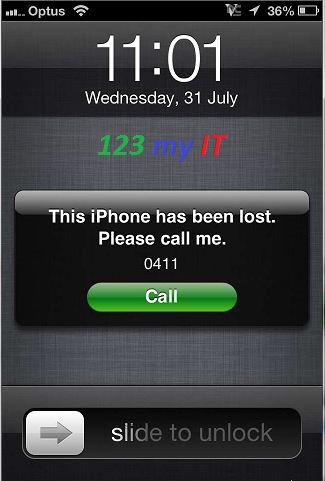
Pressing the lost mode button allows you to enter a phone number that if the iPhone is found the person who finds the iPhone can make a call back to the number you specify and hopefully you will get your phone back. It also lock the device so that if a person has found the device they will not be able to access your data but they will be able to call the number you enter.
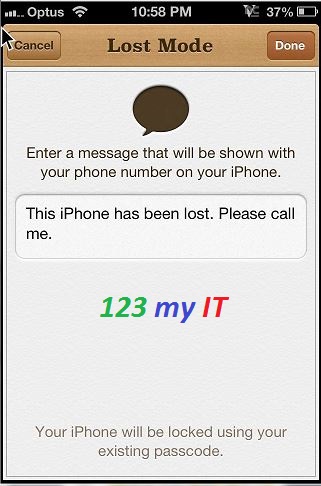
If you press next you will be able to put in a message to the person that has found your iPhone. The default message on the iPhone is. “This iPhone has been lost. Please call me.”
You can change this message to what ever you want and there are some great messages on Google especially when the iPhone has been stolen.:)
Pressing Done will send the message and the number you suggested to the missing iPhone and with any luck you will get a phone call and have your iPhone handed back to you.
Erase iPhone
The last option is Erase iPhone. ONLY do this if your iPhone has been stolen or lost and you want to delete your data on the device. Only use this option as a last resort.
If you do end up getting your iPhone back you can simply restore your data through iTunes backup. See my video here.
This video will show you the Unboxing the 3rd Generation Apple TV.
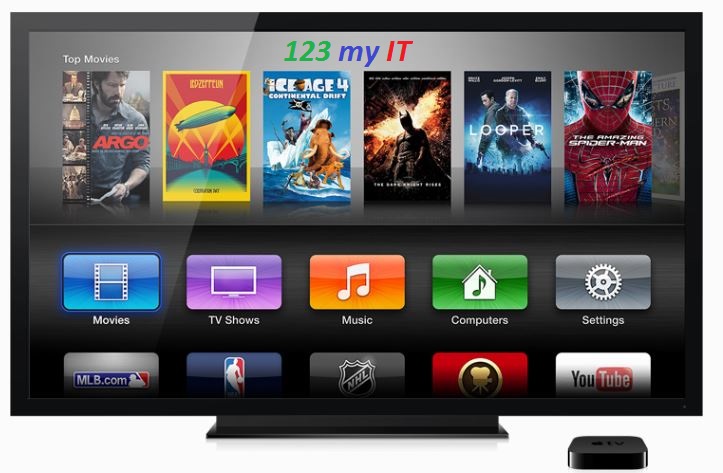
Apple TV allows you to stream movies and TV shows that are available online in the iTunes Store to your HDTV. All the movies in iTunes are on a rental or purchase basis, and all your purchases are then stored in the iCloud. Apple TV also streams a few other online media services such as Netflix, Hulu Plus, MLB.TV.
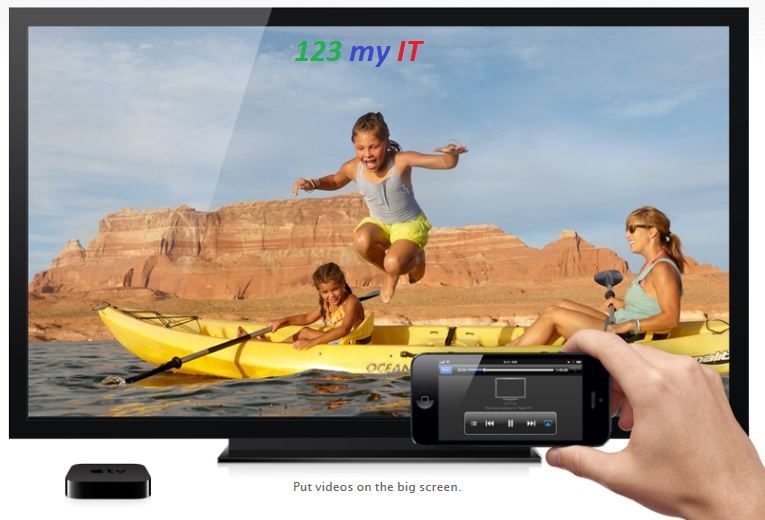
You can stream Music, videos and photos from iOS devices using AirPlay.
The Apple TV box has not changed since the second generation, the hardware inside has been upgraded from A4 chipset to the A5 Chipset. This upgrade allows streaming video at a higher resolution 1080p as apposed to 720p.
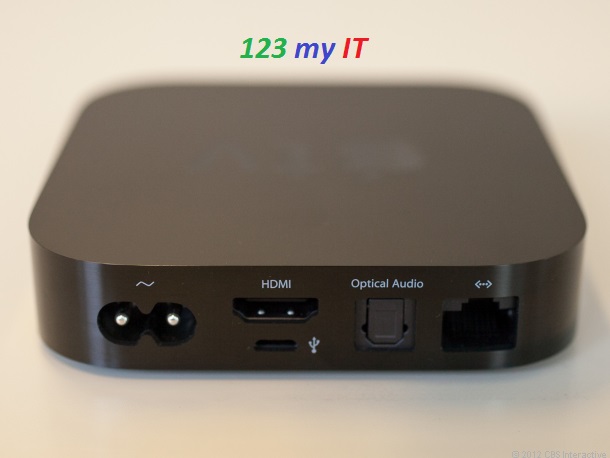
The Apple TV’s design is seen as the best around. Its a simple small black box and has a small white light at the front when the device is turned on. On the back of the box it has the following ports.
* Power cord
* HDMI
* Optical Audio
* Network
* Wifi 802.11n – There is not port for it have ever it is built in.
The unit doesn’t come with an HDMI cable so make sure you buy one other wise you will be in for a rude shock when you go to plug this unit in.
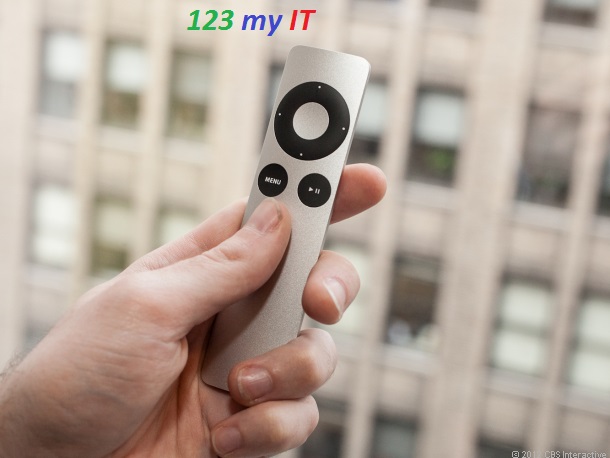
The Apple TV also comes with a small brushed aluminium remote that has only 4 buttons. A navigation circle at the top, which you can press to move up and down and left to right, a Menu button which works as a Back button, and a Play Pause button.
If you download the Apple remote control app you can control the Apple TV with your iPhone or iPad.
Over all the Apple TV seems to be a solid streaming device and if you have other iDevices like iPhone and iPod its probably worth looking into it. However the lack of a USB port for me is disappointing as it means you cannot plug an external USB hard drive directly into the device.