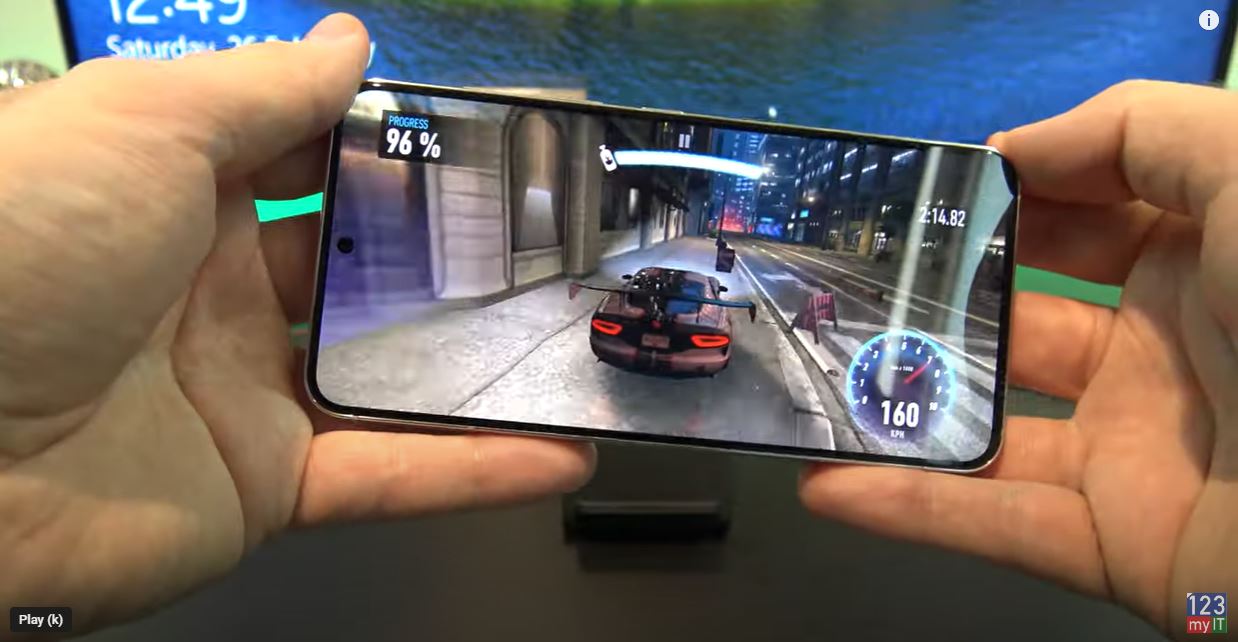
My Android Settings Start to Finish

Hi Guys and Matt from 123myit here. In this video, I want to show you all the settings I use for my personal Android phone. When I setup my phone, I try to focus on three things. I want it to be as private as possible. I want it to have good battery life and I want it to be quite with no interruptions.

Aims in Android Settings

*Privacy

*Good Battery Life

*Silent, No interruptions

Start with a Reset

So I will go ahead and reset my phone so you can see every setting I set my phone up with from start to finish. Cool the phone is reset and I will start setting it up. The first setting you will get is the sending of diagnostics data to Samsung and affiliates. Make sure you don’t select this by mistake. It sends diagnostic data to Samsung and affiliates about how you use your phone. Tap on details if you want to know more. This will use up your battery and your cellular data as well as making your phone less private. So just select end user Agreement and privacy policy and tap Agree.

Check out the Samsung S22 on Amazon here 👉 https://amzn.to/3M8VHhZ

Permissions

Ok Permissions for Samsung apps and services. Since Android Settigns12 was released, Google made it more secure requiring Apps to ask for permission before they can be used. These are all the Samsung apps asking for permission. I go ahead and turn these all off. Don’t worry when you start the app for the first time it will ask for these permissions anyway. But what you are doing is denying blanket access for all Samsung apps, which is a good step for privacy. So turn them off and tap agree.

Go ahead and setup your wifi.

Copy Apps and Data – Android Settings

Copy apps and data. If you want to follow one of my other Transfer videos I will put a link in the description. But for this video I don’t need to copy anything. I will add in the Google account later so skip for now.

Google Services, ok so the same apps permissions questions. But this time its for Google Apps and not Samsung. Same deal turning this off will help battery life, cellular data and privacy.

Fingerprint

Ok fingerprint you want to set this up and I also setup face recognition which is then backed up by a swipe. Do this to keep your data safe if you lose, your phone.

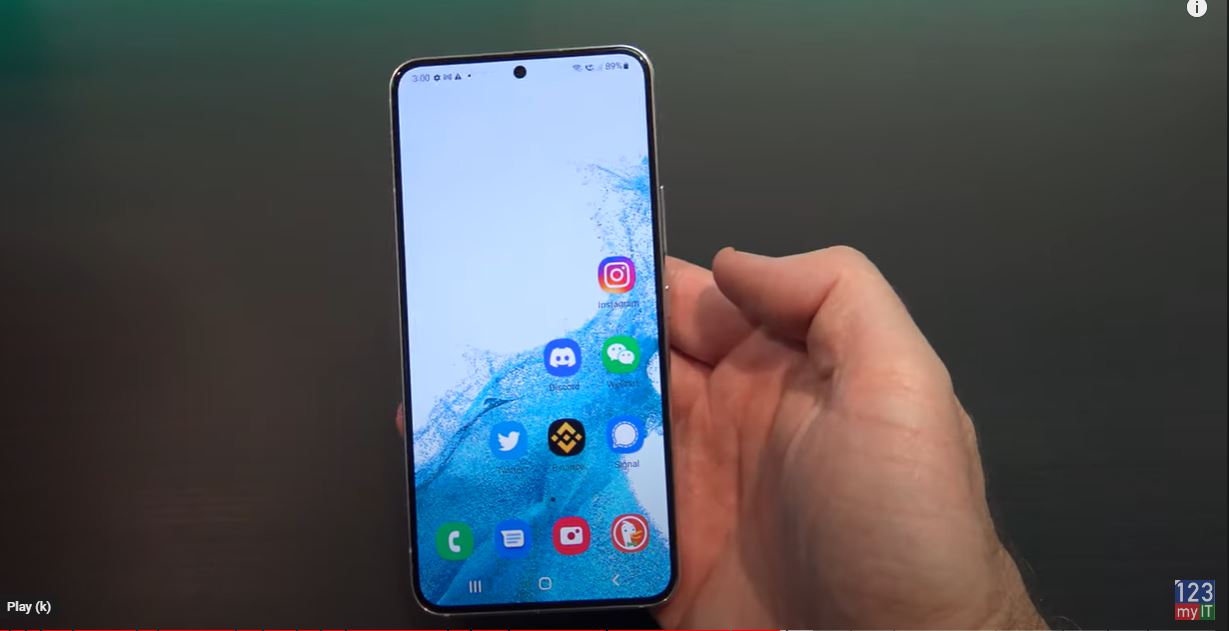
Review additional apps. If you need any of these apps leave them ticked. If you don’t just turn them off. Alright cool so the first thing to do its change my wallpaper. Leaving wallpaper black is good for however for the video I will change this back to the blue and white background.

Next thing to do is to get rid of any apps that I am not using from the home screens. I will get rid of the galaxy store and I like to keep all the Google apps in one neat group so they can stay.

Timeout Screen Dimming

So the next thing I want to change is the annoying screen time out. So if you are looking at something for too long it will dim the screen to save battery life. The default is 30 seconds so I will change that to 1 mins and if I find that annoying I will adjust it again. Now is a good time to go through all the display settings anyway.

Starting from the top I like Dark mode as I find it easier on the eyes and it saves battery life. However for this video I will leave it on the light settings. And below that you have dark mode settings which means you can set a time when you want it to come on. At night might be better.

Quick Settings Android Settings

Below that you have the brightness slider bar. Don’t worry about this for now I will show you how I add that to the Quick Settings menu a bit later. Adaptive brightness I leave on. The next settings I change is the Motion Smoothness. I set this too standard and that will save battery life. However if you play games leave it on Adaptive and you will get smoother gameplay at 120 Hz refresh rate screen. Eye comfort is limiting blue light which is meant to be better for your eyes and help you sleep. So you should probably leave this on. You can add that to the quick settings as well.

Turn off Edge Panels

Screen time out is the setting we came here for. Thirty seconds is too quick for me and I find it annoying, so I will set it to one min. The shorter time this is the better the battery life. So don’t put it on 10 mins because it will drain battery life pretty quickly. I turn off Edge panels as well. I don’t use edge on the Samsung. Accidental touch protection on. Touch sensitivity off and show changing information I leave on.

Lets go back to the home screen and keep working on the icons. I remove the weather App. I generally just look out the window for weather conditions. If I need a forecast I can press the Google assistant mic and ask. If I go back and I am not on the home screen and I can access the Google assistant from holding down the home button. I find both of those Google Assistant button very handy, I use both so I will keep both.
Android Settings

Google Play Store Apps

The next thing I will do is installed the Apps I want to use, and I will do that through the google play store. After you log in you will get a backup to Google drive prompt. Do that if you want to back up your data. For me I leave this off. Alright go ahead and download your Apps.

Duckduckgo is a really cool browser and I will show you why I use it. Ok once its downloaded I move it to my main menu bar down the bottom of the phone. Ok when you open it up it will tell you what its doing. The internet can be kinda creepy. Not to worry! Searching and Browsing privately is easier than you think. Tap lets do it. Next Try visiting one of your favourite sites. I will block Trackers so they can’t spy on you and ill also upgrade the security of your connection if possible. Very Cool!

Burn Button – Android Settings

What’s really cool about this browser is it has a burn button at the top. If you press on that at the bottom it says. Personal data can build up in your browser, yuck. Use the Fire button to burn it all away. Give it a try now.

If I tap up the top and search for a news website in Australia called Sydney morning herald. And then Duckduckgo says. Your Duckduckgo searches are anonymous and I never store your search history ever! So again, your phone is more private. This is great! If you tap Phew and then I tap on that news website. The Duckduckgo says: Google was trying to you here. I blocked them! You can check your URL bar to see who is trying to track you when you visit a new site. Very cool! Tap high five.

Clearing Cookies

Ok so now I am on the News website. In your browser you have these things called Cookies and they are used to track you. So for example on this news website it will give you five free to read articles and then after that it will try to get you to subscribe. Watch ill show you. So if I got in and out of an article eventually it will stop me from reading full articles. Best Android Settings.

So if I go to burn and I clear all my tabs and data I will be able to go back to the website and read full free articles again. And you can bookmark the website so its easy to browse to again after you use the burn button.

Lock Screen

Cool we can quickly test our lock screen. Works fine with the fingerprint we setup. Awesome. On the second screen I keep all my apps. This is for privacy as I don’t want people to see what apps I use on my home screen. So, I will remove and apps I don’t use and download all the apps I do use. Cool I’ve removed my apps now and I will add the apps I use. Because iam right-handed I stack the apps to the right side. If you are left-handed, you can stack them to the left. This is to make them easier to reach. There ya go nice an easy to reach.

Keyboard Settings

The next annoying thing to sort out is the keyboard settings. So once you have downloaded your Apps the first things you will want to do is send a message to someone right. IF you go into messages and tap the cog icon in the top of the keyboard it will take you directly to the Keyboard settings. I do not know about you guys, but I am sure everyone has a family member or a friend who sends you a text message and you can never understand it because predictive text has changed a word and auto replace has added the word before they check what they are sending. In the end, everyone is confused. My setup, I leave Predictive text on, Suggest emoji’s on, Suggest stickers off. In addition, auto replace off. But test with a friend or family member so you get it right for you. 

Setup Quick settings

The next thing to setup is the Quick Settings menu. Now I just did a video on Notifications so I won’t go over that again. However if you want to see the video on notifications I will put a link in the description. Ok so the quick settings menu just allows you to set functions on your phone quickly by swiping down from the top of your phone. In addition, you can change the buttons in here by swiping down again. Now if you remember earlier I showed you the brightness bar. I am going to move that bar into the Quick Settings menu. So go back up th top tap on the three dots and then edit buttons. This allows you to arrange the buttons you use most in the Quick Settings menu.

All you need to do is tap and hold the buttons and move them into order. The buttons I use are WIFI button, Mobile data button, and sound button, and Torch, GPS and Battery saver button. When you are finished organising your buttons tap on done.  Let us move the brightness bar into that menu by tapping the 3 dots and tapping quick panel layout. Go into brightness control and tap show always and then and in device control menu and show when quick panel expanded. Then the Quick settings menu will be set. Let us take a look. Swipe down from the top and everything including the brightness bar is displaying nicely.

Battery Saving Android Settings

Lets change some more battery saving settings. Go into Settings and Connections and I turn off WIFI calling. Here is an example of how WIFI calling works. I went to a beach house that was remote and did not have good 4G 5G cellular services. However, the house I stayed in had a wifi connection. I turned this on and was able to use the WIFI calling settings to make a phone call. If you do not need this service just turn it off and you will save battery life. I do not use Bluetooth so I just have this off unless I need it.

I do not use my phone for credit card payments. So this is off. If we go down to mobile networks. This will be called cellular networks in the US. In addition, go into network mode. So this Samsung phone support 5G. However, my cellular plan I am on does not. So I set this to 4G, 3G, 2G auto connect. This will save you battery life. Ok go back out and go into more connection settings and make sure nearby scanning is turned off.

Annoying Bixby Side Key

The last settings I change is the Bixby side key. You can find it under Settings, Advanced features and Side Key. I’ve already done a video for this one if you want to watch that I will put a link in the description.

Guys don’t forget to check out my other videos such as take control of your Notifications on Android Settings. And do me a favour if you know anyone who might like this video please share it will them, hit the subscribe button and smash the bell icon.
Take Control of Your Notifications on Android

Hi Guys and Matt from 123myit here. In this video we will show you how to Take control of your notifications on Android. Guys, I wanted to do a video which will hopefully help you take control of your notifications and stop them from being annoying and distracting. Notifications on Android

Lets get started.

Quick Settings – Take Control of Your Notifications on Android

The first thing I want to show you is Quick settings by swiping down from the top. You will see a list of your latest notifications in here. This will show you a cut down version of the notification. To see more of the notification, you can tap on the little arrow. And the notification will expand. If you want to go directly into the notification, simply tap on it and it will take you directly to the service or message. Swipe down again to go back to Quick Settings.

Back in Quick Settings and down the bottom you will see two buttons notification settings and clear. If you tap on notification, settings that will take you directly to you guessed it the notification menu in the settings of your Android. And if we go back into the Quick Settings and tap on the clear button that will remove any of the latest notifications from the Quick Settings menu.

Notifications

You can find that from the Home screen by going into Settings and notifications. Cool so in here we can control how our notifications are delivered. Will your notifications keep buzzing your phone and distracting you. Or can you fine tune them to only notify you on the important contacts and messages.

Notifications on Android

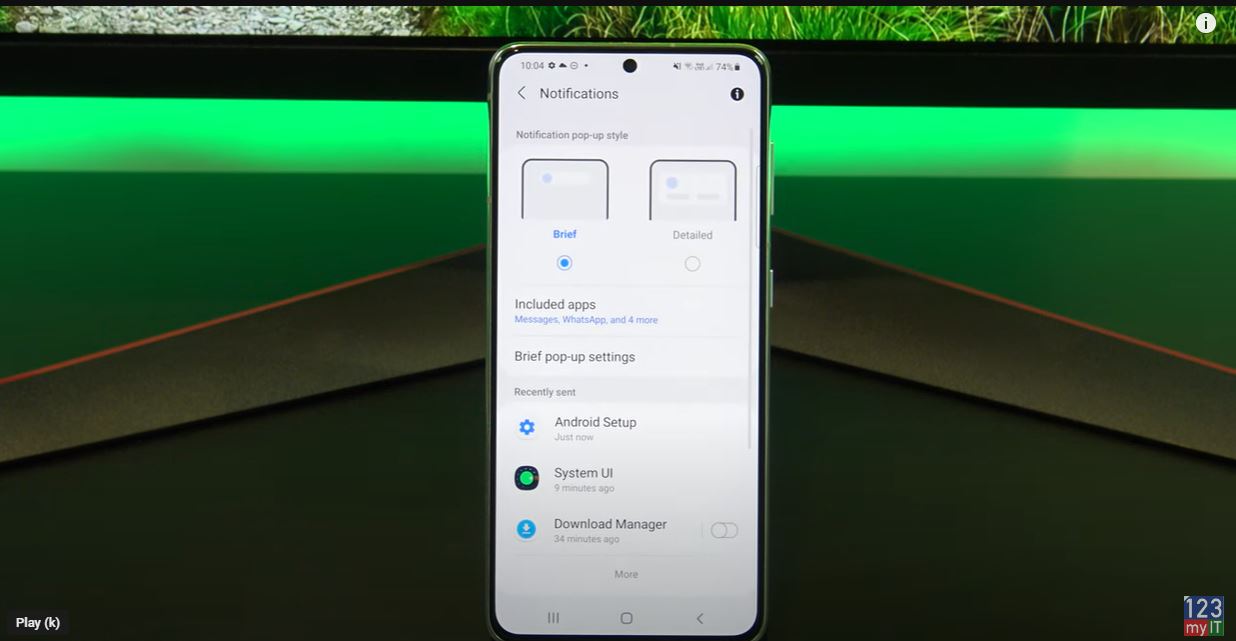
In the top of notifications, you have Brief and Detailed. Here’s an example of what Brief looks like. Here’s an example of what Detailed looks like. Detailed can be annoying if you are reading a website because it takes up more screen real estate and will pop up over some of the words.

Pop-Up Notifications

If you tap included apps this will show you a list of apps that can display pop up notifications on your Android device. Allot of these will be on by default. You should go through here and only select the Apps that you want popup notifications from. A good example of this would be messages. When some one sends you a text message you will get a notification. If we got back out of there and go into Brief popup settings. And we tap on Edge lighting style. In here you can choose an Effect, Colour and duration for when you get a popup notification.  It gives you a little example at the top of the screen.

Cool so if we go back out of there you have another option to show when screen is off. I usually turn this off for privacy. But if you want it to show when the screen is off leave this turned on. Under Brief popup notification you will have recently sent which shows you a list of apps that sent you a popup notification most recently. You can tap on more to get the complete list.

Do Not Disturb

Under that you have do not disturb. This is handy if you want keep you phone from disturbing you for a set period. Maybe when sleeping or studying. You can turn on the do not disturb button at the top and set your times. Toggle on the Sleeping button, the default do not disturb is 10 pm to 7am if you tap add schedule you can select whats days you want this. And below that you can set exceptions.

Messages and Conversations

Tap on Calls messages and conversations. This allows you to take calls messages and conversations from people in your contacts lists only. Therefore, it wont allow a person to call a second time within 15 mins unless you turn on the Repeat callers button. Remember this is only in the do not disturb time frame that you have set. If you go back and go into Alarms and sounds. When do not disturb is on, sounds and vibrations will be muted, so this allows you to turn them off if you want during the do not disturb time frame.

Alarms stay on

As you can see here the alarm is still turned on. This means your alarm will still wake you up even if you have the do not disturb turned on. If we go back, it will be the same thing for Apps you can set an app to still send you a notification even if do not disturb is turned on. The last settings are Hide notifications, this will allow you to hide notifications when the screen is off as well as when it is on.

Hide Badges

You can also hide the badges on your icons. But the things to remember critical notifications about phone activity will always show up. So, badges are the little numbers beside your apps to notify you how many messages you have. See here I will turn them off.

The last setting here is Advanced settings.   

Guys don’t forget to check out my other videos such as Transfer data Android to Android in 2022. And do me a favour if you know anyone who might like this video please share it will them, hit the subscribe button and smash the bell icon.
Transfer Data Android to iPhone 2022

Fix No Users Available for Authorisation M1 Mac Error

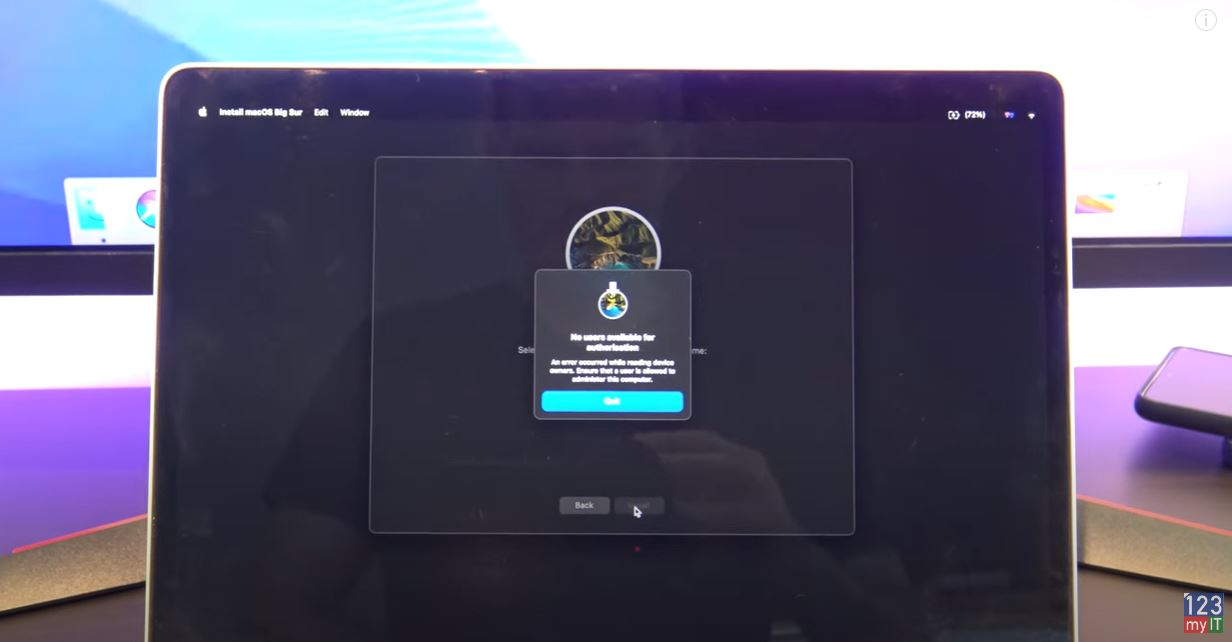
Road Block Error – No Users Available

Hi Guys Matt from 123myit here Welcome to the channel. I was trying to reinstall Mac OS big Sur and getting the following error No users available for authorisation. In this video, we will show you get past the error No users available for authorisation on an M1 Mac. So people if you followed my other video how to reset an M1 Mac, I show you how to reset an M1 Mac for resale so it doesn’t have any of your personal data left on it. I will put a link to that video in the description. When reset process you might hit a road block error, which says No users available for authorisation. These are the steps to get around that.

No Users Available

Let us get started.

Disk Utility

Hit Quit and then go back into Disk Utility. In the Disk Utility sidebar select, the volume called Data or it could be called Macintosh HD data and then select the Volume minus sign.

When it pops up for delete. Go ahead and click delete. Moreover, when it finished quit out of Disk Utility.

Activate your Mac

After you quit it should come up and say your Mac is activated. If it does not make sure you have connected the Mac to your WIFI. Next Click on Exit to Recovery Utilities. Then go in and Try to reinstall your version of MacOS again. In my case its Big Bur.

Support the Channel

In addition, guys don’t forget to check out my other videos such as Apple MacBook Pro 14 inch Unboxing. Do me a favour if you know anyone who might need this video please share it will them, hit the subscribe button and smash the bell icon.

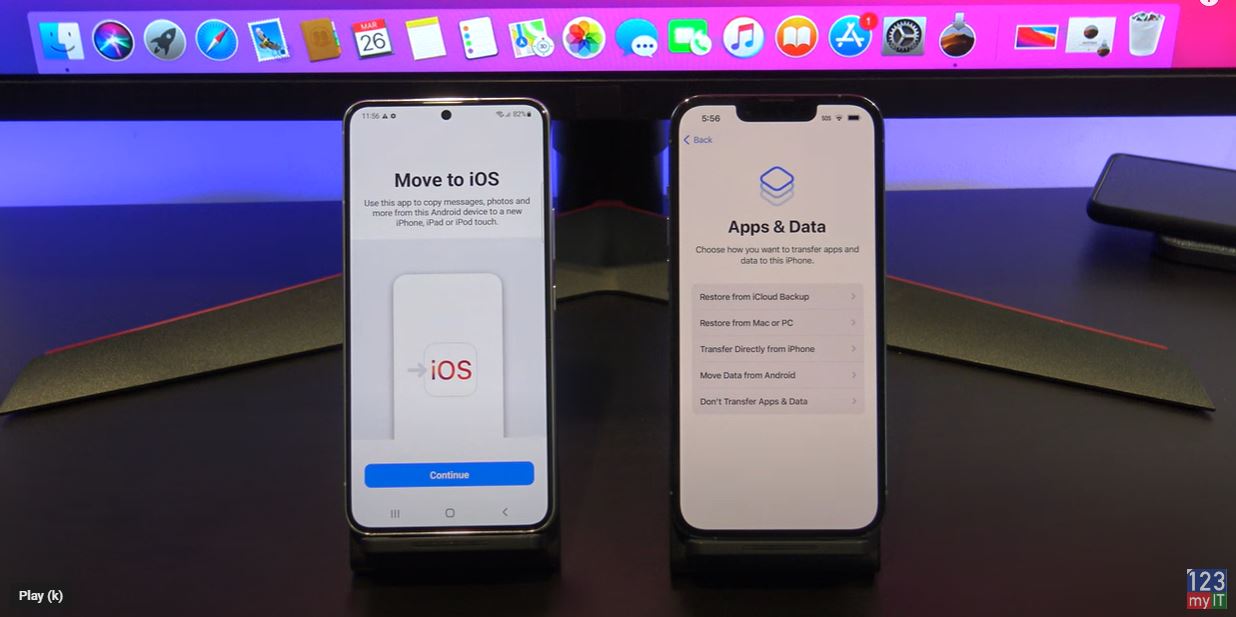
Transfer Data iPhone to Android 2022

Transfer Data Android to Android 2022

Transfer Data iPhone to Android 2022

Hi Guys Matt from 123myit here. In this video, we will show you two free ways to Transfer data from iPhone to Android 2022. The first way is the Official way to transfer data from iPhone to Android and we will use the iCloud app to do this. If you don’t want to use iCloud, then head to the 4:10 min mark and I will show you the second way to Transfer your Data without iCloud. Following this video you will be able to Transfer Contacts, Data from iPhone apps, Images, Videos and Documents.

Lets get started.

iPhone settings – iPhone to Android 2022

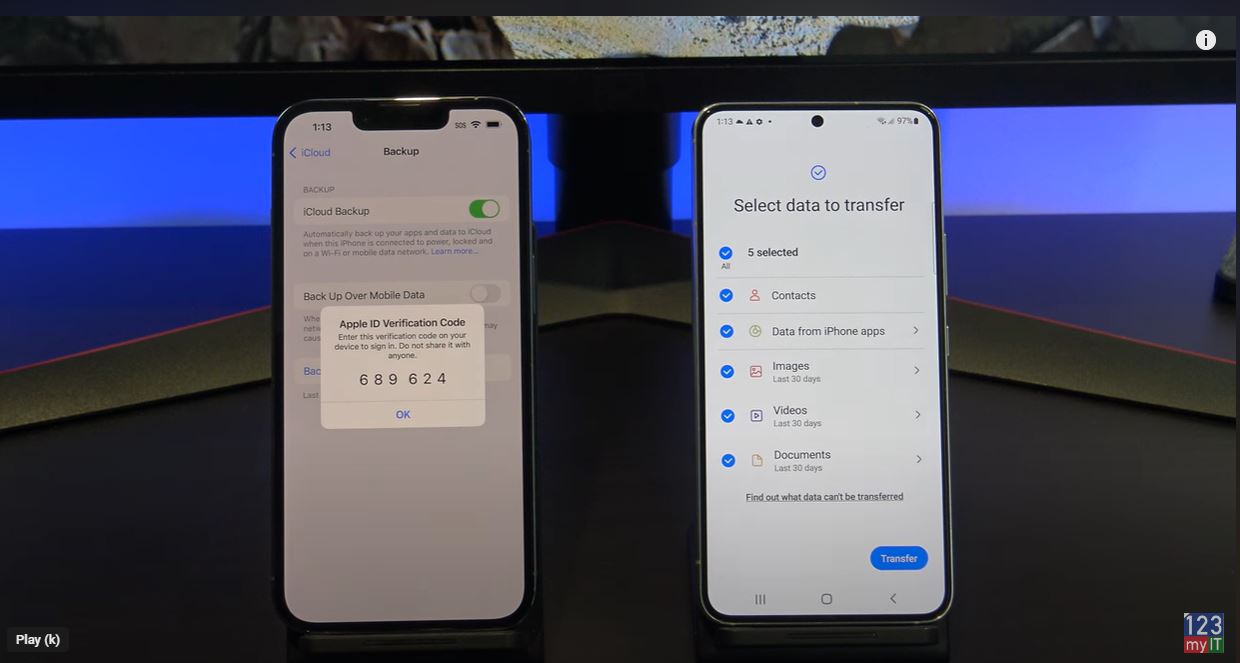
On your iPhone go into settings scroll to the top and sign into your iCloud with your Apple ID. After signing in, if you have two factor authentication turned on you will need to type in your verification code. Once you enter your verification code it will start to sign you into iCloud. You may also get prompted for your Passcode enter that as well.

Cool once you are logged into your iCloud account tap on iCloud and scroll down till you see iCloud backup. This is where you would tap backup now to backup you iPhone. However, before you do this let’s go back and select what we want to backup. Remember you will be coping this data to your Android device so only select what you want to move to your Android device.

iPhone to Android 2022

Turn off find my iPhone

When your finished before you hit backup now you want to make sure you turn off find my iPhone. This is helpful if you want to sell your iPhone afterwards. Go into the find my iPhone menu and just turn it off. You will need to enter your Apple ID to do this.

You also want to turn off iMessages. Go back out into Settings and then scroll down to Messages. At the top just turn off iMessage.

Alright now you can go back into iCloud backup and start the backup. While that’s backing up, go over to your Android device and go into Settings and scroll down to accounts and backup. It might be in a different menu depending on what model of Android device you have. Tap on Bring data from old device and if you get prompted to update go ahead and do the update.

Receive Data iPhone to Android 2022

Tap agree and allow. Tap on receive data and tap on iPhone/ iPad. You can transfer from Android and Windows phones also. Tap on Get data from iCloud instead. And then enter in your Apple ID details. Next you will get a prompt on your iPhone to allow the Android device to connect to your iCloud account. Just Tap Allow. And then enter your verification code on your Android device.

Awesome, just go ahead and deselect anything you dont want to Transfer to your Android device. Make sure you tap the arrow and select all otherwise it will only copy the last 30 days of photos. When you are done tap Transfer. If you go to the Home screen and you want to see how the Transfer is going swipe down from the top and tap the Smart Switch notification.

Check your iMessage

Your data is copied across now, tap next and there will be a warning about iMessage which we already did.

The second Free way to Transfer your data is by using an App called Copy My Data. You can find it on the App store and the Play store. Once you have downloaded it open it up on both phones. Tap allows to give access. Tap next and on your iPhone select your Android device. Next, tap the Copy data to selected device. And then enter the PIN number on your Android device.

Deselect anything you don’t want. I just want to transfer contacts and photos.

Awesome your data has been Transferred now. Tap finish and check that your photos have been copied across. And there they are. Also guys don’t forget to check out my other videos such How to Transfer data from Android to Android in 2022. And do me a favour if you know anyone who might need this video please share it will them, hit the subscribe button and smash the bell icon.

Samsung Galaxy S22 Unboxing Benchmark Compare

Transfer Data Android to Android 2022

Hi Guys Matt from 123myit here. In this video, we will show you how to Transfer data from Android to Android in 2022. Ok Guys If you are transferring data from any Android device to Samsung then you will be able to transfer Calls, Contacts, Messages, Apps, Home Screen, Settings, Photos, Videos, Music and Documents. IF you are transferring from Samsung to other devices, you will be able to transfer Contacts, Calendar, Photos and Videos.

Tips before you start – Android to Android 2022

Guys I want to give you a few Tips before you Start.

Turn off any security feature such as passcodes etc. As they might interrupt the transfer process.

Delete any unwanted video and pictures. This is to save Transfer time and space on your new phone

If you have a Sim card you can transfer the Sim at any time.

Smart Switch

Today we are going to transfer data from Samsung S21 to a Samsung S22 phone and we are going to use an app called Smart Switch. Smart switch will work with most Android phones. However, if it doesnt fast forward to the 5:07 mins mark and I will show a different app to use if Smart switch does not work for you. Android to Android 2022.

 Most Samsung phones will have the smart switch app already installed under Settings > Accounts and backup. But if you can’t find it on your device you can download it from the Google play store.

Join the Same WIFI

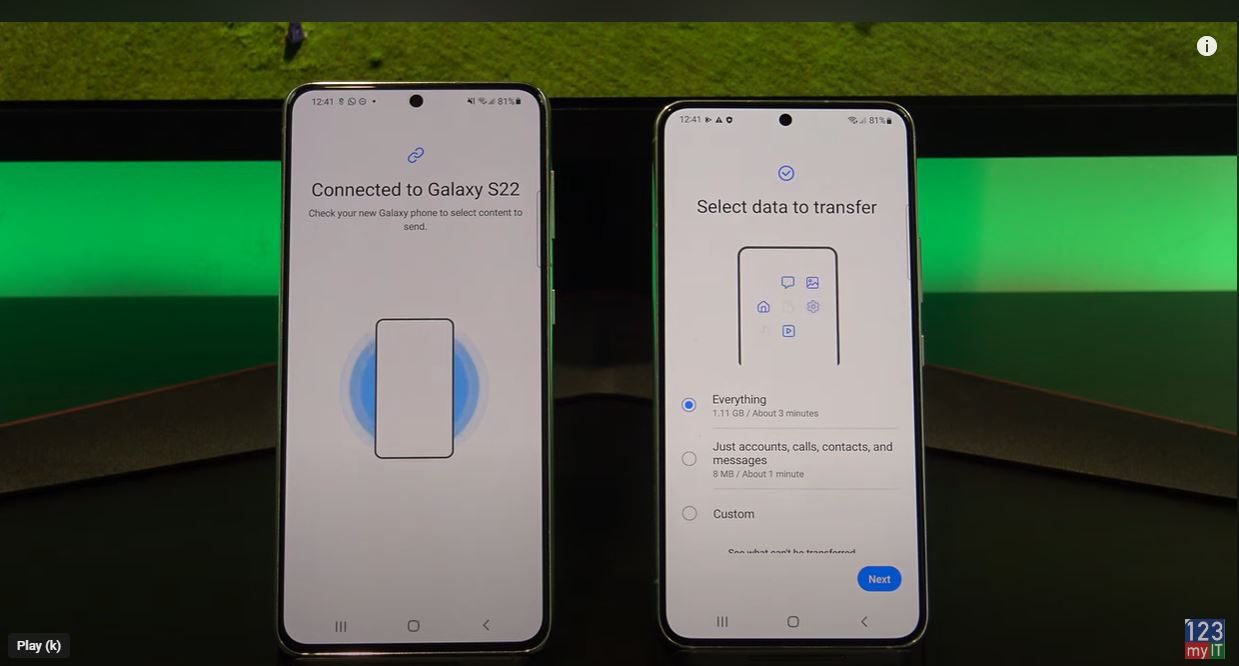
Tap agree and then join your phone to the same WIFI as your old phone. Tap on send data from the phone you want to Transfer the data from. Make sure both phones are on the same Wi-Fi and tap wireless. Ok Smart Switch will start to download. To check its progress swipe down from the top.

Android to Android 2022

Ok while that is downloading go back to your old phone and tap send data. Now that its downloaded go back to the SmartSwitch app and tap continue and allow. Next, tap receive data and then tap Android and then Wireless. Tap connect on your old phone and its you get the error could not connect don’t worry. Just hit connect again on both phones. It should come up straight away the second time around. Tap Allow on your old Android phone and it should start the Transfer process.

Select your data

Your Android phones should then work out what data it can copy across. Go ahead and choose what you want to transfer across and deselect anything you do not want to copy across. Tap on Custom and then next. Swipe up and select everything you want to copy to your new Android phone.

Sweet so your data will start to copy across now. If you check your time and its staking ages you might have too many large video files and slow Wireless. Let me know how long you needed to wait in the comments section below.

Check your data

Let us go back to the home screen and we will check if our data copied across. Ok lets check the gallery for our videos and photos. Ok cool so its given use the results of what it has copied. You can tap on View more, next and Done.

Let us check the gallery again. Cool there is our videos and photos.

Awesome, there’s our photos in the gallery all your stuff is copied across now.

Transfer back the other way

Alright, Let us transfer back the other way now. We are going to use an app called Copy my Data. You can download it from the Google play Store. I have already downloaded it so I will just open the app. Make sure you have it downloaded on both Android phones. Tap next on both devices. Tap to or from another device over WIFI. Select your device then select copy data from selected devices. Because we are Transferring data back the other way. Add in the pin number. Then tap next. Deselect any of your data you do not want to copy across. IF you get prompted tap allow on your other device. Congratulation you have just copied your data between two Android devices.

Finish

Finish on both phones and check if you data transferred across ok. If you have a sim card, you can also move it now.

Once your data has copied across you can go ahead and delete the Copy my Data app.

Guys don’t forget to check out my other videos such Samsung Galaxy S22 unboxing. And do me a favour if you know anyone who might need this video please share it will them, hit the subscribe button and smash the bell icon.

Apple MacBook Pro 14 Inch Unboxing, Benchmark Compare

Samsung Galaxy S22 Unboxing Benchmark Compare

Hi Guys Matt from 123myIt here. In this video, we will show you everything you need to know about the Samsung Galaxy S22.

Models of Samsung – Samsung Galaxy S22

There are three different models of Samsung Galaxy range. There is the S22, which is the model we have here. Then there is the S22+ and the S22 Ultra.

Pricing for the S22 is the same as last year’s S21 and starts at $799 USD for the 128 GB model. You also have four different colours to choose from, black, White, green and Pink.

The S22 is has a 6.1 inch display and it comes with Qualcomm Snap Dragon 8 chipset which has an octa core CPU. In addition, the Qualcomm Adreno 730 gpu. Along with 8GB of ram. Let look inside the box.

In the box

First up in the box of the Samsung Galaxy S22 you have the phone itself. There is a little bit of plastic on the front, back and sides, which needs to be removed. Next will find the documentation a quick start guide, Warranty information and Samsung Care info. On the back of the black box there is also a sim card eject tool. The only other accessory are the USB C cable.

The Galaxy S22 supports 15 watts wireless charging and is IP68 water and dust resistant up to 1.5 meters for 30 mins. THEREFORE, it means you can run it under a tap to clean it, which is cool.

Samsung Galaxy S22

Display

The Galaxy S22 has a 6.1-inch Dynamic AMOLED 2X display. It has a 1080 by 2340 -pixel resolution at 425 ppi. If you compare it with last year’s model the S21 on the left, you can see the S21 has a bit more screen real estate on its 6.2-inch AMOLED display. If you are looking to update to the S22 from the S21 just be aware that the screen is smaller. Although the screen is smaller, I actually liked the size it feels more compact. A bit like an iPhone. I will let you be the judge.

On the right side, you have then Volume up and down buttons and Sleep Wake power button. On the bottom, you have the USB C connector, microphone pinhole, sim card slot and one of the stereo speakers. Actually, the Stereo speakers are impressive. Take a listen.

Face Unlock

Face recognition, Face unlock and finger print scanner are standard on the Galaxy S22 models. Moreover, they work really well now. There is also a toggle button to turn off the swipe part on the lock screen when your face is recognised. I found it very annoying to have to swipe to access the phone even though your face has unlocked the screen. Just let me in the phone once it unlocked.

Along the front top of the S22 we have a 10 megapixel Camera which has a F2.2 aperture. Same as last the S21 from last year so no changes here.

Cameras

On the back of the S22 you have a Triple Camera setup which features a Ultra Wide, Wide and Telephoto cameras. The 12MP Ultra Wide lens has a 120-degree field of view with a F2.2 aperture. There is a new 50 megapixel Wide lens has a larger sensor and f 1.8 aperture. And the last camera features the new 10 MP tele lens which has a 3x optical zoom and F2.4 aperture. For stunning portrait shots.

The Galaxy S22 can come with either the Exynox or Snapdragon CPU depending where you live. A fast processor is important when playing games and videos or when generally moving around the phone. Let us run the Geekbench benchmark and see how the S22 performs against other models.

Benchmark

The results of the Geekbench scores show that the S22 does outperform last year’s model the S21 and the S20+. However the S10 in my video showed a very high Geek Bench score of 4461 which I am not sure why it is that high it might be and older version of the Geek Bench software. It should be around the 746 mark. IF you want to check out those videos, I will put a link in the description.

While running CPU benchmark software lets take a look at where the S22 is heating up it seems to me mostly at the top of the device near the cameras. Which is away from where your hand might be resting so fair good design here. However, the s22 does get quite hot at 34 to 39 degrees, which is probably one of its downfalls.

Made from Glass

Another thing to mention the back of the S22 is now made of glass. Last years model the S21 it was made of plastic. In addition, the edges on the S22 are sharper and not smooth which did annoy me a bit when I first picked it up. But now not so much. And the battery is smaller on the S22 at 3700 mAh which sounds like a bad thing. However, I look at it as a good thing. First the screen is smaller and the chipset more efficient. So you just do not need a bigger battery I think its good design by Samsung here.

Ok so here is the pros and cons guys. The S22 it’s a great phone it’s hard to pick anything wrong with it. Samsung have taken the already great phone from last year and just made a few little tweaks to make it even better and more compact.

Pros – Smaller more compact

More efficient hardware

Better cameras

Cons – Heats up

Sharper edges

Guys, don’t forget to check out my other videos such as top 5 Android settings to turn off in 2022. Also do me a favour if you know anyone who might like this video please share it will them, hit the subscribe button and smash the bell icon.
Apple MacBook Pro 14 Inch Unboxing, Benchmark Compare

Apple MacBook Pro 14 Inch Unboxing, Benchmark Compare

Hi guys Matt from 123myIT here. In this video, we will take a look at the Apple MacBook Pro 14 inch and see if it’s still worthwhile in 2022.

There are three different MacBook’s in the MacBook Pro range. There is the entry level 13 Inch MacBook which I already did a video and you can check that out from the link in the description. Then there is the 14-inch MacBook, which is the model we have here today. Last in the line-up is the 16 inch, which has a slightly larger screen.

MacBook Pro Hardware

This MacBook is a 14-inch laptop comes with a M1 Pro processor, which has 8 cores it also has a 14 core GPU and a 16 core Neural Engine. If you do not know what a neural engine is, it controls the AI part of the MacBook.  Along with 16GB of Unified Memory and 512 GB of SSD storage.

Pricing for the 14 Inch Pro starts around $1999 USD for the M1 Pro CPU and goes up to $3499 USD for the M1 Max CPU. When buying the laptop on the Apple website you will have a chance to choose bigger storage memory and CPU options. Let’s take a look inside the box.

What’s in the box

First, up you will have the Apple MacBook Pro 14 itself. Along the bottom, it has MacBook Pro Stamped in the aluminum. The chassis is held together by eight-teck screw and It also has four think black rubber feet to improve air flow. In addition, on the top you will have the standard Apple logo.

Accessories

In terms of accessories, in the box you will get Warranty and setup documentation. It also includes two black Apple stickers. Next, up you have a 67-watt USB C power adapter. I tested the MacBook and it uses around 42 watts when charging and a Max of 60 watts when doing benchmark. However, you can expect to get around 11 hours of general use and up to 17 hours of video playback. Charging the battery from empty to full should take around 1 hour. The plug of the adapter does come off and you can buy an extension cable for it. The last accessory in the box is the USB-c to MagSafe 3 cable.

MacBook Pro Touch ID

When you take the MacBook Pro out and open the lid it will guide you through the setup process. During this process, you will be prompted to setup Touch ID and you will have to train your finger. Now this can used to unlock your MacBook Pro, authenticate payments or authenticate passwords.

If it’s one thing that I feel Apple never skimp on its their screens. The MacBook Pro comes with a 14.2 inch Liquid Retina XDR Display. With a resolution of 3024×1964 at 254 pixels per inch and up to 1000 nits of sustained brightness. It can even go higher to 1600 nits for HDR content.

apple MacBook pro 14

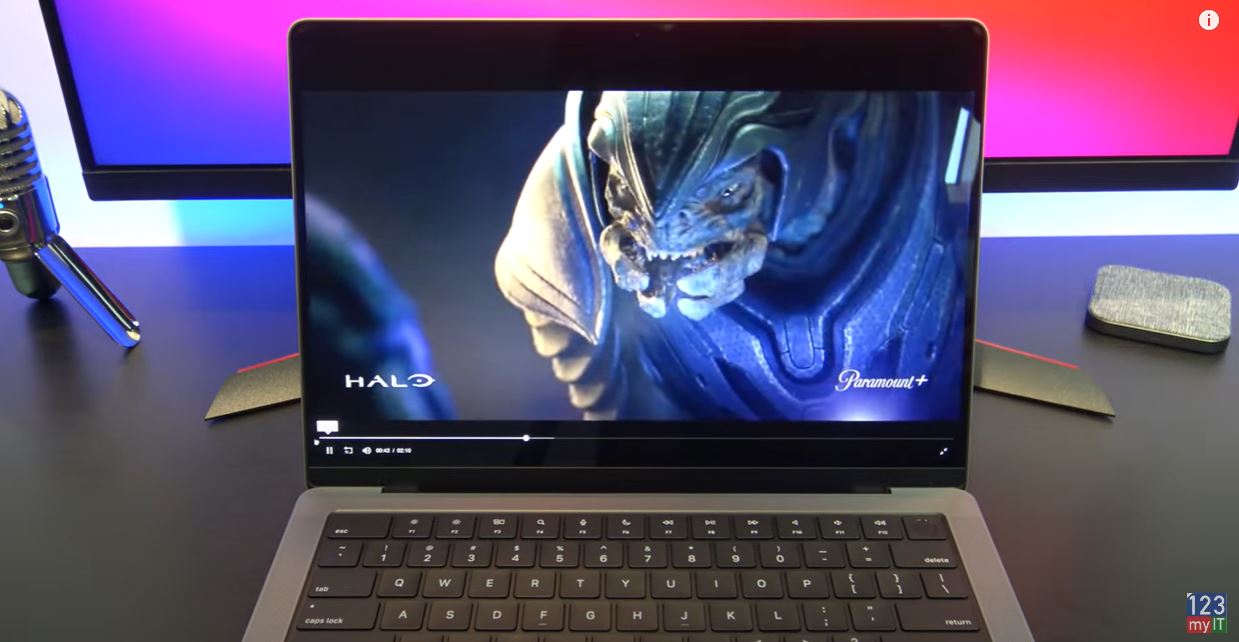
And it makes for some pretty impressive movie watching. Let’s take a look.

MacBook Notch

You might have noticed across the top of the display there is a notch. Apple has done well with this design as it gives you more display space without taking up any extra room because it sits in the menu bar. Inside the notch, you have an upgraded 1080p FaceTime HD camera. Which is great for those conference calls. Its upgrade from the 13 inch MacBook that only has a 720p camera.

All the MacBook Pros come with backlit Magic Keyboard and its a delight to type on. The keys do not bend when pressing and don’t tend to wobble too much. One difference between the 13 inch model and the 14 inch model is the touch bar has been remove and the Escape and function keys have been re-added. The backlit keyboard is also controlled by the ambient light sensor so it only turns on when the lights are low. Pretty cool huh!

Trackpad

The trackpad is still pretty much the same, it’s a force touch trackpad and allows for precise cursor control and multi-touch gestures.

The MacBook Pro 14-inch comes with a six-speaker sound system with force-cancelling woofers and wide stereo sound. I thought the 13-inch had good speakers but the speakers on this 14-inch MacBook Pro are really the next level. I do not say this lightly. It’s like having a dedicated stereo in your room. Let’s take a listen.

Ports

On the left, you have a MagSafe 3 Charging port, two Thunderbolt 4 ports and a headphone jack.

On the right side, you have a HDMI port, Thunderbolt 4 port and a SDXC card reader. The Thunderbolt 4 port doubles as a display port so if you have a USB C to HDMI adapter you can plug in an external display. For me the HDMI port is a necessary addition and I never understood why Apple didn’t include them in the first place. You can have up to two externals displays at 6K resolution running at 60Hz. 

Build Quality

The overall build quality is great and there is little to no flex on the MacBook Pro. Also the silver aluminium doesn’t leave finger prints which is great. For me I feel like its almost the perfect size but there is some weight to it. So if you intend to carry the MacBook Pro around allot maybe check the weight because the 13 inch MacBook Pro or MacBook Air range might be better for you.

Underneath on both sides you have an air vent. I get that there are they for airflow, but the position of these vents are right where you would put your hands to carry the MacBook. In addition, while they are not sharp I found them annoying. Better placement for air vents are within the hinge itself like these ones are.

Display Hinge

Talking about hinges the display hinge only folds back about 160 degrees, however other laptops go all the way to 180 degrees, so 160 feels a bit awkward.

Lets go ahead and run the Geek Bench Benchmark software. Cool, so the MacBook Pro 14 Inch recorded a single-core score of 1770 and a multi-core score of 9995. Moreover, if we compare that with the scores from the MacBook Air and MacBook Pro 13 inch we see there is not much difference in the single core scores. However, the multi-core scores there is a big difference of 2315.

Benchmarks

When running a Benchmark and while the Apple MacBook Pro 14 is under load, it is a really good time to check the temperatures and see where the MacBook Pro is heating up. The room I am in has a temperature of about 27 degrees Celsius at the time of recording. As you can see here, the MacBook Pro really heats up in the middle of the keyboard to about 44 degrees. And about 40 degrees in the hinges of the display. So there is some clever design here as there is no heat where you might be placing your hands and palms when typing.

MacBook Pros are designed with content creators in mind. People who are video editors and music creators. And in doing so they leave out gamers. The hardware just does not support gaming or a native install of Windows. So if you are after a gaming machine then you’re better off going with a gaming laptop. However if you are a content creator then the Apple MacBook Pro 14 is the best all-rounder in my opinion. The display is brilliant and the speakers are the best I have heard on any laptop. And you get all this in 14 inch footprint.

Guys don’t forget to check out my other videos such as How to use focus on iPhone and iPad. And do me a favour if you know anyone who might like this video please share it with them, hit the subscribe button and smash the bell icon.
Top 5 Android Settings to Turn Off in 2022