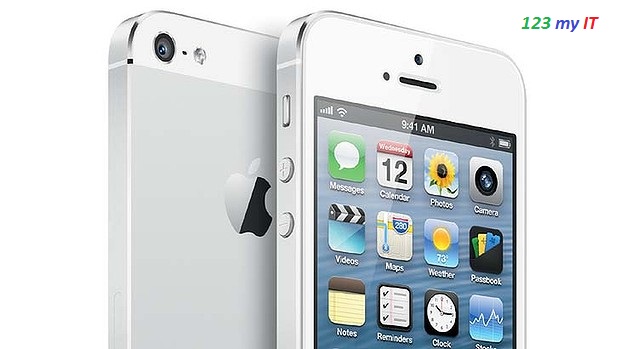
According to the AllThingsD technology blog, The iPhone 5S is looking as if it will be launched by Apple officially on the 10th of September.
While the blog listed no sources for the information, it said that in a special event next month Apple will reveal it’s latest smartphone offering to consumers.
Apple has yet to confirm if this launch date is correct.
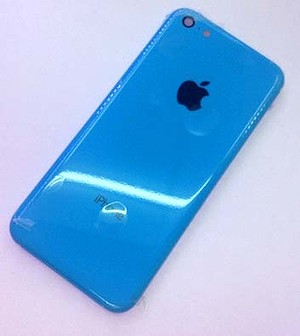
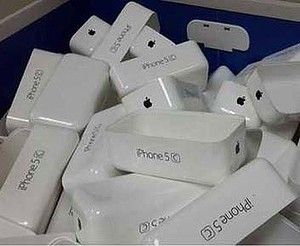
The proposed event would see the launch of two products, including the ‘5C’ a new Apple device which has been leaked online. It’s said to be a cheaper version of an iPhone with a plastic case.
It was Sonny Dickson, a teenager living in Melbourne Australia who leaked the images of the cheaper smartphone in July.
Leaked iPhone image which suggests that this is the outer plastic case of the iPhone 5C.
In terms of the new iPhone 5S, the major feature will be a fingerprint scanner, which would greatly enhance the smartphones security capabilities.
In 2012 it was reported that Apple acquired the fingerprint security company AuthenTec for an estimated $US356 million.
This video will show you how to install eBay App on an iPhone 3G.
To follow this video and install the eBay app you need to have the Whited00r 6 firmware installed. This will wipe any data you have on your iPhone however you will have access to working Apps like eBay.
You can find the Whited00r 6 firmware video here.
Make sure you backup your data on your iPhone, you can see the video on how to do this here.
Step 1. Make sure the Whited00r 6 Firmware is installed.
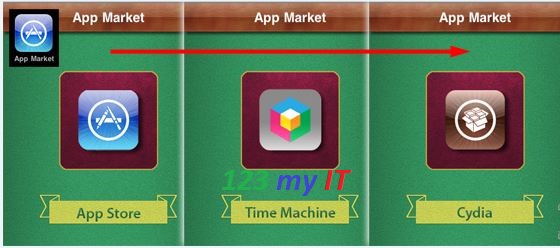
Step 2. Tap the App Market icon and then scroll across to the Time Machine.
Step 3. Scroll down and tap on Lifestyle. Then tap the eBay app and you will have to scroll back to the top of the Lifestyle app and then tap on ok to download it.
The eBay app will the download and install on your iPhone and you are good to go.
This video will show you how to Delete Google Chrome History.
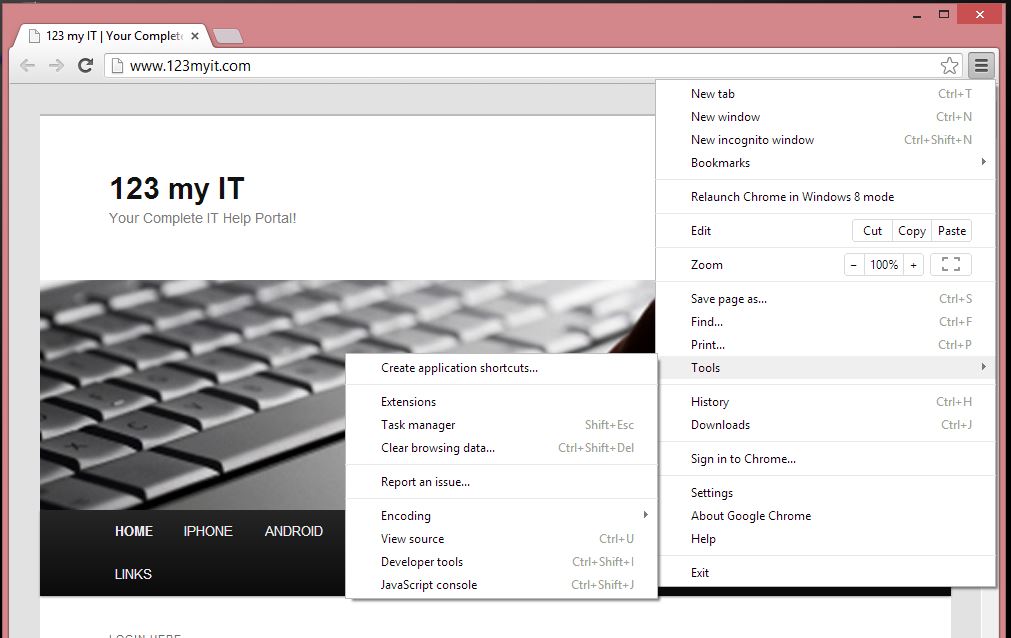
Step 1. Open up Google Chrome.
Step 2. Click on the Customise button in the top right hand corner of the browser. Click Tools, then go to Clear Browser Data.
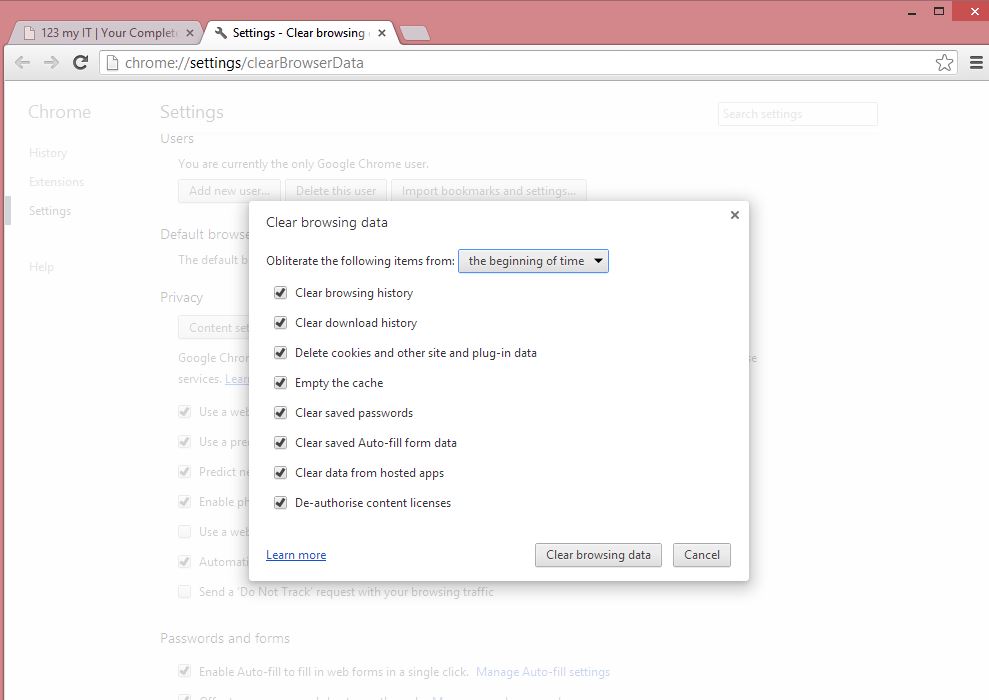
Step 3. You should see a Clear Browsing Data Screen. At this point you will be able to select how far back in time you want to delete the history.
Your options are:
* The past hour
* The past day
* The past week
* The past 4 weeks
* The Beginning of time
Step 4. You can then select the following check boxes and click Clear browsing data.
* Clear browsing history
* Clear download history
* Delete cookies and other site and plug-in data
* Empty the cache
* Clear saved passwords
* Clear saved Auto-fill form data
* Clear data from hosted apps
* De-authorise content licences
NOTE: Be careful when checking the Clear saved passwords option as it will removed any saved passwords that you have in your Google Chrome Browser.
This video will show you how to Delete Internet Explorer History.
Hi All,
Since everyone uses web browsers so much these days. I decided to make a few videos on how to clear the web history and reset the browser back to factory defaults.
If you find you are having funny issues like browser is closing and crashing and you are getting funny popup and odd behaviour then its probably time to set the browser back to factory defaults.
When you use the browser so much you want it to be running as fast as possible so I suggest following these steps every few months or so.
In this video I have used Windows 8 and Internet Explorer 10. You may find that it looks a little bit different but it should be very simular for Internet Explorer 8 and 9.
Step 1. Click on Internet Explorer and open a Window.
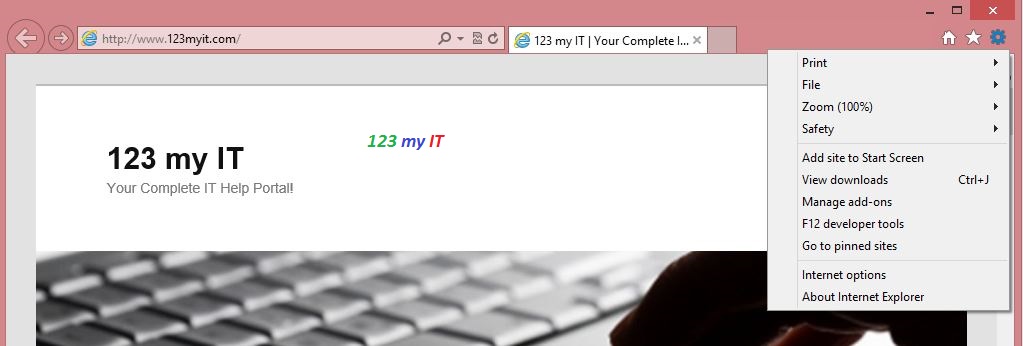
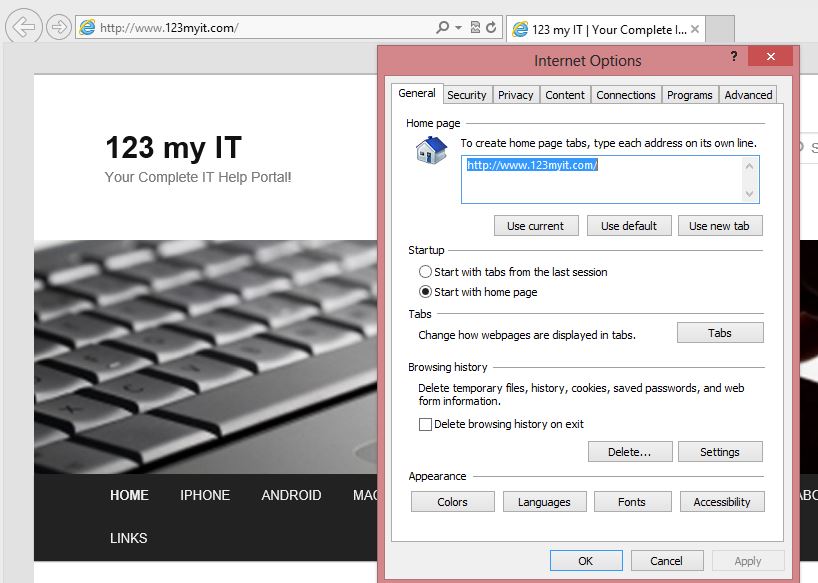
Step 2. Click on the Cog icon in the top right hand corner of the browser and then click on Internet Options.
Step 3. Make sure you are in the General Tab, and then under the Browsing history heading click Delete.
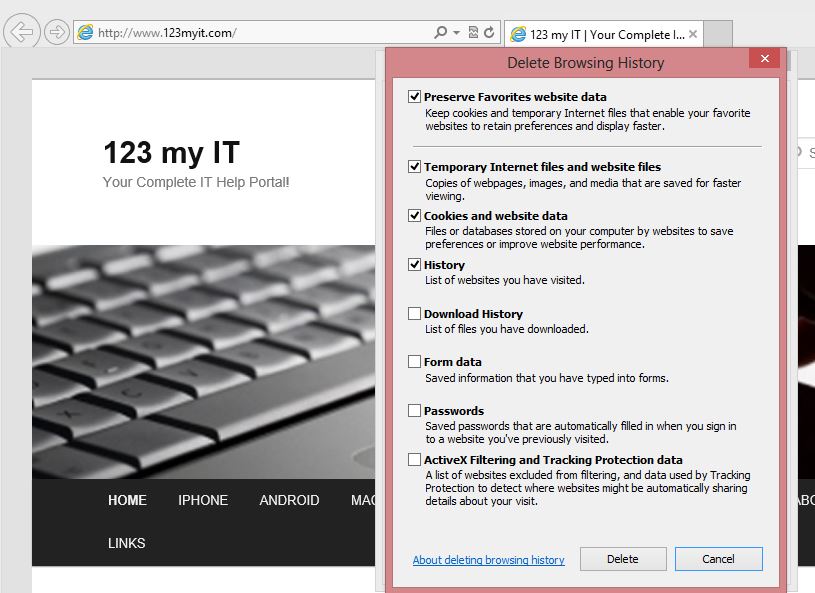
Step 4. Once you have done step 3, you will see a Browsing History Window pop up. In this Window you can choose what items you want to delete from Internet Explorer.
If you are having problems with your browser then I suggest you delete everything. However if you have passwords saved in your Internet Explorer then please make sure you know what those passwords are before you press delete.
The following options will appear.
* Preserve Favorites website data
* Temporary Internet files and website files
* Cookies and website data
* History
* Download History
* Form data
* Passwords
* ActiveX Filtering and Tracking Protection data
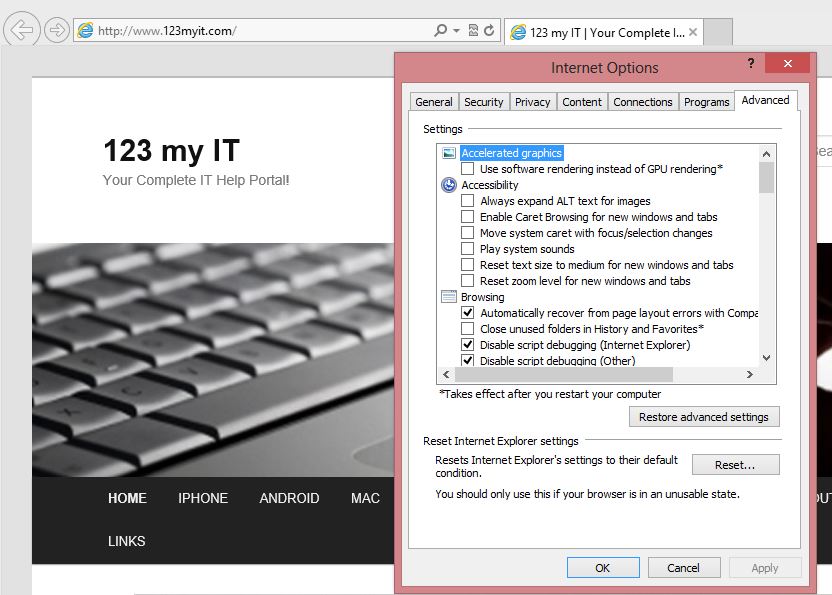
Step 5. If you just wanted to delete the history then you don’t need to do the next step. However if Internet Explorer is doing strange things then you should probably try and do this next step and set it back to factory defaults. Go back to the Internet Options menu and click the Advanced Tab, then click Restore Advanced Settings and click Reset.
Once this is done, restart your Browser windows and you will need to setup your search providers and homepage again. However your browser should now be in the same state it was when you first started using your PC.
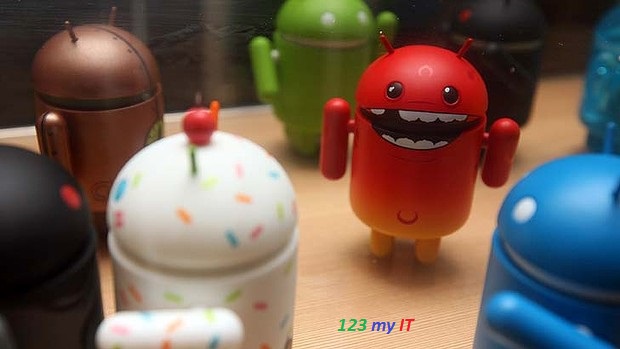
A new report has revealed that the number of apps containing malware reached 718,000 just last month. This is an increase of 350,000 up from the end of last year.
Some of the most common malicious apps are attempting to sign users up to pricey premium services which charge outrageous amounts for simply sending and receiving text messages for example.
According to Jonathan Oliver, Trend Micro’s software architecture director for Australia and New Zealand, there’s been a recent increase in the number of ‘genuine malware’ out there.
This type of malware knows how to take advantage of the vulnerabilities of the Android and how to access and steal sensitive information.
FAKEBANK is one example. It imitates genuine banking apps and steals usernames and passwords.
Cybercriminals make these apps by taking genuine apps and then installing the malicious software in them. Then they offer them for sale on the app store either for free or at a large discount.
According to Oliver, Android phones are more susceptible to attacks over iPhones because the Android app store is more open.
Oliver continued on to say that Australia is still a major target for cybercriminals as more and more people are using their phones for mobile banking purposes.
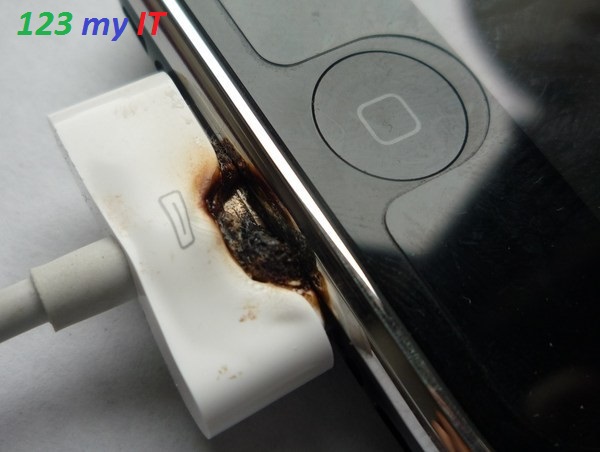
Apple have launched a charger trade in program following reports of a women in China being electrocuted while using her iPhone while it was charging.
Concerns that more electrocutions might follow caused by unsanctioned chargers for Apple gadgets being used prompted the company to create the trade-in scheme.
As of the 16th of April, people who have purchased counterfeit or third-party chargers for Apple products will be able to exchange them for the certified Apple models, at the price of $US10.
While Apple acknowledges that not all counterfeit or third party chargers are dangerous, some that have not been properly designed can pose a serious safety hazard and people who are concerned about their own chargers should participate in the trade-in program.
In order to participate in the scheme consumers must bring in to an Apple store or authorised Apple service provider their old chargers and the device(s) they use the charger for.
Serial numbers on devices will need to be verified for the trade-in program which will run until the 18th of October.