PG27UCDM Review – ASUS ROG Swift 4K OLED Gaming Monitor

PG27UCDM review of the ASUS ROG Swift PG27UCDM 27 inch OLED gaming monitor. This post covers what you get in the box, the monitor features, connectivity, stand adjustments, and the things I have liked after using it for a few months.

If you want to upgrade to a 4K gaming monitor for work, video editing, and fast online gaming, this monitor has some very impressive specs.

PG27UCDM Review Overview

The model in this video is the ASUS ROG Swift PG27UCDM. It is a 27 inch 4K OLED gaming monitor with a default resolution of 3840 x 2160. With 166 pixels per inch it delivers very sharp image quality and clear text.

On the outside of the box, you can see the key specs. These include 4K HDR, 240Hz refresh rate, 0.03ms response time, NVIDIA G-SYNC, HDMI 2.1, USB-C, DisplayPort 2.1a, and a 3 year warranty.
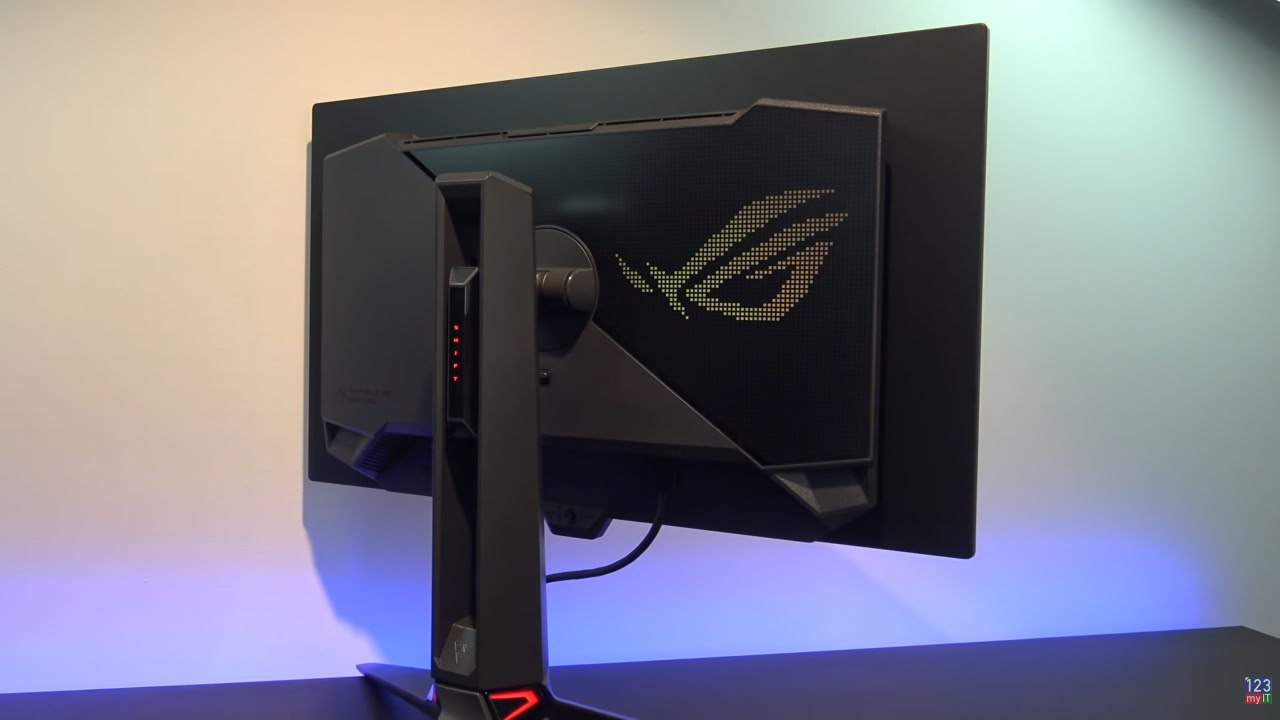
PG27UCDM review

What You Get in the Box

First out of the box is the metal stand which feels sturdy and well made. You will need to remove the little plastic protective pieces before putting it together.

You also get the ROG logo lighting cap which fits on the bottom of the stand and lights up.

A VESA mount is included as well, so you can mount the monitor to a monitor arm or desk stand instead of using the ASUS stand.

There are also customizable plastic caps included. These let you swap out the logo projected onto your desk. I didn’t think I would care much about this at first, but it turned out to be a pretty cool feature.

Inside the box, you also get the usual cables, including USB-C, USB 3.2, DisplayPort, and HDMI. They are branded with the ROG logo, which makes them easier to identify if you have a bunch of spare cables lying around.

Other items in the box include the documentation, a colour calibration report, a felt cleaning cloth, and a useful setup guide. The guide shows you how to connect everything and use the on screen display.

Build Quality and Setup

Putting the monitor together is simple. Plug the stand into the back and tighten the screw underneath. Once that is done you can attach the stand to the back of the display and it is ready to go.

The stand also includes cable management, which helps keep your desk clean and tidy.

If you are tight on desk space, the stand footprint is around 11 inches, so that is something to keep in mind before buying.

Screen Finish

One of the first things you will notice is the semi gloss screen finish. This helps improve picture quality and colour vibrancy, which works really well on an OLED panel.

The downside is that you can get some reflections in brighter rooms, so if your setup is near a window or strong lighting you may want blinds or better light control.

Connectivity

  • Power input
  • 3 x USB 3.2 ports
  • USB hub
  • Kensington lock
  • 2 x HDMI ports
  • DisplayPort
  • USB-C
  • Earphone jack

This gives you plenty of flexibility for gaming PCs, consoles and accessories.

Stand Adjustments and Lighting

The ASUS stand gives you a good range of movement. You can adjust the height, tilt it back and forward, swivel it side to side, and rotate it 90 degrees into portrait mode.

There are also ROG lighting effects on the back of the monitor and on the stand. You can change them in the on screen display menu under Lighting Effect. From there, you can change colours and effects such as breathing and strobing.

Features I Use After 4 Months

After using the monitor for around four months, one feature I have found useful for FPS games like PUBG is the built in crosshair overlay. In games where the normal crosshair disappears, this makes it easier to keep track of your aim.

The second feature I use is the Auto Adjust preset. It turns up the brightness and helps me see enemies more easily in PUBG. There are other modes you can choose from, such as Racing and Cinema, but I don’t really use those.

PG27UCDM Review: Image Quality and Gaming Experience

In terms of image quality, the first thing you will notice is the more vibrant colours and deeper blacks. The next thing you notice is the pixel density. Because this is a 4K screen at 166 pixels per inch, text and images look sharper and more detailed.

What I noticed in PUBG was the extra detail on the characters and the guns. Everything looked amazing and it honestly made me wonder why I didn’t upgrade sooner. That is one of the biggest reasons this PG27UCDM review is so positive.

PG27UCDM Review: PUBG Crashing Fix

Upgrading wasn’t completely without issues. I made the mistake of setting PUBG max frame rates to unlimited and it caused constant crashing.

What fixed it for me was setting the max frame rate to 237, which is 3 frames lower than the 240Hz refresh rate of the monitor when using G-SYNC.

After I changed that setting, the PUBG crashing stopped for me. I’m not saying it will fix every setup, but it worked on my system with this ASUS monitor and an RTX 4070 Ti.

PG27UCDM Review: Neo Proximity Sensor

Another feature worth mentioning is the Neo Proximity Sensor. Go to OLED Care, then Neo Proximity Sensor. There you can set the display to turn off when it detects no movement in front of it.

It works a bit like an iPhone screen turning off when you are not using it.

This can be a good feature for office work, but it can be annoying for gaming. The display may switch off if you are not moving enough in front of the monitor. It reacts to movement in front of the screen, not your keyboard or mouse input.

PG27UCDM Review: Price and Value

Pricing starts at around $1099 USD, so this is definitely not a cheap monitor. I got a better deal during the Black Friday sales, so it is worth waiting for a sale if you are interested in upgrading.

If you want a 4K OLED display with fast refresh rate, low response time, and good connectivity, this monitor has a lot going for it.

PG27UCDM Review Verdict: Should You Upgrade?

Would I recommend upgrading? Absolutely, especially if you are using an older lower PPI display or if you want to move up to a 4K screen. As I mentioned earlier, I don’t regret upgrading.

If you want to check out the ASUS ROG Swift PG27UCDM and other new ASUS monitors, I have left a link in the description below. You can also check out my earlier post on how to fix MacBook Touch Bar issues.

Guys as always thanks very much for watching the video. If you could do me a favour and leave a thumbs up on the video, I will catch you in the next one. If you like gaming gear and monitor upgrades, have a look around 123myIT for more hardware posts and guides.
Fix The PC must Support TPM 2.0 Error ASUS

Hi Guys Matt from 123myit. In this video, we will show you how to fix the TPM 2.0 Error ASUS on your Asus motherboard. Guys if you are trying to install Windows 11 and you are getting the error The PC must support TPM 2.0 then this video will help. TPM stands for Trusted Platform Module and it can prevent malicious attacks on your hardware. And is required to be turned on to run Windows 11.

Heres where you can find the setting on Asus motherboard – tpm 2.0 error gigabyte

TPM 2.0 Error ASUS

Go ahead and restart your computer and you need to log into your computer bios. To do this when your computer starts up you need tap the delete button on your keyboard. For my Asus motherboard the button is Delete, however if can be different on different motherboard. If its HP it could be F10. Other models it could be Esc, F1 or F2 keys.

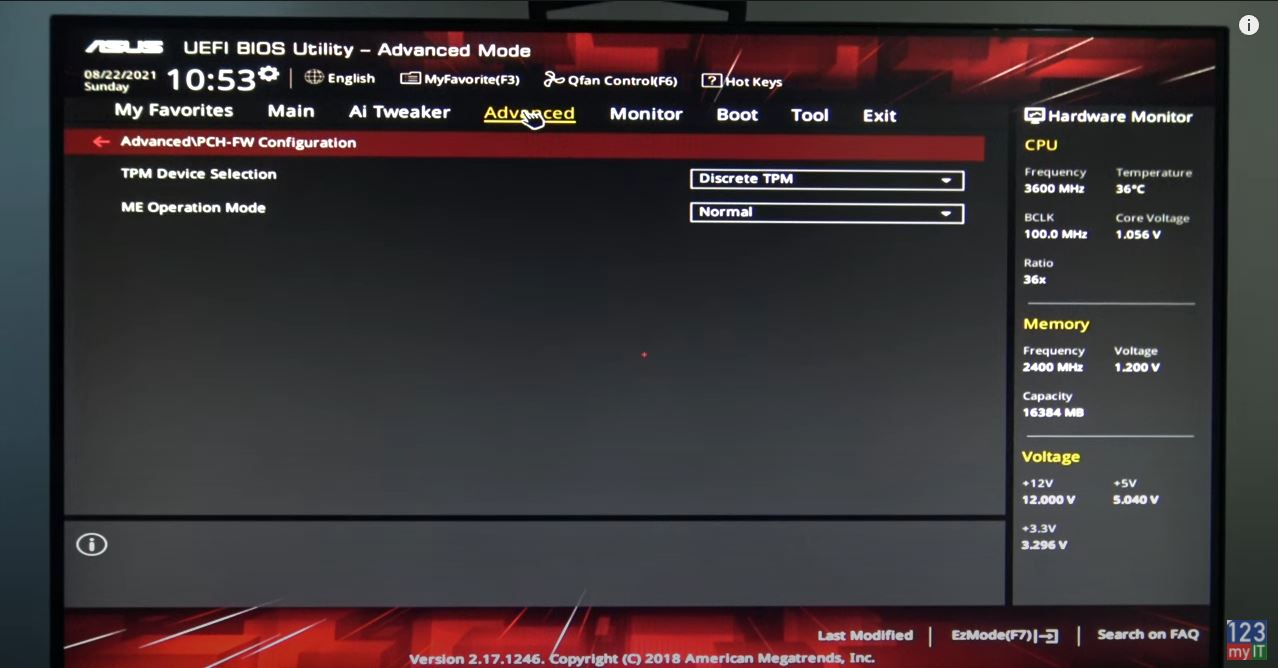
Once you are logged into your Bios go to the advanced mode down the bottom, you can also press F7. Then click on the Advances Tab up the top and click to highlight the TPM Device Selection menu. Change the discreet TPM to Firmware TPM, click ok. Then go to the Exit Tab and click Save Changed & Reset. That is that all you need to do.

Awesome, this time when you go to install Windows 11, you should get past that error and get the ready to install screen.

Guys don’t forget to check out my other videos such as how to fix The PC must support TPM 2.0 error on Gigabyte. And do me a favour if you know anyone who might need this video please share it will them, hit the subscribe button and smash the bell icon.

Download Windows 11 ISO File

Record Your Screen on iPhone or iPad

Asus GL702V Strix Unboxing & Benchmark

Asus GL702V Strix Unboxing & Benchmark

This video will show you the Asus GL702V Strix Unboxing & Benchmark. This laptop is a ultra mobile gaming laptop.

The Asus GL702V Strix gaming laptop has the latest 6th gen Intel processor and NVidia GTX graphics in a Compact lightweight design.
With a profile measuring just 24.7 millimetres and the whole laptop when only 2.7 kilograms the Strix GL702V is an ultra portable gaming laptop.
In fact it was so light I thought I had been sent the wrong laptop when I picked it up from the post office. The strix is VR ready with a GTX 1060 GPU which provides enough speed to power virtual reality gaming.
The Strix comes in two different sizes 15 and 17 inch and with many different GPU and CPU configurations.

Tech Specs:
CPU: INTEL I7 – 6700HQ / BGA
RAM: 16GB DDR4
Capacity: 256GB SSD I installed this.
Price: $1299, $3499
Display: LCD 17.3 FHD SLIM WV
GPU: NVIDIA GTX 1060m
VRAM: 6GB
HD Camera: 1.2MP HD
WLAN: CB-802.11 AC_WW + BT 4.1
OS: Win 10 64bit
Battery: 4 cell 76 WH
USB: USB 3.0* 3 + USB C 3.1

Asus G752V Unboxing & Firstlook

This video will show you the Asus G752V Unboxing & Firstlook.

Asus G751JT-CH71 Unboxing & Benchmark

This video will show you the Asus G751JT-CH71 Unboxing & Benchmark.

I am pretty excited as I sit down to write out this 123myIT update. The video above was the first video I have recorded in 4K resolution. It marks a new era for 123myIT and a higher video quality for 123myIT users.
Now that that’s over with, let start talking about the Asus G751JT-CH71 Unboxing. I have been a fanboy of the Asus Republic of Gamers laptops for the past 4 years. As much as I hate to say the word, its probably true.

In this time I have owned the following models.
Asus G75VM-RS72
Asus G750JX-TB71
Asus G750JS-TS71
Asus G751JT-CH71

Click the links above for previous reviews.

Why do I upgrade to a new laptop every year I here you ask? Well I use the laptop for gaming and for work on the 123myIT.com website. So I like to keep the technology up to date. So after one year I buy the newest laptop and I sell the old one on websites like Gumtree.com. This allows me to keep up to date with the latest hardware without costing an arm or leg. I also never buy the very top of the line hardware as I don’t see it as value for money. And while you might think this laptop is the top of the range, its actually not and I will explain why. This model comes with the Geforce GTX 970m and not the Geforce GTX 980m which is the faster GPU. This model also doesn’t include the faster SSD drive rather it has the slower 1TB 7200 RPM Sata drive. Which I will actually do a video on how to upgrade hard drive later. So as you can see, I have gone purely for bang for my buck type of laptop.

What I like about the Asus laptops is that they are powerful with nice design don’t have ugly flashing lights on them, they run at a cool temperature due to the massive big fan cooling system on the back of the laptops.
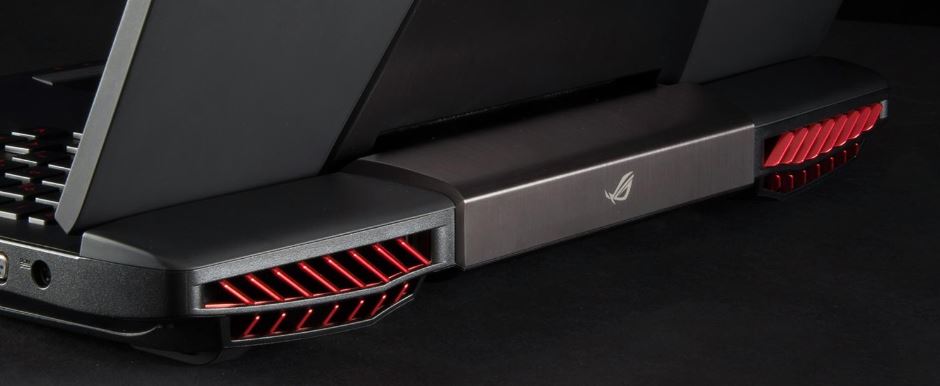
So on first look at the latest Asus G751JT-CH71 model, the first things I noticed is that the grills at the back of the laptop have been panted red. I am not sure If I like this colour change I see it a kind of “try hard”. But maybe that’s just my taste and others will probably disagree with me.

Asus Red Air Vents

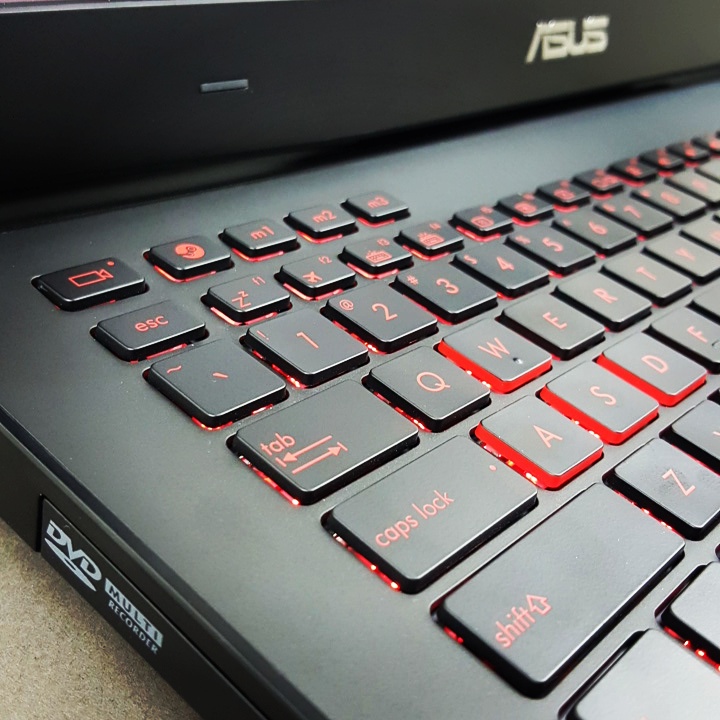
The next thing you will notice is the keyboard has changed from white background keys to red, and the keyboard now includes a few extra keys such as the ROG key, Shadow Play, Stream and Macro keys. Also the WASD keys have been highlighted with a awesome red colour which make hem stand out. The only draw back here I seem to press Shadow Play key by mistake rather then the Escape key which I find very annoying as it boot me out of any game I might be playing and back to the desktop.

Asus G751JT Keyboard

The other upgrades are the newer 17.3″ 16:9 IPS FHD (1920×1080) anti-glare display which makes the colours look deeper as well as a CPU upgrade.
Asus has tied it all together very nicely with a well designed chassis.

While this laptop wont be for everyone, if you are looking for a desktop replacement gaming laptop then you should definitely take a look at the Asus G751JT-CH71.

Cheers
Matt

ASUS ROG G750JS-TS71 Notebook Unboxing Review & Benchmark

This video will show you an ASUS ROG G750JS-TS71 Notebook Unboxing Review & Benchmark.

Hi All
So I have recently upgraded my Asus ROG notebook from the Asus G750JX-TB71 to the Asus G750JS-TS71. And you can find the review on the G750JX-TB71 model I did last year on the following link.
Asus G750 Gaming Laptop Unboxing Review and Benchmark

In this video however we will show you want inside the Asus box and what you can expect from the notebook with regards to design and benchmark performance.

If you are looking for a copy of the tools used to benchmark this laptop you can find them on the downloads page link below.
Downloads
CPU-Z 1.67.
GPU-Z ASUS with ROG skin 0.7.4.
hwmonitor 1.24.
PC Mark 8.
3D Mark 8.

If you want to know more about this Asus you can check out the official Asus link below.
Asus ROG G750JS-TS71.

SATA VS SSD Benchmark Which is better?

This video will show you the performance difference between SATA VS SSD hard drives. These drives have both been put through 3DMARK, PCMARK and Windows Experience Index benchmarks.

Hi All
I wanted to do some benchmark testing with the new Asus G750JX laptop I purchased recently. So I ran the three benchmarks 3DMARK, PCMARK and Windows Experience Index on both the SATA and SSD drives and then was able to compare the scores. The only variable was the SATA and SSD drive.

Here are the results.
3DMARK SATA vs SSD
108246 vs 108956 The SSD was better by 710 points
14844 vs 14892 The SSD was better by 48 points

PCMARK SATA vs SSD
4459 vs 4938 The SSD was better by 479 points

Asus G750 Gaming Laptop Unboxing Review and Benchmark

This video will show you an Unboxing, Review and Benchmark of the Asus G750JX-TB71 Gaming Laptop.

Hi All
Recently I upgraded my laptop from the Asus G75VM-RS72 to the Asus G750JX-TB71. The main reason for this is because I am a gaming fan and I like to have a decent gaming pc. However because I am limited on space in my house at the moment I don’t have any room for a study. So the trade off is a high end gaming laptop. After using the Republic Of Gamers laptop for about a year now I think its actually a better solution and here’s why.

First of all the laptop takes up less space and uses much less power than a desktop box.
Secondly its very portable. I can move to any part of my tiny house and occasionally I take it around to a mates place for a night of gaming. In the last year it has been mostly Guild Wars 2. However I am hanging out for Elder Scrolls online. 🙂

What I really like about the ROG laptops is decent gaming performance plus the design of the laptops are very good. The air flow and cooling vents makes for a quite and cooler laptop. The non slip rubber type black plastic allows the user to rest the laptop in your lap without the danger of it slipping off.
The laptop doesn’t have ugly flashy lights like the Alienware or the MSI range of laptops. So maybe it is suited to the more mature gamer such as myself.

All this has sold me on the Asus over the Dell XPS range. And while I still like Dell, the performance and design of the Asus has won me over for now at least.

Now that I have all of that out of the way, I will add the links for the benchmark software that I have used in the video above to this post below. Feel free to download and compare the results of your own laptop to this video.

You can find the Benchmark downloads on the Downloads section of the 123myIT website here.
CPU-Z 1.67.
GPU-Z ASUS with ROG skin 0.7.4.
hwmonitor 1.24.
PC Mark 8.
3D Mark 8.