
OpenClaw Telegram Supergroup Error: How to Fix It

OpenClaw Telegram supergroup error usually means your Telegram delivery target is still pointing at the old group ID instead of the new supergroup ID. In most cases, you fix it by updating the target chat ID and stopping retries to the stale one.

In this guide, we explain what the OpenClaw Telegram supergroup error means, why it happens, and how to fix it without guessing.
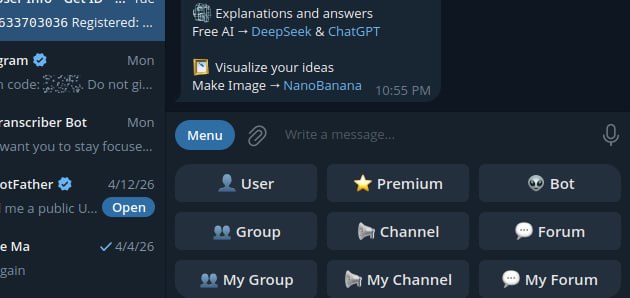
Telegram BotFather group and channel setup screen related to supergroup configuration

A Telegram setup screen showing group-related options, which fits this guide about group and supergroup delivery problems.

What the OpenClaw Telegram supergroup error means

Call to sendMessage failed! (400: Bad Request: group chat was upgraded to a supergroup chat)

This means Telegram no longer accepts messages to the old group ID. Instead, the group has been converted to a supergroup, so your delivery target needs to be updated to the new ID. In other words, the OpenClaw Telegram supergroup error is usually a target-ID problem, not a platform-wide failure.

Why the OpenClaw Telegram supergroup error happens

OpenClaw can still hit this error if a cron job, delivery queue entry, or other Telegram target uses the old group ID. In other words, the platform is not broken. Instead, the destination is outdated.

How to fix the OpenClaw Telegram supergroup error

  • identify the old Telegram group ID that is failing
  • find the current supergroup ID
  • update the OpenClaw delivery target to the new ID
  • remove or stop retrying stale queued deliveries pointing at the old ID
  • run the job again and confirm delivery

Where to check in OpenClaw

  • openclaw cron list
  • openclaw cron runs
  • openclaw logs --limit 200 --plain --local-time
  • /home/user/.openclaw/cron/jobs.json if you are checking the stored delivery target directly

If the error appears during a cron run, the job usually ran successfully first. However, the Telegram send then failed because the chat ID is stale.

Important mistake to avoid

Do not keep retrying the old group ID and do not assume the gateway or Telegram bot is broken. If the logs clearly say the group was upgraded to a supergroup, the most likely fix is simply updating the target ID.

Clean troubleshooting flow

  • confirm the failing group ID
  • confirm the new supergroup ID
  • update the job or delivery target
  • clear stale queued failures if they keep polluting the logs
  • manually rerun the job
  • confirm the message lands in the right group

Final takeaway

If OpenClaw says a Telegram group chat was upgraded to a supergroup, the fix is usually not complicated. Update the delivery target to the new supergroup ID, stop retrying the stale one, and test the job again.
Official reference

Related guides

How to Build Multiple AI Agents on a Mac mini 64GB

If you want to build multiple AI agents on a Mac mini with 64GB of memory, the good news is that this is one of the more practical small-form-factor machines for local AI workflows. A Mac mini 64GB setup gives you enough memory headroom for several lightweight agents, tool-enabled workflows, and automation tasks, but it still needs the right architecture if you want it to feel fast and stable.

In this guide, we explain how to build multiple AI agents on a Mac mini 64GB system, how many agents are realistic, what kind of stack makes sense, and how to avoid the usual mistakes around memory, routing, timeouts, and bloated all-in-one setups.

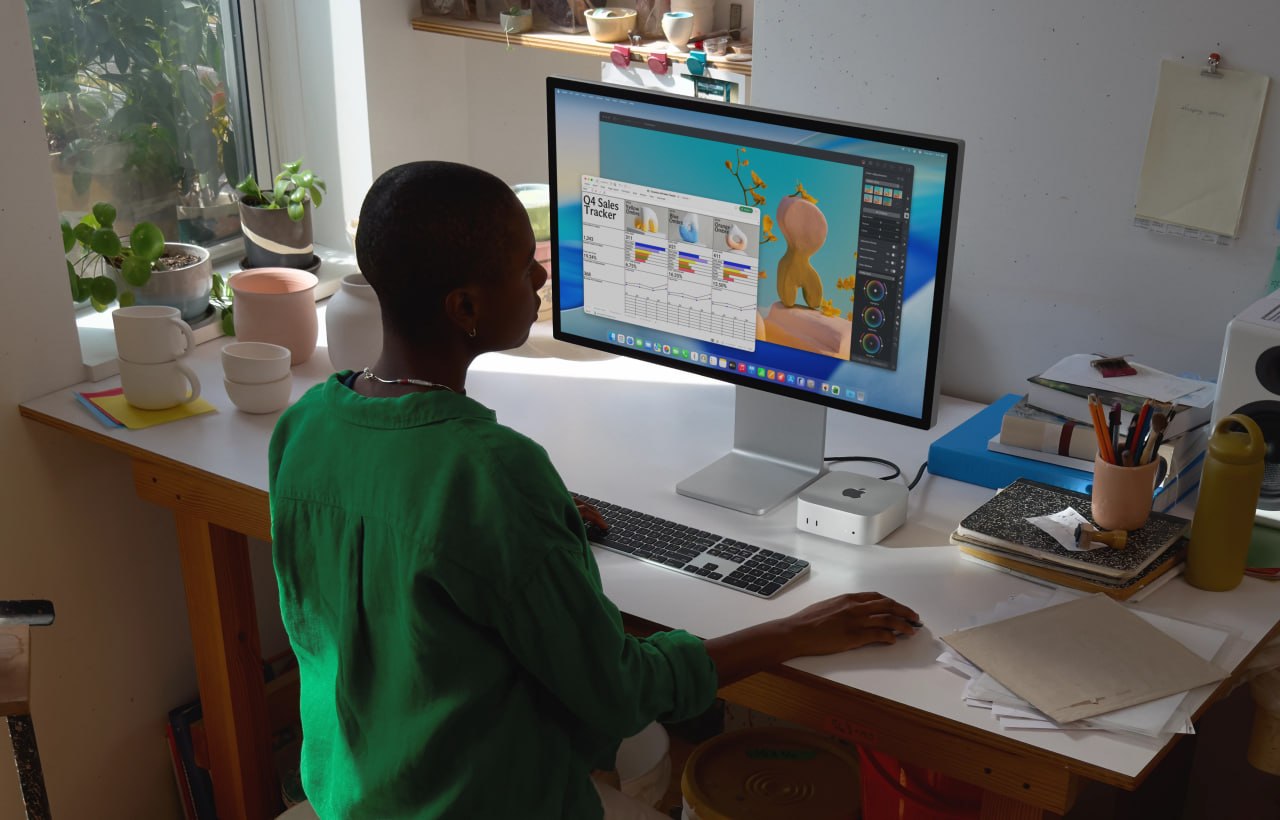
Mac mini desk setup for running multiple AI agents on a 64GB system

A Mac mini desk setup that fits the kind of multi-agent local AI workflow this guide is about.

Can a Mac mini 64GB run multiple AI agents well?

Yes, but the answer depends on what you mean by multiple AI agents. A Mac mini 64GB is a strong machine for orchestrating several agent workflows, especially if those agents are handling chat, memory, tools, files, scheduling, and API calls. It is much less impressive if you expect it to run several large local models flat out at the same time.

The machine works best when you treat it as a coordination box rather than a brute-force model server.

If you are looking at hardware options, you can check the Mac mini on Amazon here. As an Amazon Associate, 123myIT may earn from qualifying purchases.

How many AI agents can a Mac mini 64GB realistically handle?

For most practical setups, a Mac mini 64GB can comfortably handle:

  • 1 main agent that talks to the user
  • 2 to 4 helper agents for research, coding, cron jobs, summaries, or content work
  • additional background jobs, depending on how heavy your local model usage is

If the agents rely heavily on APIs or smaller local models, you can do more. If they all depend on big local models with large context windows, you will hit limits much faster.

Best setup model: local orchestration, selective local inference

The smartest setup on a Mac mini 64GB is usually a hybrid one. Use the Mac mini to orchestrate agents, manage memory, schedule jobs, and run tools locally. Then decide case by case whether each agent should use a local model or an external API.

  • Main agent: user-facing orchestration and memory
  • Research agent: web lookups, summaries, file logging
  • Coding agent: isolated code or config work
  • Task agent: cron jobs, reminders, recurring checks
  • Content agent: drafts pages or structured writing

This is usually better than forcing everything into one huge agent context.

Best stack for multiple AI agents on a Mac mini 64GB

  • OpenClaw or a similar orchestration layer for the main agent workflow
  • local markdown-based memory files for persistence
  • smaller local models where speed matters
  • API-based models for heavier reasoning when needed
  • clear separation between interactive agents and background agents

If you want a stronger starting point for the behavior side of this setup, our OpenClaw Agent Bootstrap Prompt page is the best companion guide to read next.

What to avoid

  • running too many heavy local models at once
  • one bloated agent trying to do every job
  • unclear file roles and shared state collisions
  • too much browser, tool, and context load in one session
  • ignoring timeouts and memory pressure until everything slows down

Local vs API-based agent split

A Mac mini 64GB setup often works best when you do not insist on fully local everything. Use local models for quick lightweight work where privacy or speed matters, and use API-based models for heavier tasks when needed. That balance gives you a much better experience than trying to force every agent through the biggest local model you can load.

Final takeaway

If you want to build multiple AI agents on a Mac mini 64GB machine, the smartest approach is to use it as a stable orchestration box, not a brute-force model monster. One main agent, a few helper agents, clear file roles, and a hybrid local-plus-API model strategy will usually get much better results than trying to run everything as one oversized local setup.

Official reference

Related guides