
Thunderbolt Dock vs USB-C Dock: Which Should You Buy?

If you are comparing a Thunderbolt dock vs USB-C dock, the biggest difference is bandwidth and capability. A Thunderbolt dock is usually better for more demanding desk setups, while a USB-C dock is often cheaper and good enough for simpler monitor and accessory needs.

In this guide, we explain the difference between Thunderbolt docks and USB-C docks, where each one makes sense, and which type is the better buy for MacBook users.
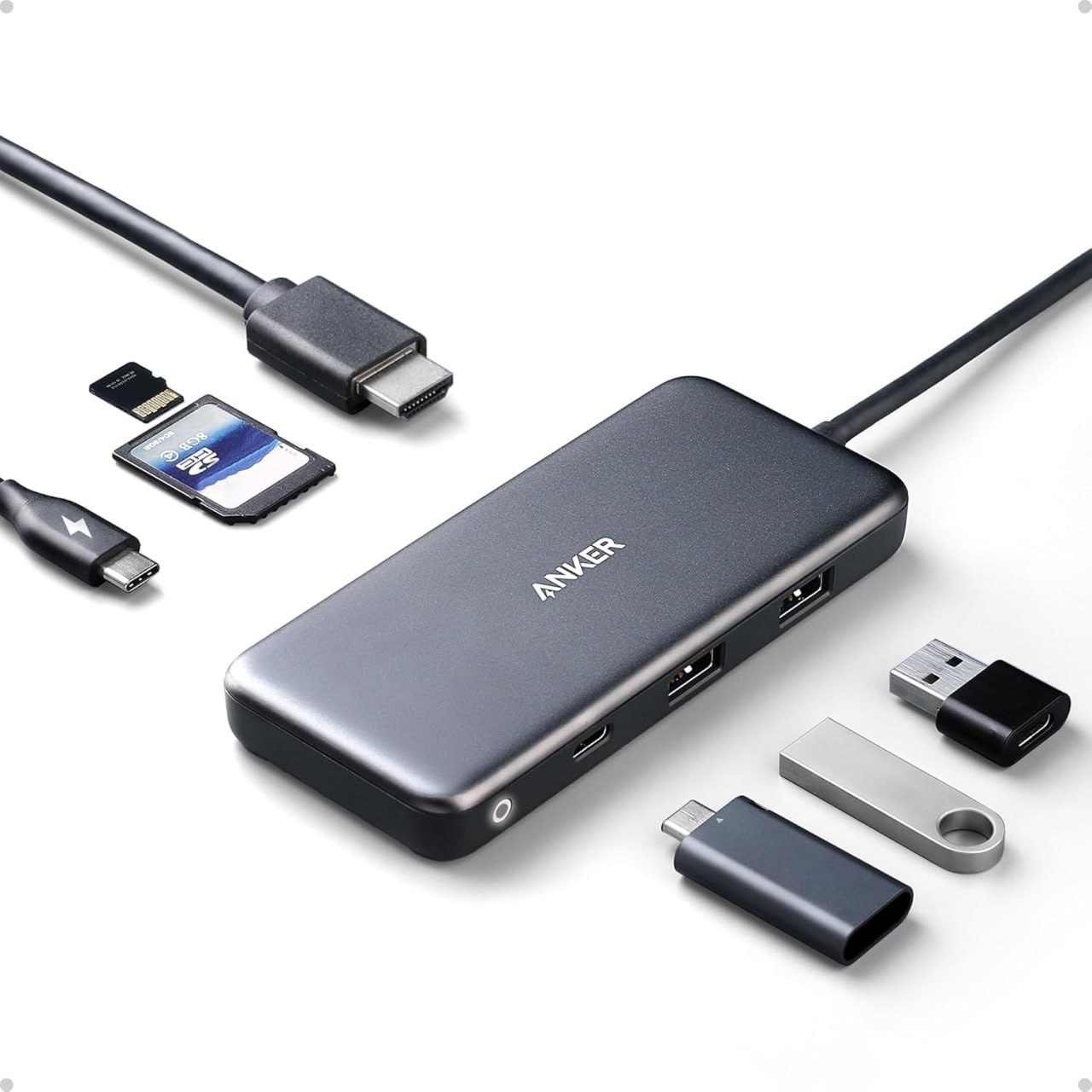
Thunderbolt dock vs USB-C dock with Anker USB-C hub product example

Anker USB-C hub product image used here as a simple visual reference for the USB-C side of this comparison.

Thunderbolt dock vs USB-C dock: quick answer

  • Choose a Thunderbolt dock if you want a more powerful desk setup with stronger display, storage, and expansion potential.
  • Choose a USB-C dock if you want a simpler and more affordable dock for everyday desk use.
  • Choose based on your workflow rather than just buying the most expensive option.

What is a Thunderbolt dock?

A Thunderbolt dock is a higher-performance dock designed for more demanding setups. It is usually a better fit if you connect multiple accessories, want faster storage performance, or need a stronger desk setup for a MacBook Pro.

For example, a Thunderbolt dock often makes more sense for users running premium monitors, fast external SSDs, and more complex workstation-style setups.

What is a USB-C dock?

A USB-C dock is a more mainstream option for desk setups. It usually gives you charging, monitor output, USB ports, Ethernet, and other useful connections, but with less performance headroom than a Thunderbolt dock.

As a result, a USB-C dock is often the better buy if you just want a cleaner desk with basic expansion and you do not need the premium capabilities of Thunderbolt.

Main differences between Thunderbolt dock and USB-C dock

FeatureThunderbolt DockUSB-C Dock
Performance headroomHigherLower
PriceUsually more expensiveUsually cheaper
Best forPremium desk setupsGeneral office and home use
Storage and display demandsBetter for demanding setupsBetter for lighter setups
MacBook fitGreat for high-end MacBook Pro usersGood for many everyday users

When a Thunderbolt dock makes more sense

  • you use a high-end MacBook Pro
  • you want a more premium workstation setup
  • you connect fast storage and multiple accessories
  • you want more long-term flexibility from the dock

When a USB-C dock makes more sense

  • you want to spend less
  • you mainly need charging, monitor output, USB ports, and Ethernet
  • your setup is simpler and more office-focused
  • you do not need premium workstation-level expansion

Best dock types for MacBook users

If you want a premium all-round choice for a MacBook Pro desk setup, a CalDigit dock is the kind of product that makes sense. If you want a more mainstream home office style dock, a Plugable dock or Anker docking station can be a better fit.

How this compares to a USB-C hub

If you are still deciding between a dock and a smaller travel accessory, read our guide on USB-C Hub vs Docking Station. Likewise, if you want the simpler side of the comparison, see our guide to the Best USB-C Hub for MacBook.

If you already know you want a bigger workstation-style setup, our Best Docking Station for MacBook Pro guide is the best supporting page to read next.

Final verdict: Thunderbolt dock vs USB-C dock

A Thunderbolt dock is the better choice if you want a more demanding, premium, and expandable desk setup. On the other hand, a USB-C dock is usually the smarter buy if you want solid everyday desk functionality without spending as much.

For many people, a USB-C dock is enough. However, if you want the best long-term desk setup for a higher-end MacBook Pro, a Thunderbolt dock can be worth paying for.

Related guides

Disclosure: As an Amazon Associate, 123myIT may earn from qualifying purchases.
Best Docking Station for MacBook Pro in 2026

If you are trying to find the best docking station for MacBook Pro, the right option depends on how you use your desk setup. Some people only want a simple way to connect a monitor and charge their laptop, while others want a full workstation setup with Ethernet, multiple USB ports, audio, storage, and cleaner cable management.

In this guide, we compare the best docking station options for MacBook Pro users, explain what features matter most, and help you choose the right dock for your monitors, accessories, and workflow.

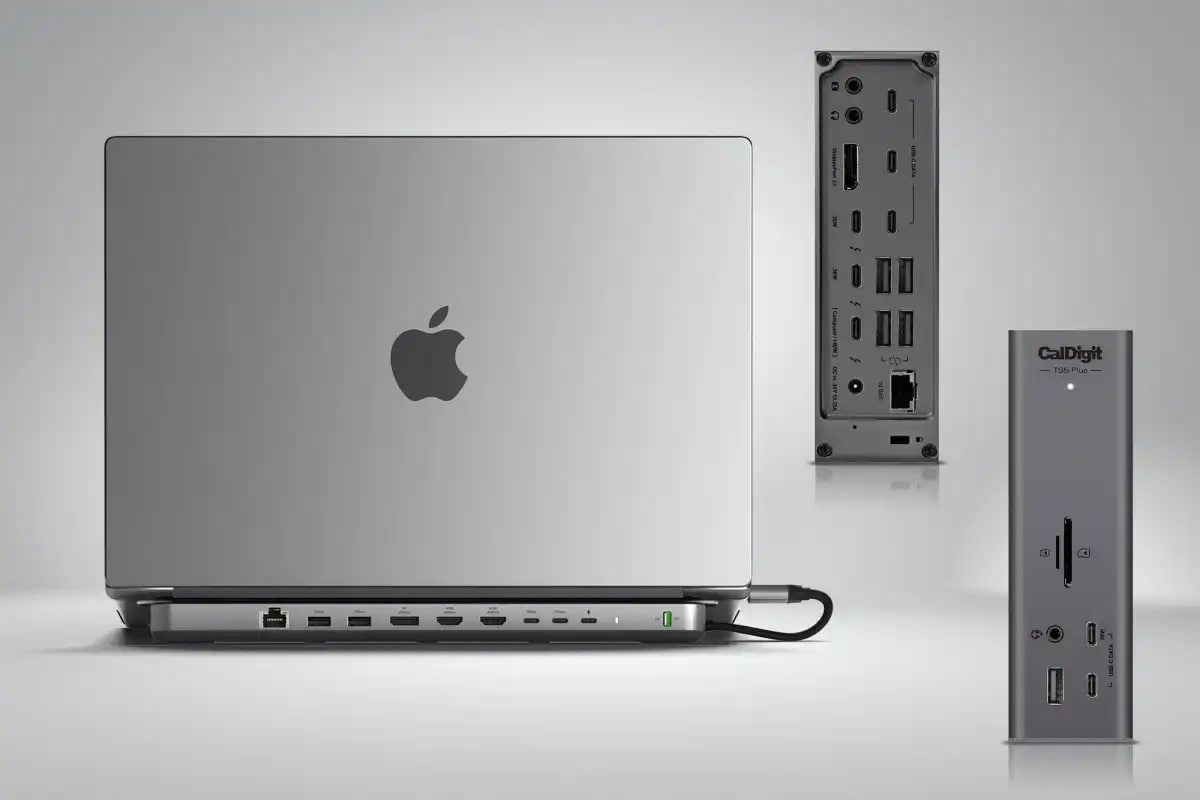
Best docking station for MacBook Pro with CalDigit dock setup

A MacBook Pro setup with a CalDigit dock, showing the kind of desk dock this guide is focused on.

Best docking station for MacBook Pro: quick picks

  • Best overall docking station for MacBook Pro: CalDigit dock
  • Best docking station for home office and dual monitors: Plugable dock
  • Best alternative dock for everyday desk use: Anker docking station

What to look for in the best docking station for MacBook Pro

Before you buy a dock, it helps to focus on the features that actually matter for your MacBook Pro setup. Although many docks look similar, the real difference usually comes down to charging support, monitor compatibility, port selection, and how cleanly the dock fits into your desk setup.

  • Power delivery: important if you want the dock to charge your MacBook Pro
  • Display support: important if you use one or more external monitors
  • USB ports: useful for storage, keyboard, mouse, and accessories
  • Ethernet: handy for stable wired internet
  • Audio and card readers: useful depending on your workflow
  • Desk setup fit: some docks are better for permanent setups than travel use

For many people, the best docking station for MacBook Pro is the one that reduces cable clutter and makes the whole desk easier to use every day.

Best overall docking station for MacBook Pro

If you want the safest premium choice, the CalDigit dock is the strongest all-round pick. It is a good fit for MacBook Pro users who want a serious desk setup with strong port selection, charging, and a more polished workstation feel.

CalDigit docks are widely known in the Mac accessory world, and for good reason. As a result, this is the kind of dock that makes sense if you want something dependable for long-term desk use rather than a cheap compromise.

Why it stands out

  • strong reputation with Mac users
  • better fit for premium desk setups
  • good port expansion
  • ideal for people who want one cable doing most of the work

Best docking station for home office and dual monitors

If your main goal is a more complete home office setup, the Plugable dock is a strong option. This kind of dock makes sense if you want a monitor-driven workspace with Ethernet, accessories, and less cable mess.

However, you should always check Mac display support carefully before buying any dock for a dual monitor setup. That matters because not every MacBook Pro model behaves the same way with external displays.

Best alternative docking station for MacBook Pro

If you want another trusted option, the Anker docking station is also worth a look. It is a sensible pick for MacBook Pro users who want a cleaner desk setup without jumping straight to the most expensive premium dock.

Docking station vs USB-C hub for MacBook Pro

If you are still deciding whether you need a full dock or just a hub, read our guide on USB-C Hub vs Docking Station. In general, a docking station is better if your MacBook Pro spends most of its time at a desk, while a USB-C hub is better if you want something lighter and more portable.

Likewise, if you are still comparing the smaller accessory category, our Best USB-C Hub for MacBook page is the right supporting guide to read next.

Who should buy a docking station for MacBook Pro?

  • MacBook Pro users with a permanent desk setup
  • people using external monitors
  • home office users
  • business users with accessories, storage, and Ethernet connected
  • anyone who wants a cleaner one-cable workstation setup

Who should skip a docking station?

A docking station is not always the best buy. For example, if you mainly work on the move and only need a few extra ports, a USB-C hub is usually the better value and the easier thing to carry.

Final verdict: best docking station for MacBook Pro

For most people, the best docking station for MacBook Pro is one that cleans up the desk, handles charging properly, and gives you the ports you actually use every day. That is why the CalDigit dock stands out as the safest overall pick, while Plugable and Anker offer strong alternatives depending on budget and setup style.

If your MacBook Pro lives on a desk, a docking station usually makes more sense than a hub. On the other hand, if you want something simpler and more portable, a USB-C hub is usually the better buy.

Related guides

Disclosure: As an Amazon Associate, 123myIT may earn from qualifying purchases.
Best USB-C Hub for MacBook in 2026

If you are looking for the best USB-C hub for MacBook, the right choice depends on how many ports you need and how you use your MacBook day to day. Some people only need HDMI and a couple of USB ports, while others want SD card support, Ethernet, and power delivery in one small adapter.

In this guide, we compare the best USB-C hub options for MacBook Air and MacBook Pro users, explain what features matter most, and help you choose the right hub without overspending. In addition, we will point you toward the next pages in this Mac accessory cluster so the article is more useful than a simple product list.

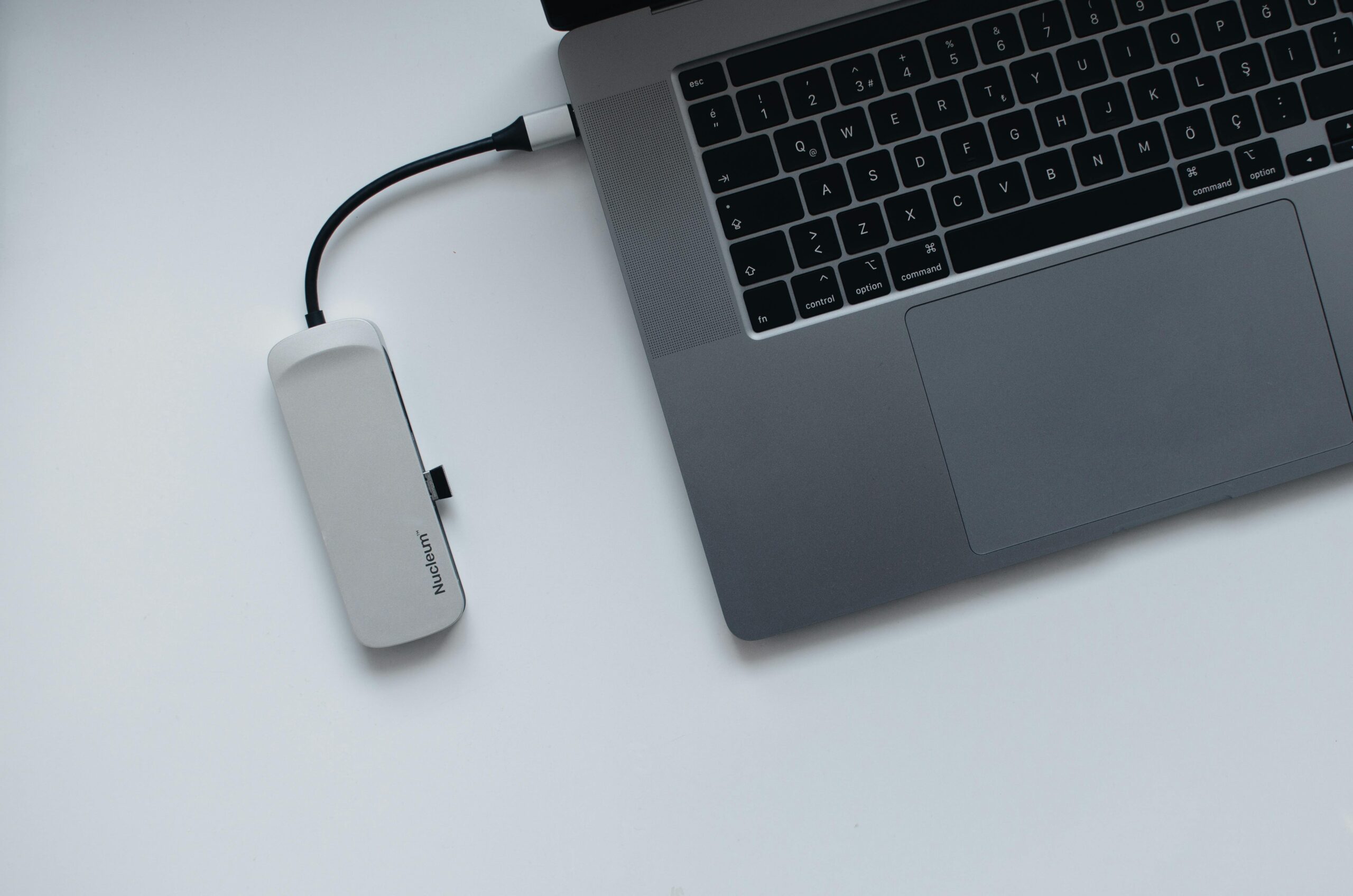
Best USB-C hub for MacBook with laptop desk setup

A simple MacBook desk setup with a USB-C hub, which is the kind of everyday setup this guide is focused on.

Best USB-C hub for MacBook: quick picks

  • Best overall USB-C hub for MacBook: Anker USB-C hub
  • Best USB-C hub with HDMI and SD card: UGREEN USB-C hub
  • Best value USB-C hub for MacBook: Baseus USB-C hub

What to look for in the best USB-C hub for MacBook

Before you buy a USB-C hub for MacBook, it helps to focus on the features that actually matter. Although many hubs look similar, the real differences usually come down to ports, charging support, build quality, and how well the hub fits into your setup.

  • HDMI output: useful if you connect your MacBook to an external monitor or TV
  • USB-A ports: handy for older accessories, flash drives, keyboards, and mice
  • SD or microSD card slots: especially useful for photo and video work
  • USB-C power delivery: important if you want to charge through the hub
  • Ethernet: useful for a more stable wired internet connection
  • Portability: some hubs are better for travel while others are better left on a desk

For many people, the best USB-C hub for MacBook is not the one with the most ports. Instead, it is the one that covers your actual daily needs without adding bulk or complexity.

Best overall USB-C hub for MacBook

If you want the safest all-round choice, the Anker USB-C hub is a strong pick. It suits MacBook users who want a dependable mix of ports without going overboard on size or price.

Anker is usually a safe brand for MacBook accessories, and that matters because cheap no-name hubs can be inconsistent with charging, heat, and display support. As a result, this is the kind of hub that makes sense if you want something simple and reliable.

Why it stands out

  • good everyday balance of ports
  • trusted brand
  • easy to carry with a MacBook
  • strong fit for general work and home use

Best USB-C hub for MacBook with HDMI and SD card

If you want HDMI and SD card support in one compact hub, the UGREEN USB-C hub is one of the better options. This is a good fit for MacBook users who connect to an external display and occasionally work with memory cards.

For example, it can make sense for students, office users, and light content creators who want a flexible travel-friendly hub without stepping up to a full dock.

Best value USB-C hub for MacBook

If price matters most, the Baseus USB-C hub is worth a look. It gives you the kind of core features many MacBook users actually want, while usually staying a bit more budget-friendly.

However, value matters more than just buying the cheapest thing. You still want a hub that is stable, practical, and not annoying to use every day.

USB-C hub vs docking station for MacBook

If you are still deciding between a hub and a full dock, read our guide on USB-C hub vs docking station. In general, a USB-C hub is better for portability and simple expansion, while a docking station is better for a permanent desk setup.

Likewise, if you already know you want a bigger desk-based setup, our upcoming MacBook dock guide will be the better next step. Until then, the USB-C hub vs docking station guide above is the best supporting comparison to read next.

Which MacBook users should buy a USB-C hub?

  • MacBook Air users who need a few extra ports
  • MacBook Pro users who travel often
  • Students and office users
  • Anyone who wants HDMI, USB-A, or SD card access without carrying a large dock

Who should skip a USB-C hub?

A USB-C hub is not always the best answer. For instance, if your MacBook spends most of its time at a desk with monitors, Ethernet, storage, keyboard, and mouse connected, a docking station is usually the better long-term choice.

Final verdict: best USB-C hub for MacBook

For most people, the best USB-C hub for MacBook is one that gives you the right mix of ports without turning into a bulky mini dock. That is why the Anker USB-C hub stands out as the safest overall pick, while UGREEN and Baseus make sense for more specific needs and budgets.

If you only need a few extra ports, a USB-C hub is usually the better buy. On the other hand, if you want a more permanent workstation setup, a dock will make more sense.

If you want the short version, the Anker USB-C hub is the safest overall pick for most MacBook users, while UGREEN and Baseus make sense if you want more specific port combinations or a cheaper option.

Related guides

Disclosure: As an Amazon Associate, 123myIT may earn from qualifying purchases.
USB-C Hub vs Docking Station: Which Should You Buy?

If you are trying to decide between a USB-C hub and a docking station, the short answer is simple. A USB-C hub is usually best for basic extra ports and travel, while a docking station is better for a permanent desk setup with more power, more display support, and more connections.

This guide explains the real difference, who each option is for, and what to buy if you use a MacBook for work, home office, or a dual monitor desk setup.

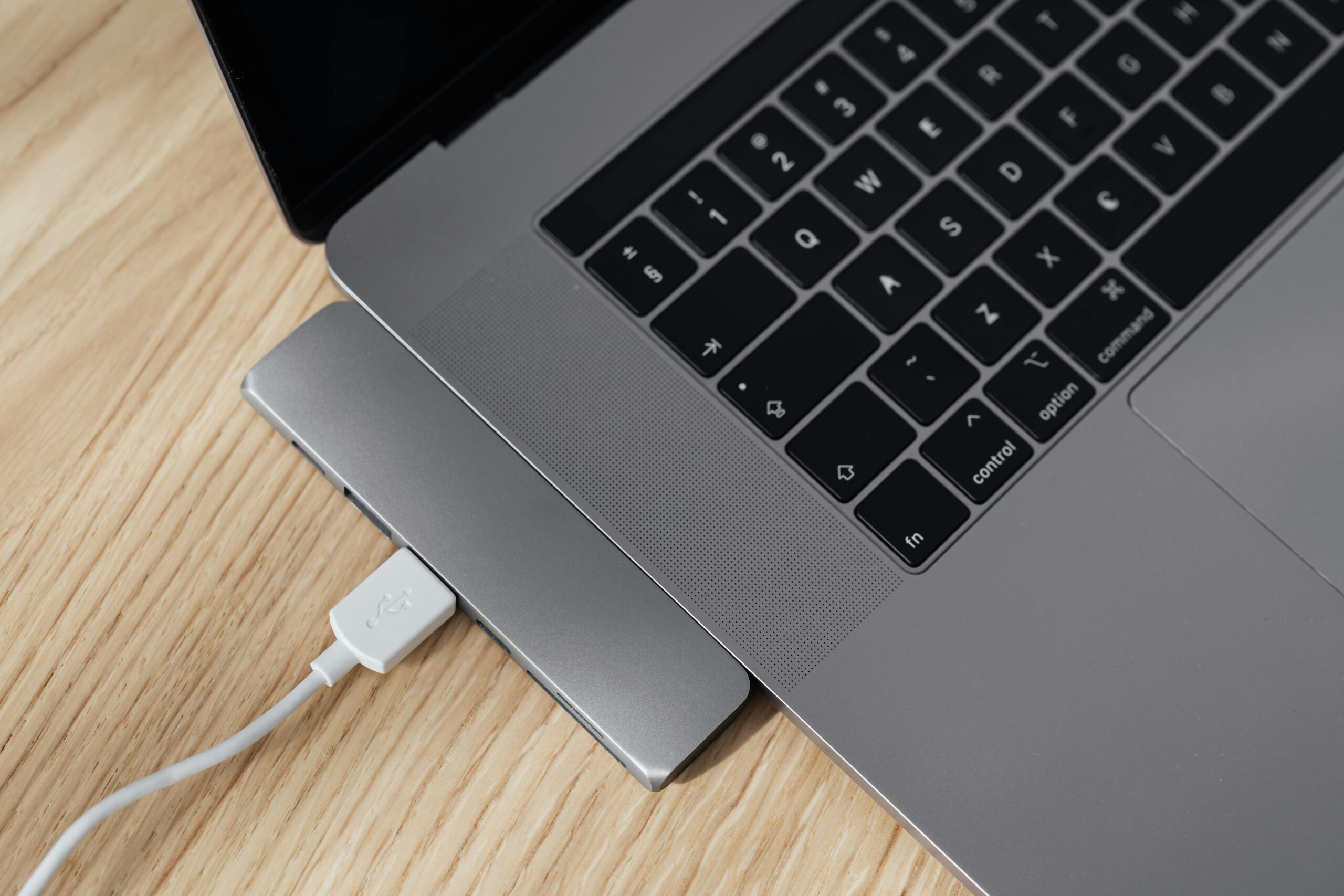
USB-C hub vs docking station setup on a laptop desk

A simple laptop desk setup showing the kind of USB-C hub and dock setup this guide is about.

Quick answer: USB-C hub vs docking station

  • Choose a USB-C hub if you want a small, cheaper accessory for adding a few extra ports like USB-A, HDMI, SD card, or Ethernet.
  • Choose a docking station if you want a more complete desk setup with charging, monitor support, more USB ports, Ethernet, audio, and cleaner cable management.
  • Choose a Thunderbolt dock if you need the best performance, especially for higher-end MacBook Pro setups and more demanding display or storage needs.

What is a USB-C hub?

A USB-C hub is a compact adapter that plugs into your laptop and gives you a handful of extra ports. If you want a dedicated roundup, also see our guide to the best USB-C hub for MacBook. Most hubs are designed for portability, so they are popular with MacBook Air and MacBook Pro users who want more connections without carrying a large dock around.

A typical USB-C hub may include HDMI, USB-A, USB-C power pass-through, SD or microSD card slots, and sometimes Ethernet.

USB-C hub pros

  • Smaller and easier to travel with
  • Usually cheaper than a full dock
  • Good for basic office and home use
  • Useful for adding simple ports to a MacBook

USB-C hub cons

  • Usually fewer ports
  • May have limited monitor support
  • Often less power delivery
  • Not as clean for permanent desk setups

What is a docking station?

A docking station is a larger desktop accessory that turns your laptop into more of a workstation. If you already know you want a full desk setup, check our guide to the best docking station for MacBook Pro. A dock is usually designed to stay on your desk and connect to monitors, Ethernet, keyboard, mouse, speakers, storage, and charging through one main cable.

Docking stations are a much better fit if you regularly connect your laptop to a monitor, want cleaner cable management, or use lots of accessories every day.

Docking station pros

  • Better for permanent desk setups
  • Usually supports more ports and accessories
  • Often better charging support
  • Can make dual monitor setups easier
  • Cleaner one-cable connection at your desk

Docking station cons

  • More expensive than a hub
  • Larger and less travel-friendly
  • Some docks have Mac display limitations you need to check carefully

Main differences between a USB-C hub and a docking station

FeatureUSB-C HubDocking Station
SizeSmall and portableLarger, desk-focused
PriceUsually cheaperUsually more expensive
PortsBasic selectionMore ports and expansion
ChargingOften pass-through onlyUsually stronger laptop charging
MonitorsBasic external display supportBetter for larger desk setups
Best forTravel, simple setups, occasional useOffice desks, home office, power users

Which is better for a MacBook?

For a MacBook, the best option depends on how you work.

  • Get a USB-C hub if you mainly need a few extra ports for USB drives, HDMI, SD cards, or Ethernet.
  • Get a docking station if your MacBook spends most of its time at a desk connected to monitors and accessories.
  • Check monitor support carefully because some MacBooks, especially certain base models, have limits on external displays.

If you are building a proper desk setup, a dock usually feels much better day to day. If you are working on the move, a hub is usually the better buy.

USB-C hub vs docking station for dual monitors

If dual monitors matter, this is where many buyers get caught out. Some USB-C hubs can connect to multiple displays, but support depends on the hub, the laptop, and the operating system. MacBooks can be especially tricky because display support is not the same across all models.

In general, a docking station is the safer option for a dual monitor desk setup, especially if you want stable charging, Ethernet, multiple USB devices, and less cable clutter.

Who should buy a USB-C hub?

  • Students
  • Travel users
  • MacBook Air users who only need a few extra ports
  • People who want a budget-friendly accessory
  • Anyone who does not need a permanent workstation setup

Who should buy a docking station?

  • Home office users
  • Business users with monitors and accessories
  • MacBook Pro users building a full desk setup
  • Anyone who wants one cable to connect power, display, Ethernet, and peripherals
  • Users who regularly connect storage, audio, keyboard, mouse, and networking at the same time

Recommended picks

Disclosure: As an Amazon Associate, 123myIT may earn from qualifying purchases.

If you want a simple shortlist to start with, these are the most useful product types for this kind of setup.

As a simple rule, buy a USB-C hub if you want something portable and affordable. Buy a dock if your laptop stays on a desk and you want a cleaner one-cable setup.

Related guides

Final verdict

A USB-C hub is best for portability and simple expansion. A docking station is best for a more complete desk setup.

If you only need a few extra ports, save your money and buy a good USB-C hub. If you want a proper workstation setup with monitors, charging, Ethernet, and less cable mess, buy a docking station.

If you are still deciding, the next best step is to compare a few solid options side by side and choose based on how many ports, displays, and accessories you actually need. We will also be adding dedicated guides for the best USB-C hubs for MacBook and the best docking stations for MacBook Pro.