
Fix MacBook Touch Bar issues on a MacBook Pro with the steps in this guide. If you need to fix MacBook Touch Bar problems like freezing, no response, or startup issues, these steps should help.
Command: sudo pkill TouchBarServer
Fix MacBook Touch Bar with a Quick Command
Restart Your MacBook to Fix MacBook Touch Bar Problems
The first step is the most basic. Restart your Mac. Go to the Apple menu, click Restart, untick Reopen windows when logging back in, and then click Restart. It sounds simple, but a restart can fix a lot of Touch Bar problems.
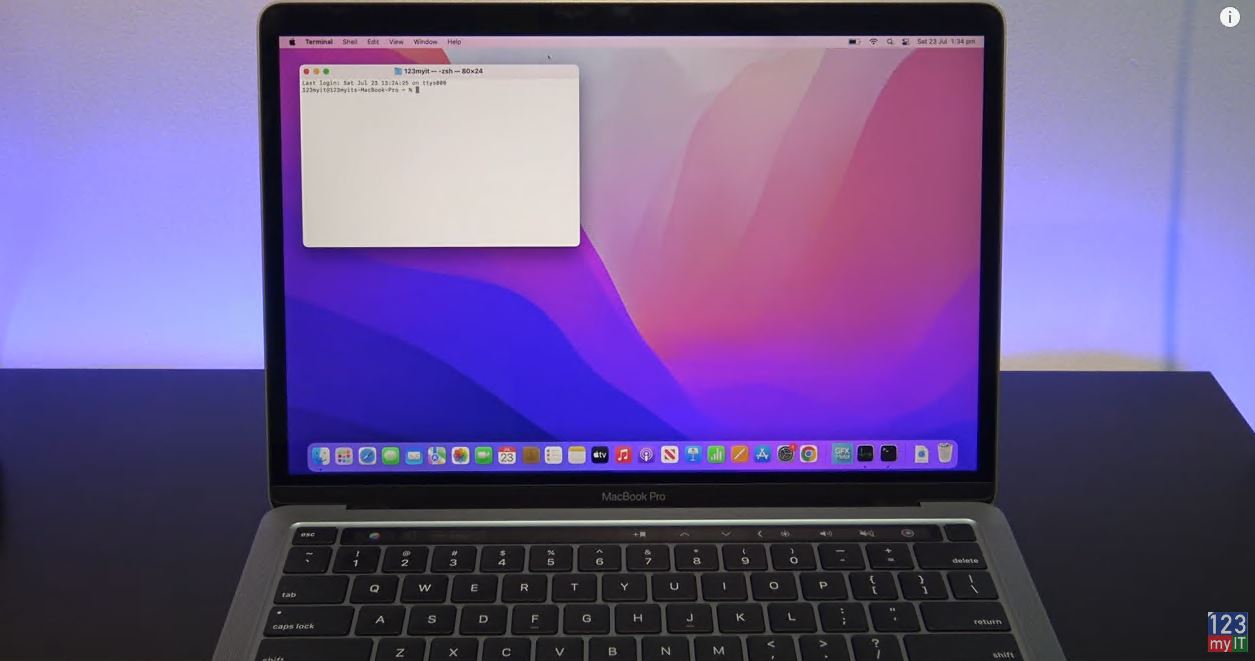
The Next step is to open up Terminal and reset the touch bar server & control strip. Go to Finder and search for Terminal and in Terminal type the following command: sudo pkill TouchBarServer Now I think you need to have it in the same upper and lower case as I have typed here and also I will put the command in the description so you can just copy it. Once you are done there go ahead and type in your Administrator computer. Cool so go ahead do a restart and see if your touch bar is now working.
Use Activity Monitor
The next thing to try is Activity Monitor. Search for it in Finder and open it. In the search bar at the top, type TouchBarServer. Click the Stop button and then click Quit. Then search for Control Center and do the same thing. Restart your Mac and see if the Touch Bar starts working again.
Check Keyboard Settings to Fix MacBook Touch Bar Issues
Next, check the keyboard settings. Open System Preferences, click Keyboard, and make sure the Touch Bar Shows menu is set to App Controls. Also make sure the Show Control Strip checkbox is ticked.
Update macOS
If none of those fixes work, make sure macOS is up to date. Go to the Apple menu, click About This Mac, and then click Software Update. In my case, the system was on version 12.4 and the latest update was 12.5. Apply the update and restart your Mac. If the Touch Bar still is not working after that, it may be a hardware issue and you may need to contact Apple. For most people though, one of the earlier steps will fix MacBook Touch Bar problems before it gets to that point.
Guys if I helped you here today, don’t forget to check out my other posts such as HP EliteBook 830 G8 review. If you know anyone who might like this post, please share it with them. If you are still trying to fix MacBook Touch Bar problems after following these steps, leave a comment on the post and I will try to point you in the right direction.