
Android apps crashing is a common problem on many phones. This Android apps crashing guide shows you easy ways to fix apps that keep closing, freezing, or refusing to open.
Android Apps Crashing? Restart Your Phone
The first thing to try is a simple restart. Restarting your Android phone can clear temporary glitches and is often the quickest way to stop Android apps from crashing.
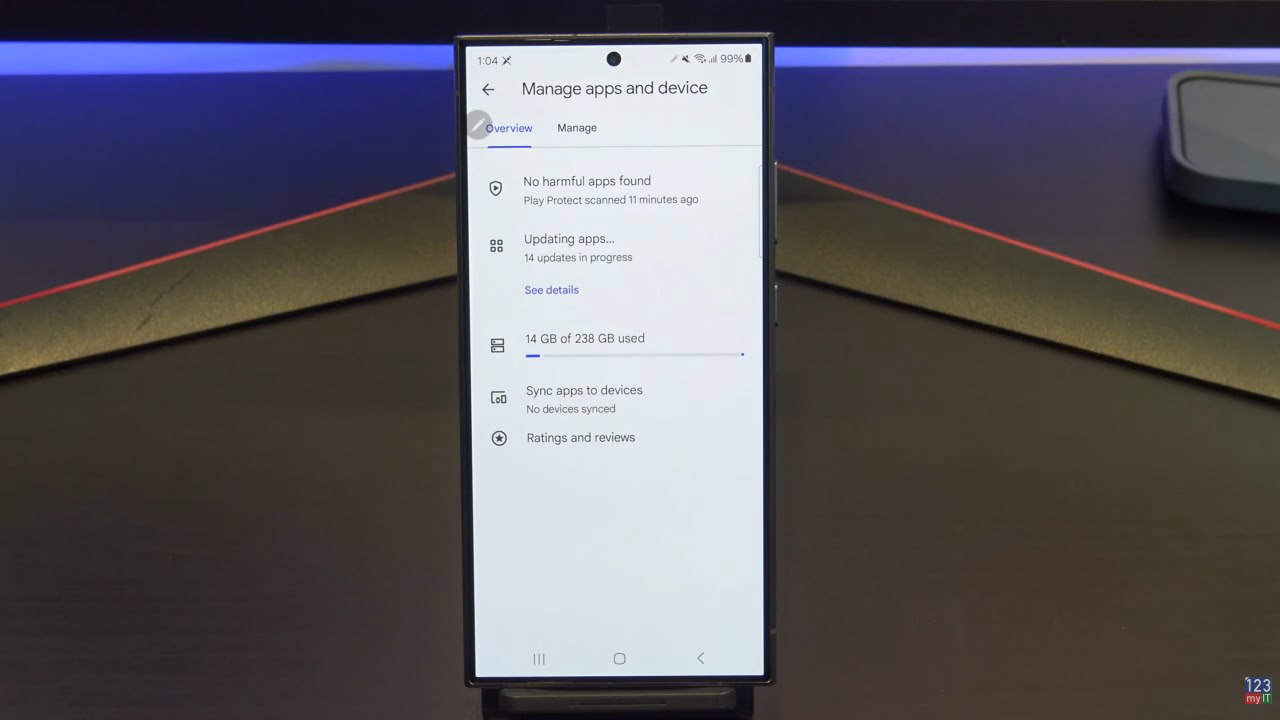
Check for Android App Updates
Open the Google Play Store and make sure the app that is crashing is fully up to date. App developers often release updates to fix bugs and improve compatibility with newer Android versions. You can also check for updates directly in the Google Play Store.
Android Apps Crashing? Clear App Cache
Go to Settings, Apps, choose the app that is crashing, and then clear the cache. A corrupted cache can cause apps to behave badly, so this is one of the most useful fixes to try.
Clear App Data
If clearing the cache does not work, try clearing the app data. Keep in mind this may sign you out of the app or remove saved settings, so only do this if you are happy to set the app up again.
Update Android System Software
Check if your phone has a system update available. Android updates can fix app compatibility issues and improve overall system stability.
Check Storage Space
If your device is low on storage, apps may crash more often. Make sure you have enough free space by deleting old files, clearing downloads, or removing apps you no longer use.
Android Apps Crashing? Reinstall the App
If the app still crashes, uninstall it and then reinstall it from the Google Play Store. This can replace damaged files and give you a fresh install.
Final Thoughts
If you are trying to stop Android apps from crashing, these are the best steps to work through first. In most cases, a restart, app update, cache clear, or system update will solve the problem. If one app keeps crashing while others work fine, reinstalling that app is often the best final step.
Guys if I helped you here today, don’t forget to check out my other Android guides on 123myIT, including Take Control of Your Notifications on Android and Transfer Data iPhone to Android with Cable No iCloud. If you need a new phone for testing or replacing an old device, you can also check Android options here: Android phone deals on Amazon.