
PG27UCDM review of the ASUS ROG Swift PG27UCDM 27 inch OLED gaming monitor. This post covers what you get in the box, the monitor features, connectivity, stand adjustments, and the things I have liked after using it for a few months.
If you want to upgrade to a 4K gaming monitor for work, video editing, and fast online gaming, this monitor has some very impressive specs.
PG27UCDM Review Overview
The model in this video is the ASUS ROG Swift PG27UCDM. It is a 27 inch 4K OLED gaming monitor with a default resolution of 3840 x 2160. With 166 pixels per inch it delivers very sharp image quality and clear text.
On the outside of the box, you can see the key specs. These include 4K HDR, 240Hz refresh rate, 0.03ms response time, NVIDIA G-SYNC, HDMI 2.1, USB-C, DisplayPort 2.1a, and a 3 year warranty.
What You Get in the Box
First out of the box is the metal stand which feels sturdy and well made. You will need to remove the little plastic protective pieces before putting it together.
You also get the ROG logo lighting cap which fits on the bottom of the stand and lights up.
A VESA mount is included as well, so you can mount the monitor to a monitor arm or desk stand instead of using the ASUS stand.
There are also customizable plastic caps included. These let you swap out the logo projected onto your desk. I didn’t think I would care much about this at first, but it turned out to be a pretty cool feature.
Inside the box, you also get the usual cables, including USB-C, USB 3.2, DisplayPort, and HDMI. They are branded with the ROG logo, which makes them easier to identify if you have a bunch of spare cables lying around.
Other items in the box include the documentation, a colour calibration report, a felt cleaning cloth, and a useful setup guide. The guide shows you how to connect everything and use the on screen display.
Build Quality and Setup
Putting the monitor together is simple. Plug the stand into the back and tighten the screw underneath. Once that is done you can attach the stand to the back of the display and it is ready to go.
The stand also includes cable management, which helps keep your desk clean and tidy.
If you are tight on desk space, the stand footprint is around 11 inches, so that is something to keep in mind before buying.
Screen Finish
One of the first things you will notice is the semi gloss screen finish. This helps improve picture quality and colour vibrancy, which works really well on an OLED panel.
The downside is that you can get some reflections in brighter rooms, so if your setup is near a window or strong lighting you may want blinds or better light control.
Connectivity
- Power input
- 3 x USB 3.2 ports
- USB hub
- Kensington lock
- 2 x HDMI ports
- DisplayPort
- USB-C
- Earphone jack
This gives you plenty of flexibility for gaming PCs, consoles and accessories.
Stand Adjustments and Lighting
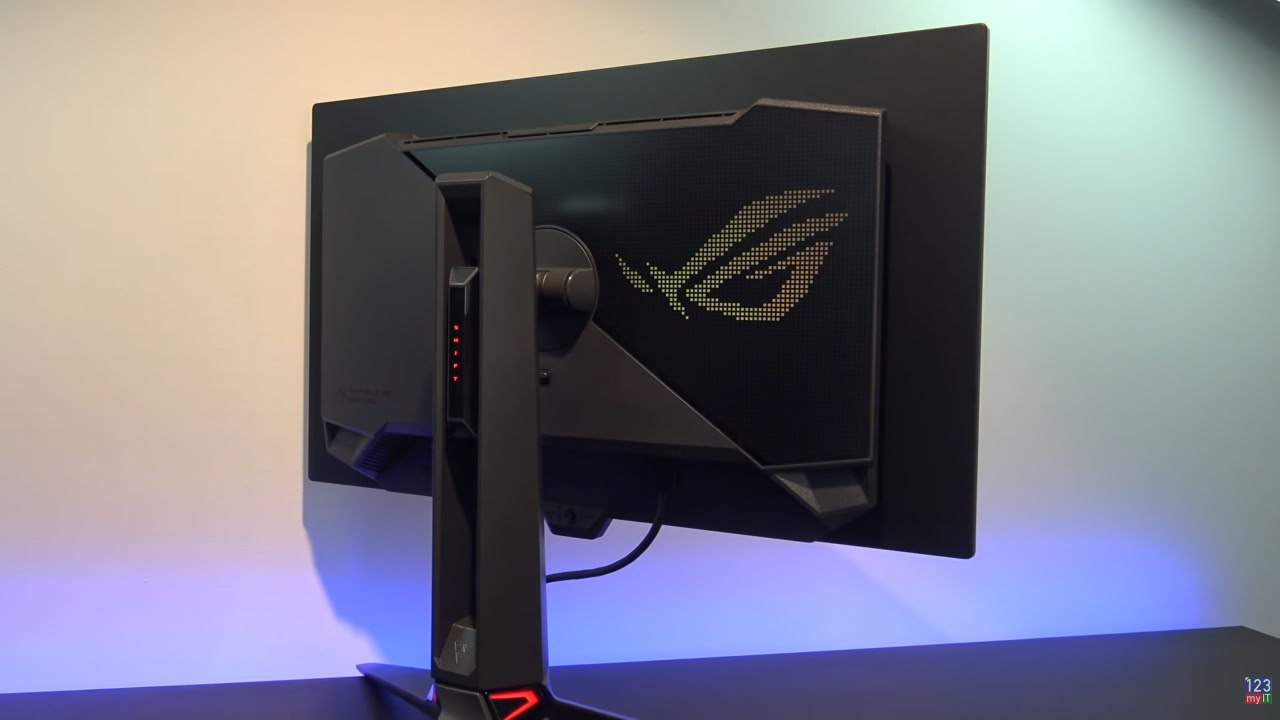
The ASUS stand gives you a good range of movement. You can adjust the height, tilt it back and forward, swivel it side to side, and rotate it 90 degrees into portrait mode.
There are also ROG lighting effects on the back of the monitor and on the stand. You can change them in the on screen display menu under Lighting Effect. From there, you can change colours and effects such as breathing and strobing.
Features I Use After 4 Months
After using the monitor for around four months, one feature I have found useful for FPS games like PUBG is the built in crosshair overlay. In games where the normal crosshair disappears, this makes it easier to keep track of your aim.
The second feature I use is the Auto Adjust preset. It turns up the brightness and helps me see enemies more easily in PUBG. There are other modes you can choose from, such as Racing and Cinema, but I don’t really use those.
PG27UCDM Review: Image Quality and Gaming Experience
In terms of image quality, the first thing you will notice is the more vibrant colours and deeper blacks. The next thing you notice is the pixel density. Because this is a 4K screen at 166 pixels per inch, text and images look sharper and more detailed.
What I noticed in PUBG was the extra detail on the characters and the guns. Everything looked amazing and it honestly made me wonder why I didn’t upgrade sooner. That is one of the biggest reasons this PG27UCDM review is so positive.
PG27UCDM Review: PUBG Crashing Fix
Upgrading wasn’t completely without issues. I made the mistake of setting PUBG max frame rates to unlimited and it caused constant crashing.
What fixed it for me was setting the max frame rate to 237, which is 3 frames lower than the 240Hz refresh rate of the monitor when using G-SYNC.
After I changed that setting, the PUBG crashing stopped for me. I’m not saying it will fix every setup, but it worked on my system with this ASUS monitor and an RTX 4070 Ti.
PG27UCDM Review: Neo Proximity Sensor
Another feature worth mentioning is the Neo Proximity Sensor. Go to OLED Care, then Neo Proximity Sensor. There you can set the display to turn off when it detects no movement in front of it.
It works a bit like an iPhone screen turning off when you are not using it.
This can be a good feature for office work, but it can be annoying for gaming. The display may switch off if you are not moving enough in front of the monitor. It reacts to movement in front of the screen, not your keyboard or mouse input.
PG27UCDM Review: Price and Value
Pricing starts at around $1099 USD, so this is definitely not a cheap monitor. I got a better deal during the Black Friday sales, so it is worth waiting for a sale if you are interested in upgrading.
If you want a 4K OLED display with fast refresh rate, low response time, and good connectivity, this monitor has a lot going for it.
PG27UCDM Review Verdict: Should You Upgrade?
Would I recommend upgrading? Absolutely, especially if you are using an older lower PPI display or if you want to move up to a 4K screen. As I mentioned earlier, I don’t regret upgrading.
If you want to check out the ASUS ROG Swift PG27UCDM and other new ASUS monitors, I have left a link in the description below. You can also check out my earlier post on how to fix MacBook Touch Bar issues.
Guys as always thanks very much for watching the video. If you could do me a favour and leave a thumbs up on the video, I will catch you in the next one. If you like gaming gear and monitor upgrades, have a look around 123myIT for more hardware posts and guides.